Vehicles and properties
Keep each customer's cars, homes and buildings on file so quotations, jobs and history are tied to the right vehicle or property.
What it is
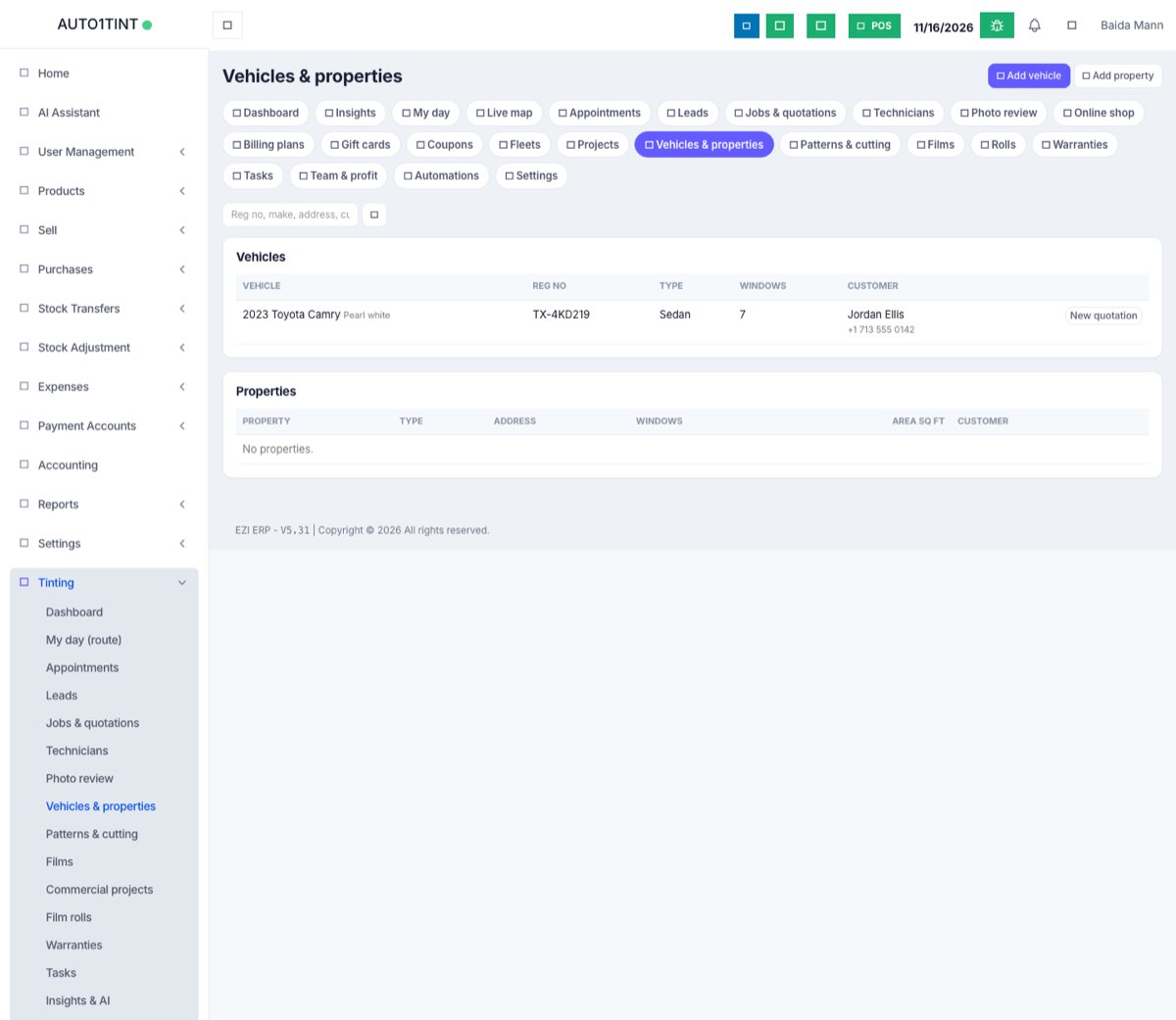
Every tinting job is done on something: a vehicle (automotive jobs) or a property (homes, offices, shops, buildings). The Vehicles & properties page lists them all, each linked to the customer who owns it. A customer can have many of each, for example a family with two cars and a house, or a fleet with fifty vans.
Who uses it
- Front desk: adds a customer's car or home while writing a quotation, and searches by number plate or phone when a customer calls.
- Owner / manager: uses the New quotation button next to a vehicle or property to quote a returning customer.
- Technicians: look up the existing tint, the window count or access notes before a visit.
Why it matters
When the vehicle or property is recorded once, every quotation, job, photo, warranty and invoice points to it. You can see what was done to a car before, the Fleets page can show history per van, and the job card shows exactly which car or address the technician is going to.
How to use it
Add a vehicle
- Go to Tinting → Vehicles & properties.
- Click Add vehicle.
- Pick the Customer (required). Start typing a name or phone to search your ERP contacts.
- Fill in what you know: Make, Model, Year, Colour, Reg no (number plate), VIN, Type (e.g. sedan, SUV), Windows (how many) and Existing tint / condition. Use the last box for anything you would want to know later, such as "old purple film on rear, scratch on passenger door".
- Save. You will see "Vehicle added."
Add a property
- Click Add property.
- Pick the Customer, then enter the Name (required), e.g. "Ellis home" or "Blue Area office". Choose the Type: Residential or Commercial.
- Add the Address, Floors / building, Windows, Area (sq ft), Glass type and Access notes (gate code, parking, which entrance).
- Save.
Add one while quoting
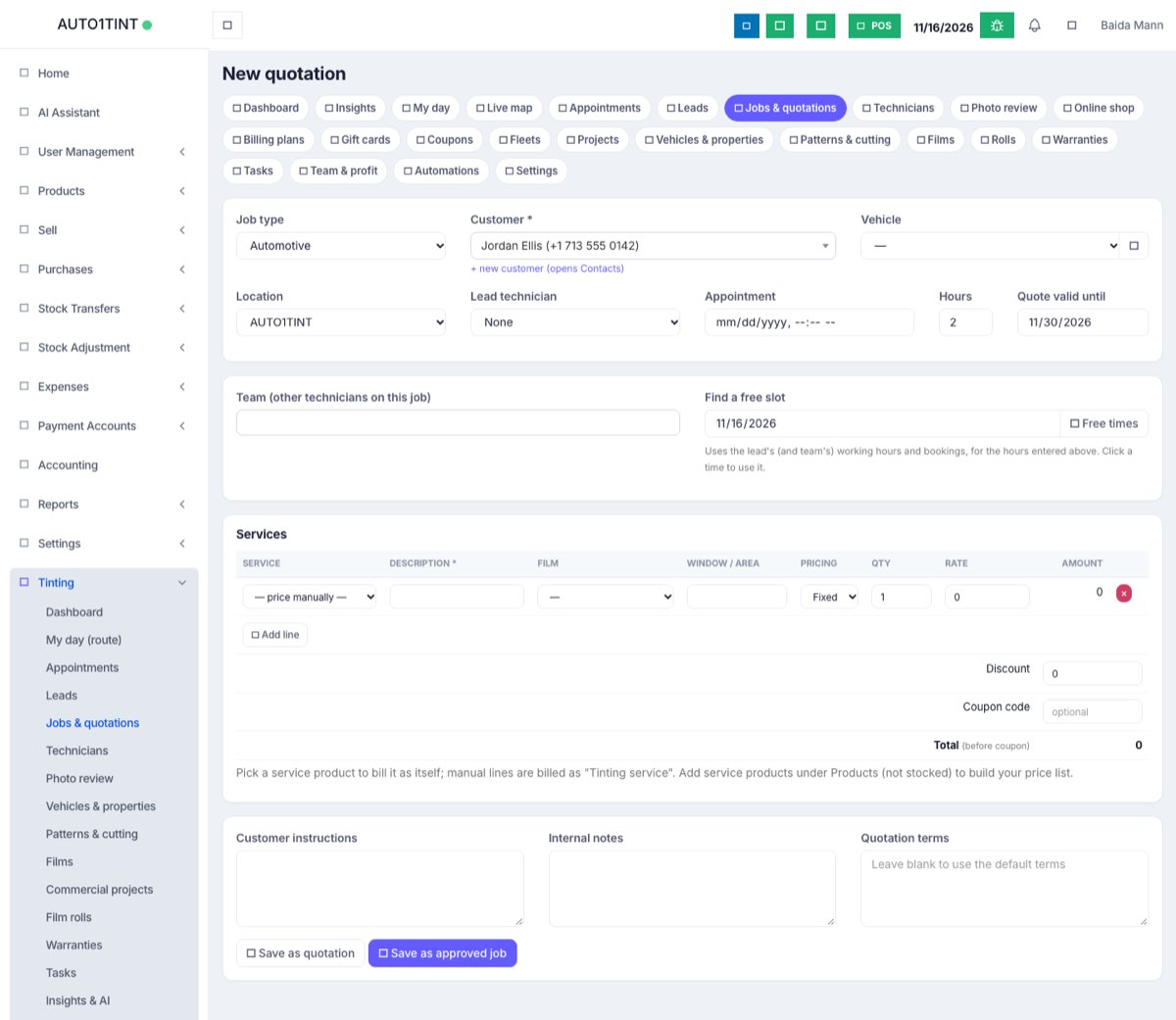
You do not have to come here first. On Tinting → Jobs & quotations → New quotation, pick the customer, and the Vehicle box (or Property, for residential and commercial jobs) lists their vehicles or properties. Click the + button next to it to add a new one without leaving the quotation. See Quotations and jobs.
Find a vehicle or property
Type in the search box at the top (reg no, make, model, VIN, property name, address, customer name or phone) and click the search button. Vehicles and properties are listed in two tables, newest first, 25 to a page.
Quote a returning customer
Click New quotation on the row. A new quotation opens with that customer already filled in.
Rules & limits
- Every vehicle and property must belong to a customer (an ERP contact in your business). Otherwise you get "Unknown customer."
- A property needs a name and a type (Residential or Commercial). All vehicle fields are optional, but add at least the make, model or plate so you can recognise it.
- Year can be up to 10 characters, reg no and VIN up to 50. A vehicle can have up to 100 windows and a property up to 100,000.
- The New quotation buttons are only shown to users with
tinting.manage. - There is no delete button on this page. Correct a wrong record rather than making a duplicate.
- Commercial projects create their own property automatically when you start the project (see Commercial projects).
Tips
- Always record the number plate. It is the fastest way to find a car when the customer phones, and fleet imports use it to skip duplicates.
- Note existing damage or old film in Existing tint / condition, then back it up with "before" photos on the job (see Photos and videos).
- For homes, record Access notes so whoever goes out to the job knows how to get in.
- For buildings with many windows, use a commercial project instead of one big property. It keeps a register of every pane.