Films and the film catalogue
Your list of tint films with their specifications, linked to stock, plus a stock-planning table that tells you when to reorder.
What it is
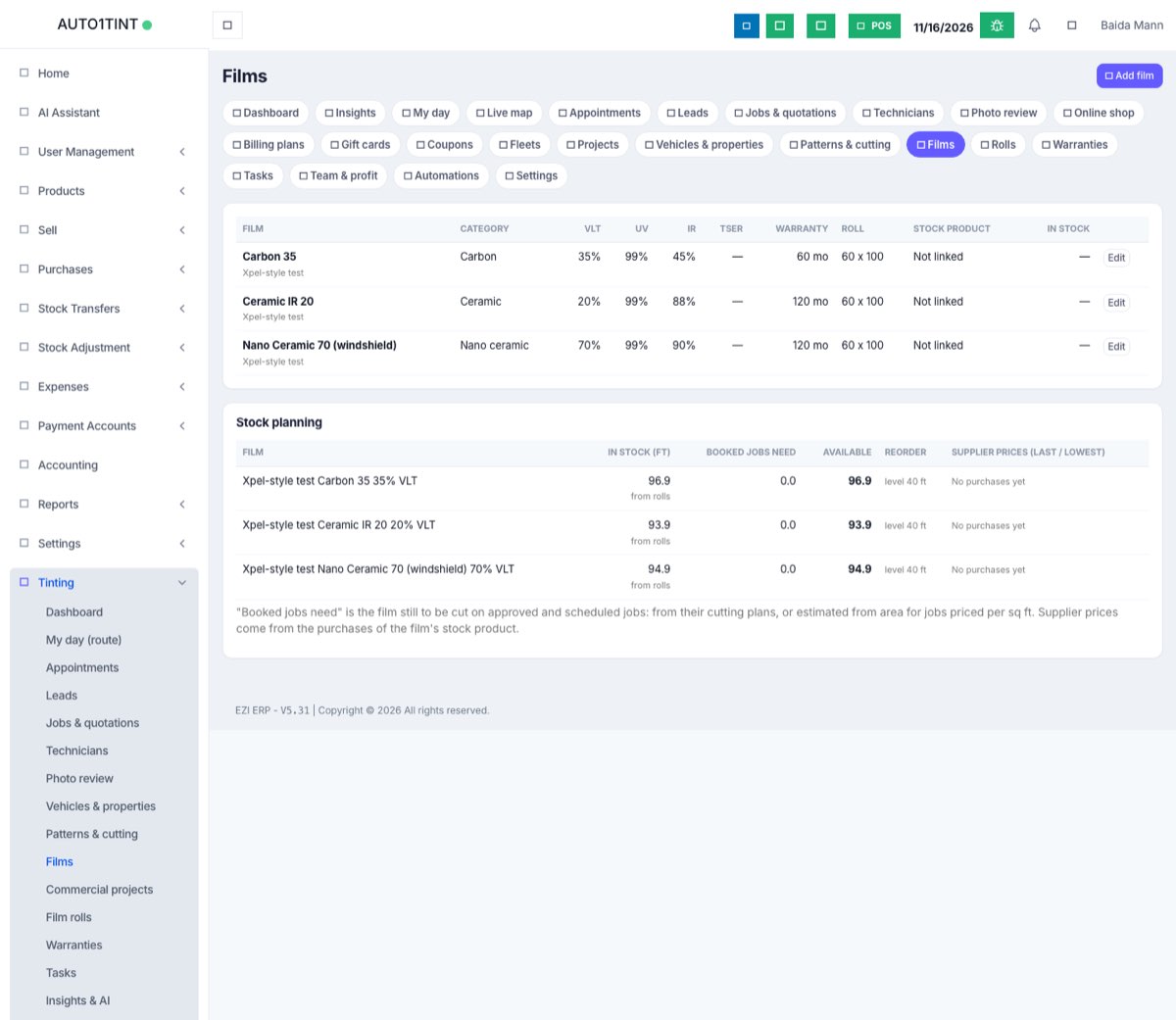
The Films page is your catalogue of every window film you sell: carbon, ceramic, security film, paint protection film and so on. Each film records its shade and performance figures, how long its warranty runs, the size of the rolls it comes on and, if you want, the stocked ERP product it is bought and sold as.
The same page has a Stock planning table. It shows how much of each film you have, how much your booked jobs still need, what is left over, and when it is time to reorder.
Who uses it
- Owner / manager: adds and edits films, links them to stock and sets reorder levels. You need the
tinting.managepermission for this. - Front desk: picks films when writing quotations (see Quotations and jobs).
- Technicians: can open the page to check specifications, but cannot add or change films.
Why it matters
Quotations, cutting plans, rolls and warranties all point back to a film. With a tidy catalogue, quotes show the right figures, film used comes out of stock and is costed, and you find out you are running low before the job, not on the morning of it.
A new shop that signed up as a "Window tinting shop" starts with three sample films (Carbon 35%, Ceramic 20% and Ceramic 70% for windshields). Edit or replace them with your own range.
How to use it
Add a film
- Go to Tinting → Films.
- Click Add film.
- Fill in the form:
- Name (required), e.g. "Ceramic 20%".
- Brand, e.g. the manufacturer.
- Category: Dyed, Carbon, Ceramic, Nano ceramic, Metalized, Security, Decorative, Solar control, UV protection or Paint protection.
- Stock product: the ERP product this film is stocked as. Leave it on "Not linked" if you do not track it as stock.
- VLT % (visible light let through: the lower it is, the darker the film), UV rejection %, IR rejection % and TSER % (total solar energy rejected).
- Warranty (months), e.g. 120 for a 10-year film.
- Roll width and Roll length: the standard size of a roll of this film.
- Reorder when available falls below (ft): your reorder level. Leave it blank for no reorder alert.
- Notes.
- Click Save. You will see "Film added."
To change a film, click Edit on its row, change the fields and click Save.
Link a film to stock
Linking is optional, but it is what makes film usage come out of your stock:
- First create the film as a normal ERP product with stock tracking switched on, using a unit of length (feet or metres) that matches how you measure film on jobs.
- Buy film with a normal ERP purchase so the stock and the accounts stay correct.
- Edit the film in Tinting → Films and choose that product under Stock product.
The In stock column then shows the product's stock. When film is recorded on a job (see Film rolls), the ERP makes a stock adjustment for it.
Read the Stock planning table
For each film the table shows:
- In stock (ft): the feet left on your rolls that are in use ("from rolls"), or the linked product's stock if you have no rolls of this film ("product stock"). "not linked" means there is nothing to count.
- Booked jobs need: film still to be cut on jobs that are approved, scheduled, in progress or in quality inspection. It comes from each job's cutting plan. For jobs with no cutting plan that are priced per sq ft or per sq m, it is estimated from the area divided by the roll width, plus 10%. "+N job(s) not measured" means some jobs have neither, so the real need is higher.
- Available: in stock minus what booked jobs need. It turns red when it falls below the reorder level.
- Reorder: when available is below your level, it suggests "Order ~X ft (N rolls)", enough to get back to twice your reorder level, with a Purchase order link to the ERP purchase order screen.
- Supplier prices (last / lowest): for each supplier you have bought the linked product from: the last price, the lowest price, the date and how many times you bought it. "No purchases yet" until you record a purchase.
Rules & limits
- Only users with
tinting.managesee the Add film and Edit buttons. - VLT, UV, IR and TSER must be between 0 and 100. Warranty months must be between 0 and 1,200.
- The stock product must be one of your own business's products.
- Films cannot be deleted from this page. Rename an old film or leave it unused.
- Supplier prices only appear for films linked to a stock product that you have purchased with ERP purchases.
Tips
- Put the brand and the VLT in the film's details: the film's label shows as "Brand Name 20% VLT" in every drop-down.
- Set a reorder level on your best-selling films so you see the red warning in good time.
- Add cutting-plan pieces to booked jobs (see Film rolls) so "Booked jobs need" is an exact figure rather than an estimate.