Appointments calendar
The shared calendar of every booking - move jobs by dragging, see clashes before they happen, repeat visits, fill cancellations from a waiting list and sync to Google Calendar.
What it is
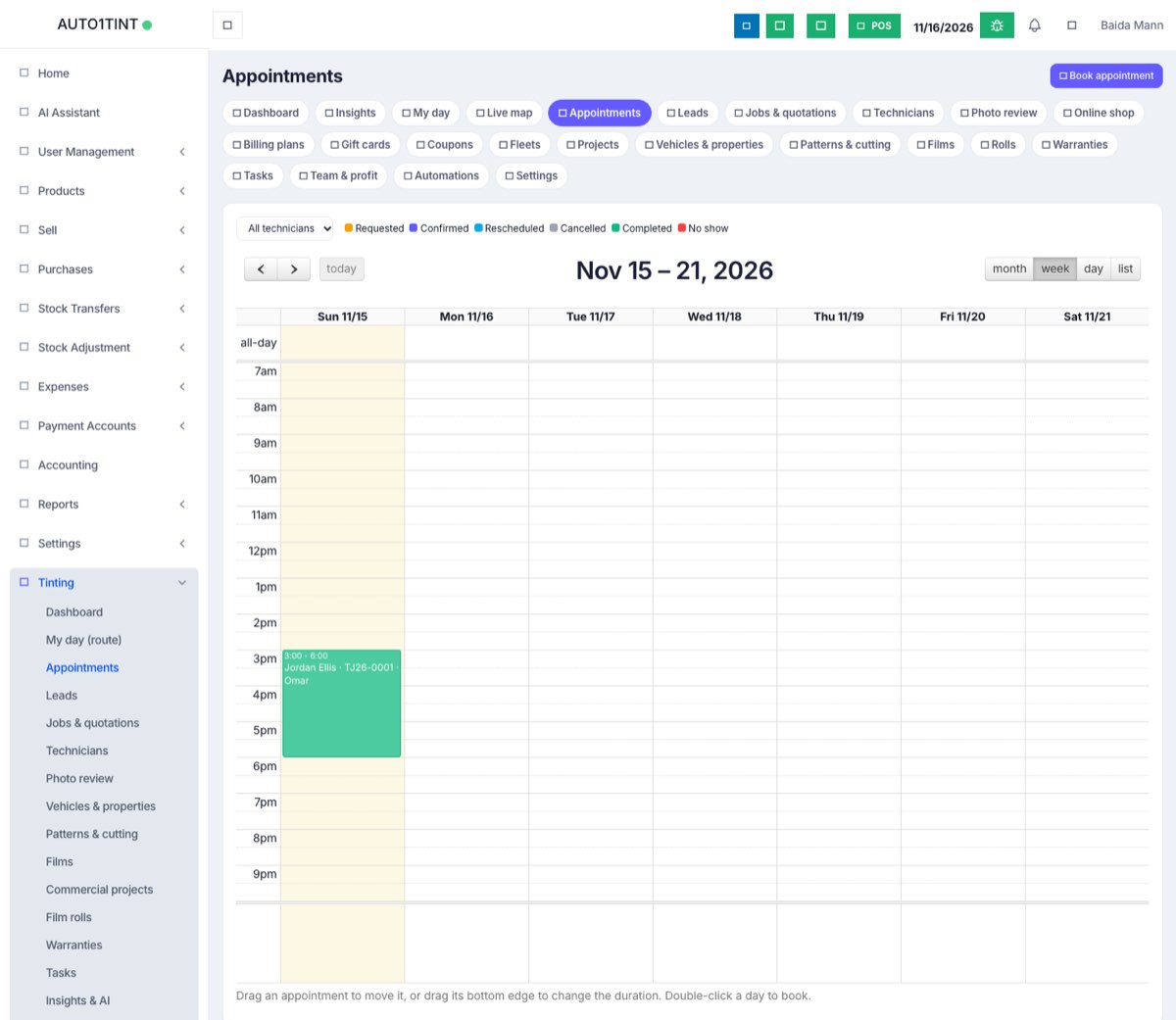
Tinting → Appointments is the shop's diary. Every booking appears on it: a car coming in for a ceramic tint, a site survey at a house, a fleet van on its monthly visit, or a request a customer made on your website. Each appointment belongs to a customer and can be linked to a job (quotation) and a technician.
Appointments are coloured by status:
| Status | Colour | Means |
|---|---|---|
| Requested | amber | Came in from the website or online shop; nobody has confirmed it yet |
| Confirmed | purple | Booked and agreed |
| Rescheduled | light blue | A confirmed booking that was moved |
| Cancelled | grey | Will not happen (the slot is free again) |
| Completed | green | Done |
| No show | red | The customer did not turn up |
Who uses it
- Owner / manager and front desk (permission
tinting.manage): book, move, resize, confirm and cancel appointments, run the waiting list. - Technicians (
tinting.accessonly): see only the appointments they lead or are on the team for. They cannot move them, but they can mark an appointment Completed or No show. - Customers never see this page; they see their own booking in the customer portal, where they can ask to reschedule.
Why it matters
A double-booked technician or a forgotten booking costs you a customer. The calendar checks each booking against the technician's working hours, time off and other bookings, and warns you before a clash. The waiting list turns cancellations into paid work instead of empty bays.
How to use it
Book an appointment
- Go to Tinting → Appointments and click Book appointment (or double-click a day on the calendar).
- Pick the Customer, the Start time and, if you like, the End time. If you leave End empty, the appointment is two hours long.
- Choose a Technician, and fill in Title (for example "Full car ceramic tint"), Location ("Shop, or the customer's address") and Notes.
- Click Book.
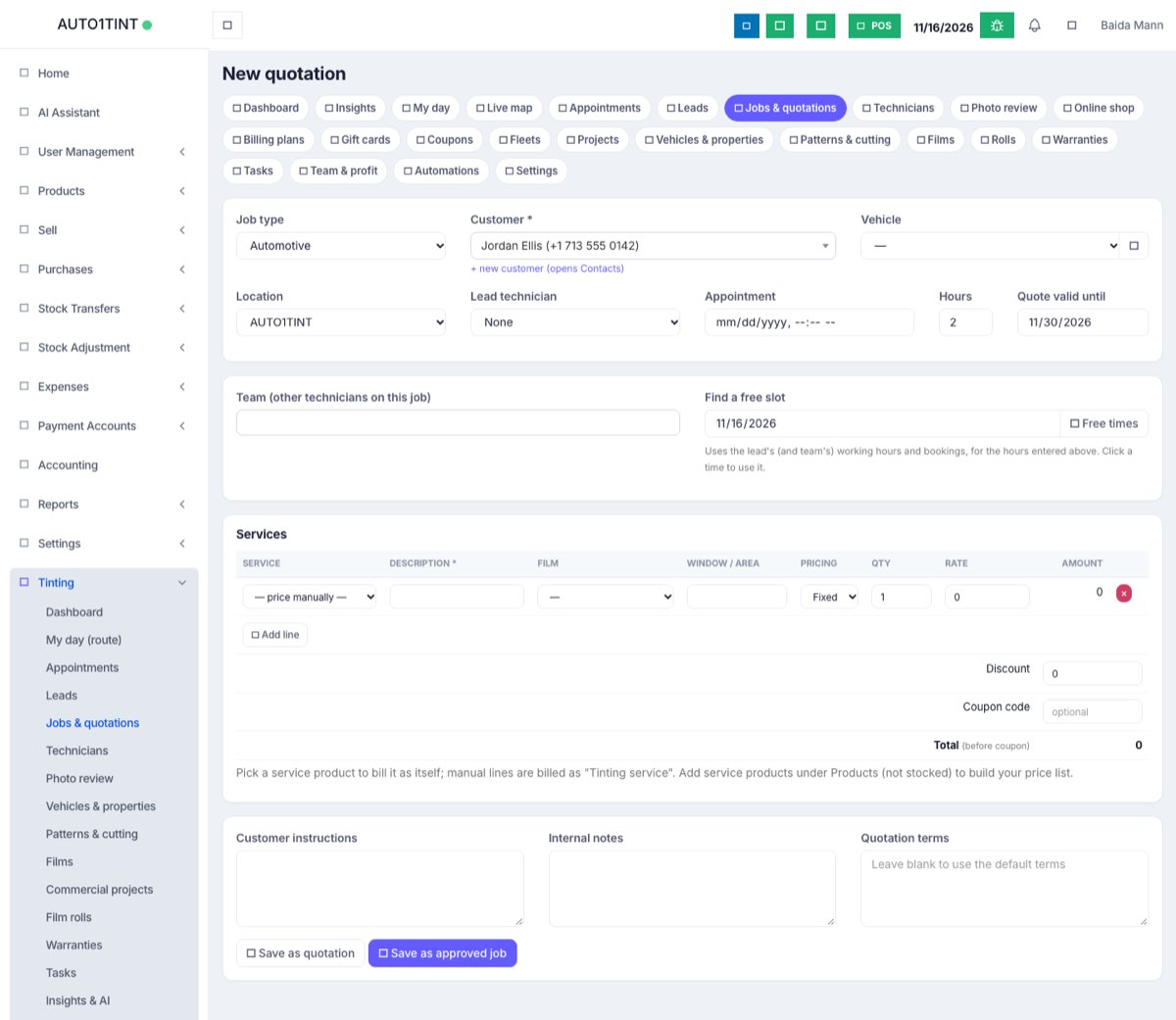
For a priced job, create the quotation first and set its appointment there: on the job form, fill in Appointment and Hours, and use Find a free slot → Free times to see open times for the lead technician and team. Click a time to use it. See Quotations & jobs.
Book each line separately
On a job with several services, a manager can book one line on its own day with its own technician from the job page (Book this line), for example old film removal on Monday and installation on Wednesday. See The job card.
Move or resize
- Drag an appointment to a new time to move it. A confirmed appointment becomes Rescheduled.
- Drag its bottom edge to make it longer or shorter.
- Use the views at the top right: month, week, day and list. On a phone the calendar opens in the list view.
- Use the All technicians drop-down to see one person's diary.
Moving an appointment that is linked to a job also moves the job's scheduled date and technician.
Clash warnings
When you book or move an appointment, the system checks everyone working it (the technician plus the job's team). The booking is still saved, but you see a warning such as:
Appointment updated. Note: Omar is booked 14 Nov 10:00-12:00; Omar works 09:00-18:00 that day.
Fix it by moving the booking or choosing someone else. Out-of-hours and time-off warnings only work for technicians whose working hours and leave are set on the Technicians page.
Repeating appointments
For fleet maintenance or regular visits, fill in Repeat every (1-52), choose weeks or months, and set Times (2-52). The system books the whole series at once and shows a repeat icon in the Upcoming list. When you Cancel one of them, you are asked "Cancel the rest of this repeating series too?". Answer OK to cancel every later one.
Confirm website requests
Bookings from your website arrive as Requested and appear in the amber box Booking requests waiting for confirmation. Click Confirm or Decline. Confirming an appointment that is linked to a quotation moves the job to Scheduled. See Website booking.
Waiting list
- In the Waiting list card, choose the customer, type what they want, pick an earliest and latest date and a time of day (any, am, pm, eve), then click Add.
- When an appointment in the next 30 days is cancelled and nobody else takes its time, the card Freed slots that suit someone on the waiting list lists the people it suits. Click Offer to send a WhatsApp message, then Book them in.
- You can also type any date and time next to a person and click Book, or use Mark offered and × to remove them.
Subscribe in Google Calendar, Apple or Outlook
In Tinting → Settings, under Calendar subscription, copy the link. In Google Calendar choose Other calendars → + → From URL and paste it. Each technician's own feed is on the Technicians page under calendar feed.
Rules & limits
- Only
tinting.manageusers can book, drag, resize, confirm, decline or cancel. Technicians can only mark their own appointments Completed or No show. - End time must be after the start time. The customer, job and technician must belong to your business.
- Repeating series: 2-52 times, every 1-52 weeks or months.
- The calendar feed is one-way and read-only. It shows the last 30 days and the next 120 days, leaves out cancelled bookings, and marks requests as "[Request]". Google refreshes it every few hours, not instantly.
- Making a new website booking key in Settings changes every calendar feed link, so everyone has to subscribe again.
Tips
- Set every technician's working hours first. Free-slot suggestions need them.
- Combine with automations ("Appointment booked") to send reminders automatically.
- For the technician's day on the road, see Field service.