Roles & permissions
A role is a named set of permissions (for example Cashier or Accountant) that you give to users so each person can only do their own job.
What it is
A role is a list of things a user is allowed to do: view products, add sales, see profit, delete purchases and so on. Instead of ticking permissions for every person, you build a role once and assign it to as many users as you like.
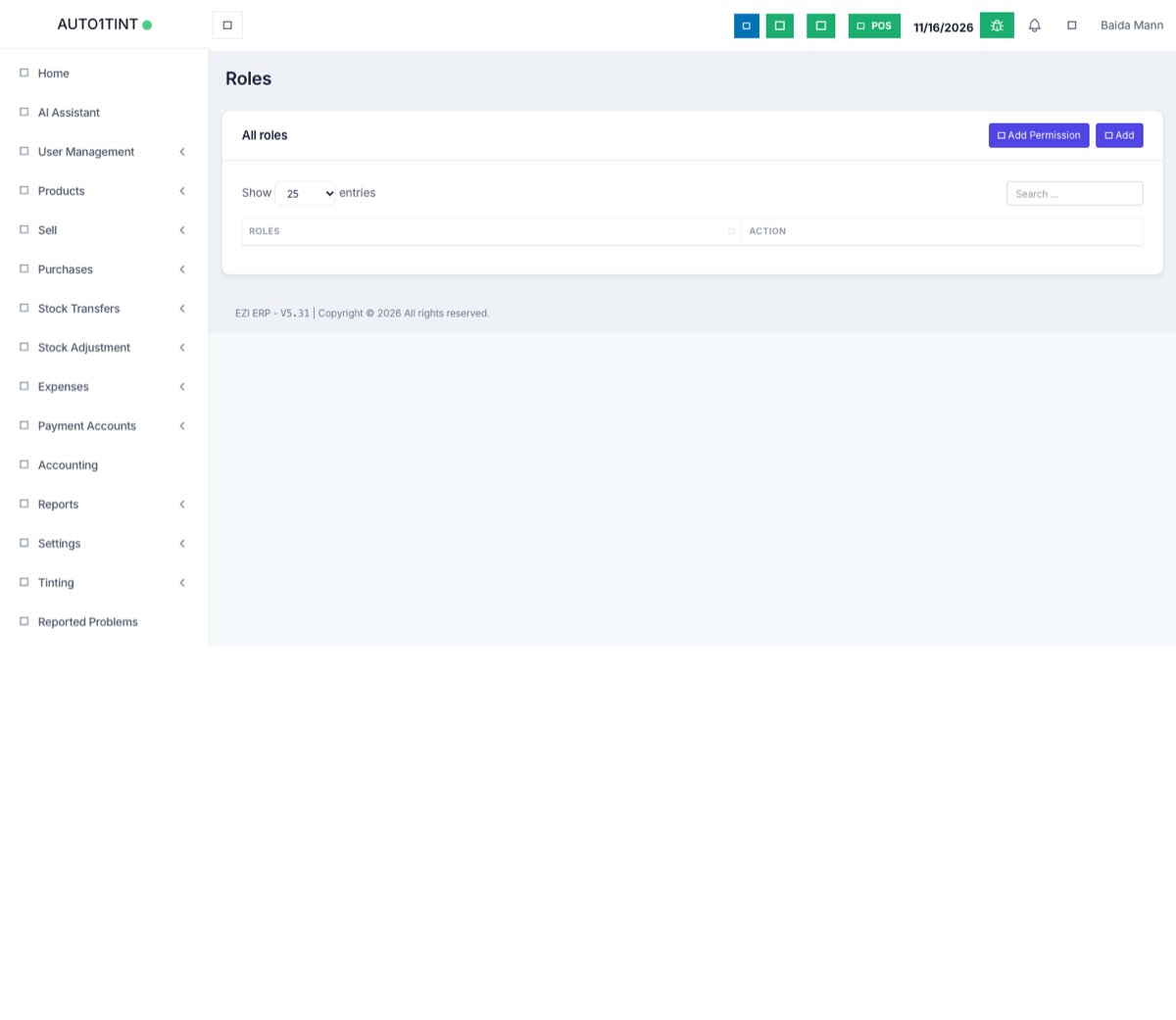
Every business starts with an Admin role that can do everything. You add other roles yourself.
Why you would use it
- A cashier should sell, but not see your profit or delete invoices.
- An accountant needs reports and payments, but not stock edits.
- If you change a role, every user with that role changes at once.
How to use it
Create a role
- Go to User Management > Roles.
- Click Add.
- Type a Role Name, for example "Cashier – Main shop".
- Optional: click a Start template button to tick a sensible set of permissions for you: Cashier, Sales Manager, Accountant, Store Keeper or Blank. You can change any tick afterwards.
- If the restaurant / service-staff feature is on, tick Service staff for people such as waiters or technicians who are assigned to orders.
- Go through the permission cards (Users, Contacts, Products, Purchases, Sales, Reports, Settings and one card for each active module). Tick what this role may do.
- Use the Search permission... box to find a permission quickly.
- The counter at the bottom shows how many permissions are selected.
- Click Save.
Give the role to someone
- Go to User Management > Users.
- Add or Edit the user and choose the new Role.
- Choose Access locations for that user. See Users.
Change or remove a role
- In User Management > Roles, click Edit next to a role, change the ticks and click Update.
- Delete removes a role. Move its users to another role first.
- The Admin role always has full access and is not edited like other roles.
Common permissions explained
| Permission | What it means |
|---|---|
| View / view own | "View own" lets a user see only records they created, not everybody's. |
| Customer / supplier view own | The user only sees contacts assigned to them. |
| Sell access / POS | Opens the sales screens. Without it the Sell menu is hidden. |
| Profit / Loss report | Lets the user see your margins. Usually only for owners and accountants. |
| Edit / delete payments | Allows changing money that has already been recorded. Give it carefully. |
| Business settings access | Opens Settings > Business Settings. |
Tips / common questions
- A menu is missing for a user. Their role lacks the "view" permission for that area. Add it and ask them to log out and back in.
- Start small. Give the fewest permissions needed, then add more when someone asks.
- Module permissions (for example Accounting or HRM) only appear once that module is switched on.
- For owner review of payments and staff changes, see Payment approvals.