The job card
A panel-by-panel tour of the job page, where every step of a tinting job is recorded from quote to warranty.
What it is
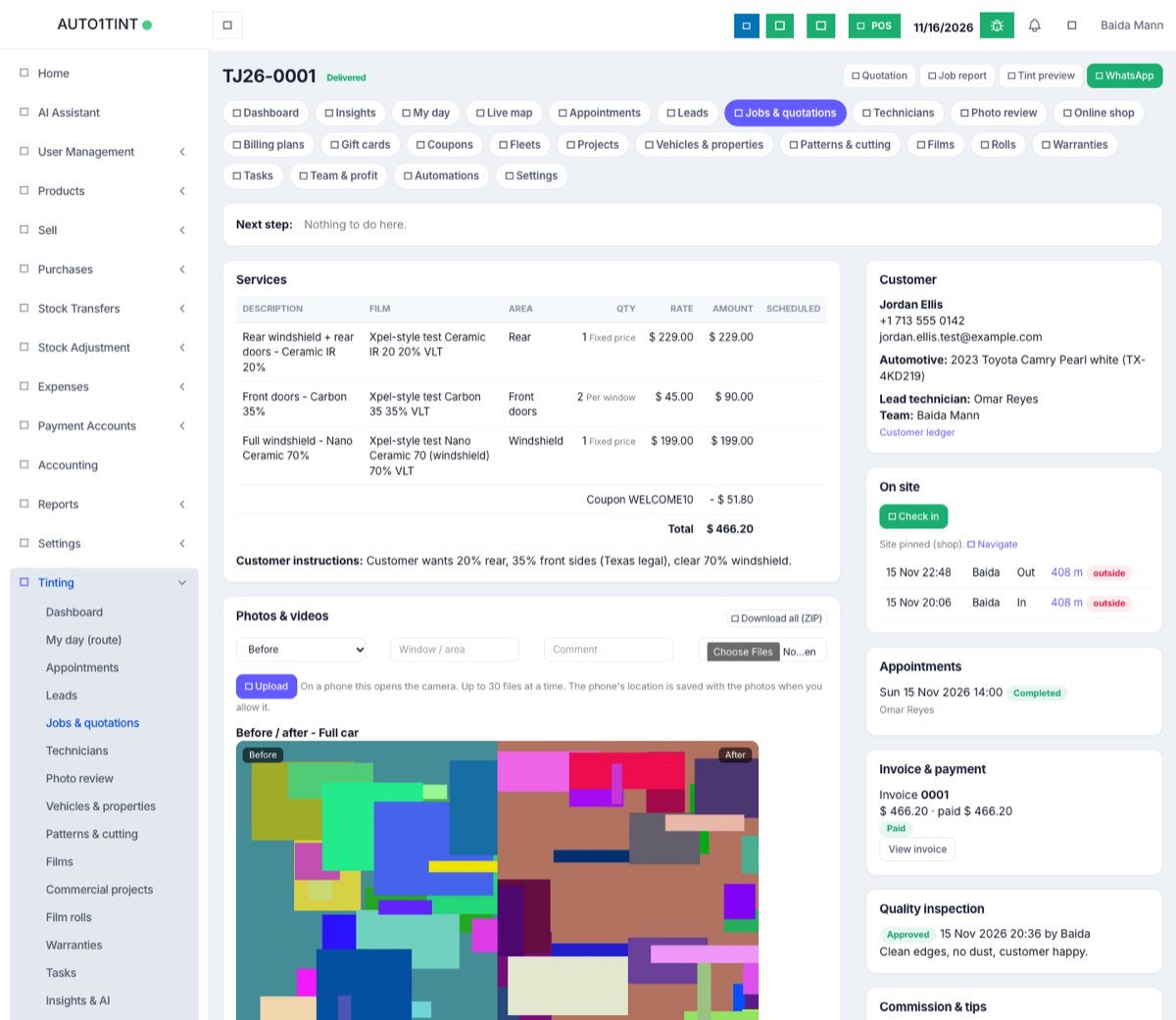
The job card is the page you see when you open any job from Tinting → Jobs & quotations. It holds everything about that one job: the priced services, photos, cutting plan, film used, GPS check-ins, appointments, invoice, inspection, commission, signatures and warranty.
Who uses it
- Managers and front desk (
tinting.manage) see and use every panel. - Technicians (
tinting.accessonly) open only their own jobs. They can start the job, upload photos, record film, check in and out, collect signatures, add tips and send the job for inspection. They cannot edit prices, approve photos, inspect, invoice or issue warranties. - Customers never see this page; they see their own version in the customer portal.
Why it matters
Everyone works from one page, so the front desk knows the moment a technician checks in or uploads the after photos, and the manager can finish the inspection, invoice and warranty without hunting for information.
How to use it
Top bar
Next to the job number and status badge are these buttons:
- Quotation and Job report: printable documents (see Signatures & documents).
- Tint preview: opens the visualizer.
- WhatsApp: opens a message to the customer with the quotation number and total (shown when the customer has a mobile number).
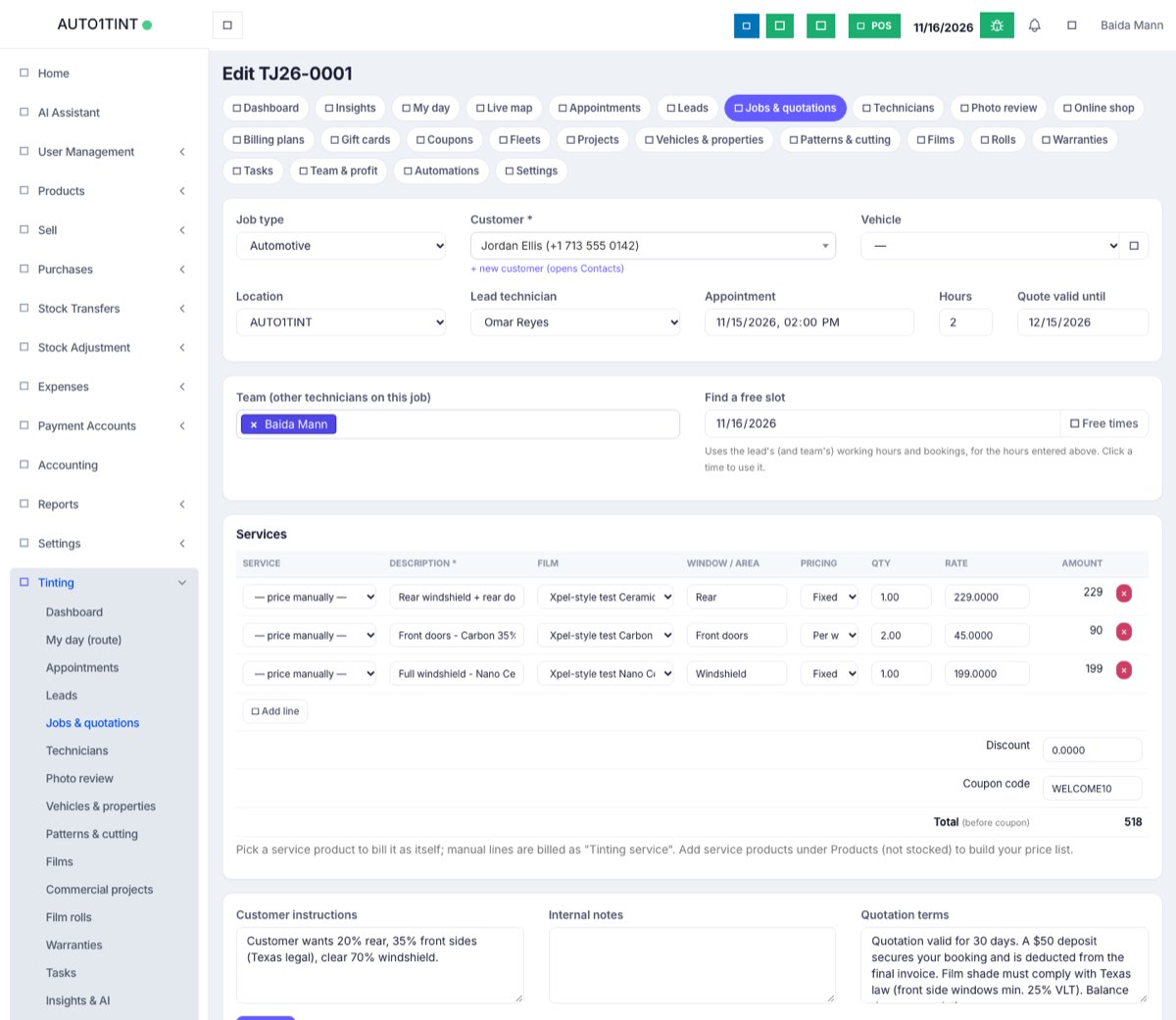
- Edit: managers only, until the job is invoiced.
Next step
This strip shows only the buttons that make sense now: Customer approved / Customer rejected (with a lost reason such as "Price too high"), Mark scheduled, Start job, Send for inspection, Mark delivered or Reopen quotation. Managers also see Cancel job. While a job waits for inspection it says "Complete the quality inspection below." (manager) or "Waiting for the manager's inspection." (technician). The statuses are explained in Quotations & jobs.
Services
The priced lines with film, area, quantity and pricing method, rate and amount, then discount, coupon and Total. The Scheduled column lists bookings for each line. Once the job is approved, managers see a book link on each line: choose Start, End and Technician and click Book, so each line can have its own day and technician.
Photos & videos
- Choose a category (Before, During installation, After, Damage, Product, Measurement, Inspection, Warranty), type the Window / area and a Comment, choose files and click Upload. Up to 30 files at a time; on a phone the camera opens.
- Where a Before and an After photo share an area, a Before / after slider appears.
- Each photo has Mark up (draw on it), and for managers: approve (tick), Reject, Share / Shared (shown to the customer) and delete.
- Download all (ZIP) saves every photo.
Technicians' photos wait for review. More in Photos & videos.
Cutting plan
Add each window or pane (Window / pane, Width in, Height in, quantity, film) and click Add. The plan shows film length, waste % and a diagram, and suggests a roll. Cut from this roll takes the length off that roll. Cut from patterns opens the pattern library for this vehicle. See Rolls.
Film used
Pick the Film, optionally a Roll, enter Length used, Width and Waste, then click Record. Films linked to stocked products come out of stock. Managers see the material cost and the margin on the job.
Customer
Name, mobile, email, the vehicle or property, Directions for properties, lead technician and team, and a link to the Customer ledger.
On site
Check in and Check out record time and GPS. Navigate opens Google Maps to the pinned site. Managers can use Pin site where I am at a property. Recent check-ins show the distance, and outside when too far away. See Field service.
Appointments
Every booking for this job with its status and technician.
Invoice & payment
- Before invoicing: Create invoice (managers; not for quotations, rejected or cancelled jobs). A deposit already paid is applied automatically.
- After: View invoice, Add payment, Split into instalments, Use gift card, and Send pay link by WhatsApp when online payments are set up. See Invoices & payments.
Quality inspection
The nine-point checklist with Pass & complete and Send back. See Quality inspection.
Commission & tips
Commission for each crew member appears once the job is completed (managers can Recalculate commission). Anyone on the job can choose a crew member, amount and method (cash, card, bank) and click Add tip. See Team pay.
Customer portal & signatures
Make customer link, the link with a WhatsApp button, Make new link, the Revisions list, saved signatures, Sign on this device, and the customer's review. See Signatures & documents.
Warranty
Once the job is completed, managers enter the months (taken from the film, else 12) and click Issue warranty; then a Certificate button appears. See Warranties.
Rules & limits
- Technicians can only change status to In progress and Quality inspection.
- Only managers create invoices, approve or reject photos, inspect, issue warranties and pin sites.
- After photos are needed before Send for inspection.
- Photo and video uploads count towards your plan's storage limit.
Tips
- Take Before photos and note existing damage before starting. The page reminds you when there are no photos yet.
- Use Sign on this device to get the customer's signature on your tablet at handover.