Invoices & payments
Turn a finished job into an invoice, apply the customer's deposit automatically, take payments in the shop or online by card, and split big bills into instalments.
What it is
The Tinting module does not keep its own separate accounts. When you click Create invoice on a job, it makes a normal EZI ERP sale invoice, so payments, the customer ledger, accounting and reports work exactly as for any other sale. On top of that the module adds:
- Deposits paid online when booking, applied to the invoice automatically.
- Online card payments through Stripe or Clover, with a pay link you can send by WhatsApp.
- Instalment plans that split what is still due into equal payments.
- A financing link for customers who want to spread the cost with a lender.
- Gift cards used as payment (see coupons, referrals and gift cards).
Who uses it
- Owner / manager creates invoices, sets instalment plans and redeems gift cards.
- Front desk records cash or card payments and sends pay links.
- Customers pay online from the customer portal.
- Technicians can see "Not invoiced yet" but cannot create invoices.
Why it matters
Money collected quickly is money you keep. Deposits stop no-shows, online links mean the customer can pay from the car park, and instalments let you close bigger residential and commercial jobs. Because everything lands in the ERP's sales, your profit reports and customer balances stay correct.
How to use it
Create the invoice
- Open the job from Tinting → Jobs & quotations.
- In the right column find Invoice & payment.
- Click Create invoice and confirm the amount.
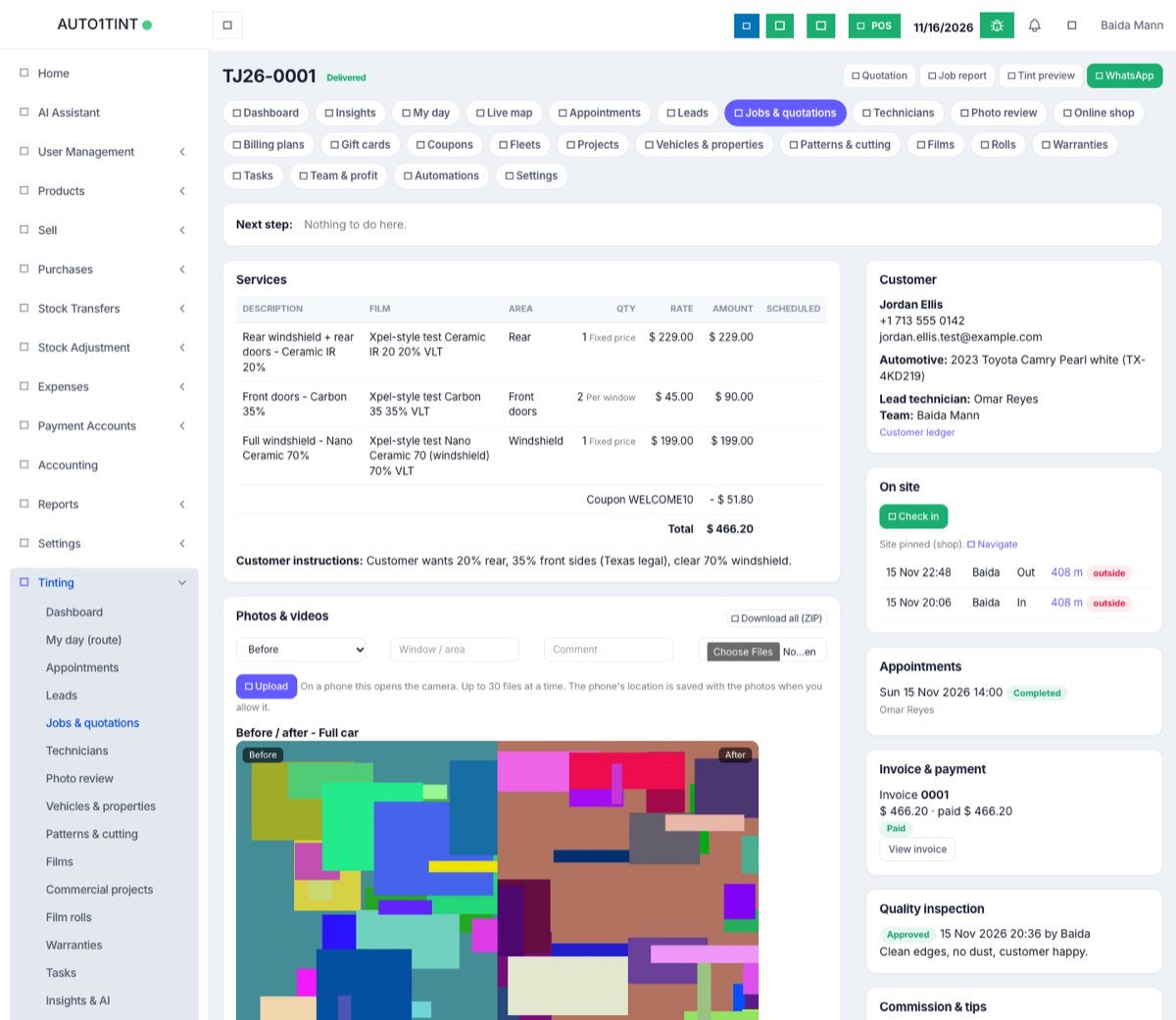
The invoice copies every service line, the discount and any coupon. Lines without a stock product are billed as a "Tinting service" item. A deposit this customer already paid online is applied automatically, so in our test the $50 booking deposit was taken off Jordan Ellis's $466.20 invoice the moment it was created.
Record a payment in the shop
Click Add payment. This is the standard ERP payment window: choose the method (cash, card, bank and so on), amount and account, then save. Click View invoice to see or print the full sale invoice.
Get paid online
- Set up Stripe or Clover first in Tinting → Settings (see settings).
- On the job card click Send pay link. WhatsApp opens with a message like "Pay invoice … online:" and the customer's portal link.
- The customer opens the link, clicks Pay … by card, and pays on the Stripe or Clover payment page.
- When the gateway confirms the payment (its webhook), the payment is recorded on the invoice by itself. The customer sees "Thank you. Your payment of … is received."
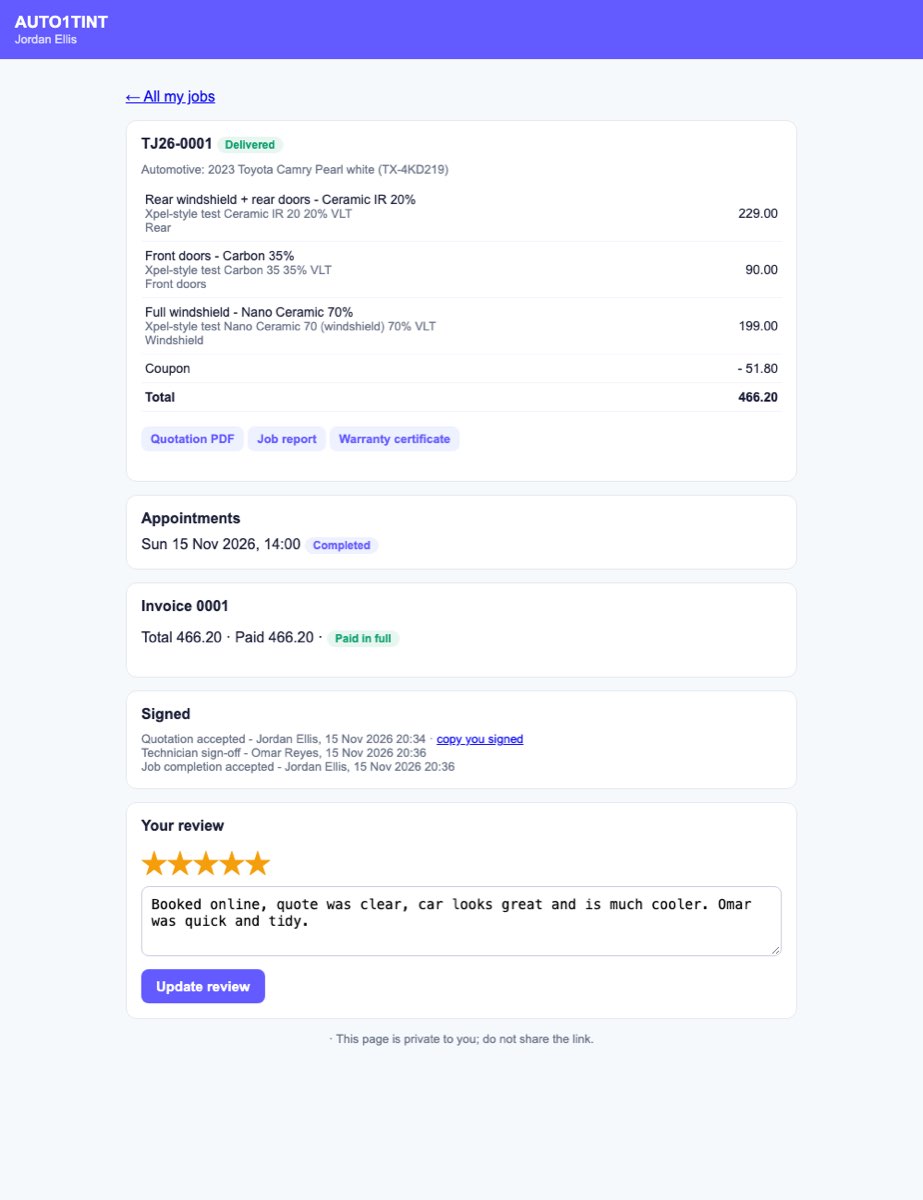
If the customer pays more than is due, the extra is kept as an advance on their account.
Split into instalments
- On an invoice that is not fully paid, open Split into instalments.
- Enter the number of payments (2–36), the first due date, and how many months apart (1–12).
- Click Set.
The balance is split into equal parts (the last one takes any rounding). The job card and the portal show each instalment as due, overdue or paid. Payments fill instalments in order. In the portal the pay button then pays the next instalment only. Use Change instalment plan to redo it. Turn on the ready-made automation Remind instalments 3 days before in automations to send WhatsApp reminders.
Use a gift card
On an unpaid invoice, type the Gift card code and amount, then click Use gift card. You will see how much was paid and what is left on the card.
Customer financing
If you fill in Customer financing in settings, customers with an invoice above your minimum see a Spread the cost button in the portal (only when no instalment plan is set). When the lender confirms the loan, it (or Zapier) calls the financing "paid" address shown in settings and the payment is recorded on the invoice.
Deposits from online bookings
When a customer books on your website and a deposit is set in settings, they are sent to a card payment page. The paid deposit sits on their account as an advance until you invoice the job. See website booking.
Rules & limits
- Only tinting.manage users can create invoices, set instalments or redeem gift cards.
- Create invoice is disabled while the job is a quotation, rejected or cancelled.
- A job can be invoiced only once: "This job is already invoiced."
- Commercial projects billed by milestones are invoiced from the project page: "This project is billed by milestones; invoice from the project page." See commercial projects.
- Fleet jobs can be billed together on one invoice from the fleet page (see fleets).
- Instalments need an invoice first ("Create the invoice first.") and something still due ("Nothing is due on this invoice.").
- Send pay link and the portal pay button only appear when Stripe or Clover is set up. With both set and Use on "Whichever is set up", Stripe is used.
- Payments are only marked as paid when the gateway's webhook confirms them, never from the customer's return page.
Tips
- Make a test payment with a sandbox or test key before going live.
- Set Deposits are received into in settings so online money lands in the right bank account.
- Turn on the Invoice unpaid N days after issue automation to chase late payers.