Expenses
Record running costs such as rent, salaries and electricity, so your profit and cash reports show the true picture.
What it is
An expense is money the business spends that is not stock for resale: rent, utility bills, fuel, wages, repairs, internet and so on. The Expenses menu records these costs, groups them by category, and tracks whether they are paid.
Why you would use it
- Your Profit / Loss Report only shows real profit if expenses are recorded.
- You can see where the money goes each month by category.
- Unpaid bills (for example rent due) are shown as Payment due until you pay them.
- Regular costs can repeat automatically.
How to use it
Set up categories (once)
- Go to Expenses > Expense Categories.
- Click Add, type a name (for example "Rent" or "Utilities") and an optional code.
- You can add a sub category under a parent category.
- Click Save.
Add an expense
- Go to Expenses > Add Expense.
- Choose the Business Location.
- Choose the Expense Category and, if used, Sub category.
- Reference No – leave empty to autogenerate.
- Set the Date.
- Optional fields:
- Expense for – the staff member the cost relates to (e.g. a salary advance).
- Expense contact – the supplier or person you paid.
- Project – when the Project or Construction module is used.
- Docs – attach the receipt photo or PDF.
- Applicable Tax.
- Enter the Total amount and an Expense note.
- Tick Is refund only if this is money coming back to you for an earlier expense.
- In Add payment, record what was paid now, the payment method and the account. Anything not paid stays as Payment due.
- Click Save.
Recurring expenses
On the Add Expense form, tick Is Recurring and set the Recurring interval (days, months or years) and No. of Repetitions (leave blank to repeat forever). The system creates the next expense automatically on schedule.
View and pay expenses
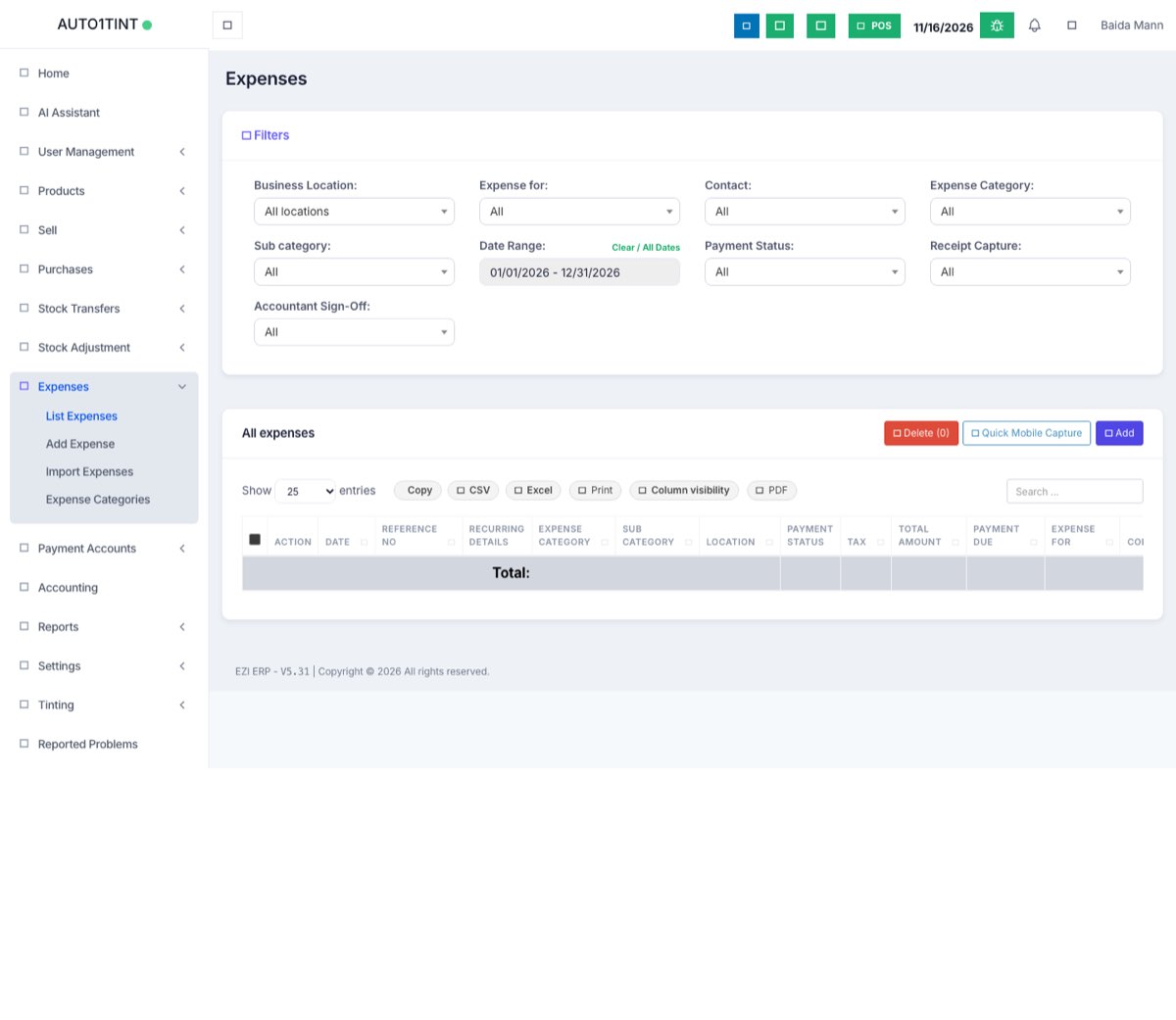
- Go to Expenses > List Expenses.
- Filter by location, category, date range or payment status.
- Use Action to view, edit, delete or Add payment on an unpaid expense.
Import expenses
Expenses > Import Expenses loads many expenses from a spreadsheet template.
Tips / common questions
- Stock you will resell is not an expense. Record it as a purchase. See Purchases.
- Which account did the money come from? Choose it in the payment section. It then shows in Payment accounts.
- Report: Reports > Expense Report shows totals by category and location. See Reports.
- With the Accounting module, each expense is also posted to the chart of accounts. See Accounting.