The dashboard (Home)
The Home screen shows today's money, dues and stock alerts at a glance, so you know what needs attention first.
What it is
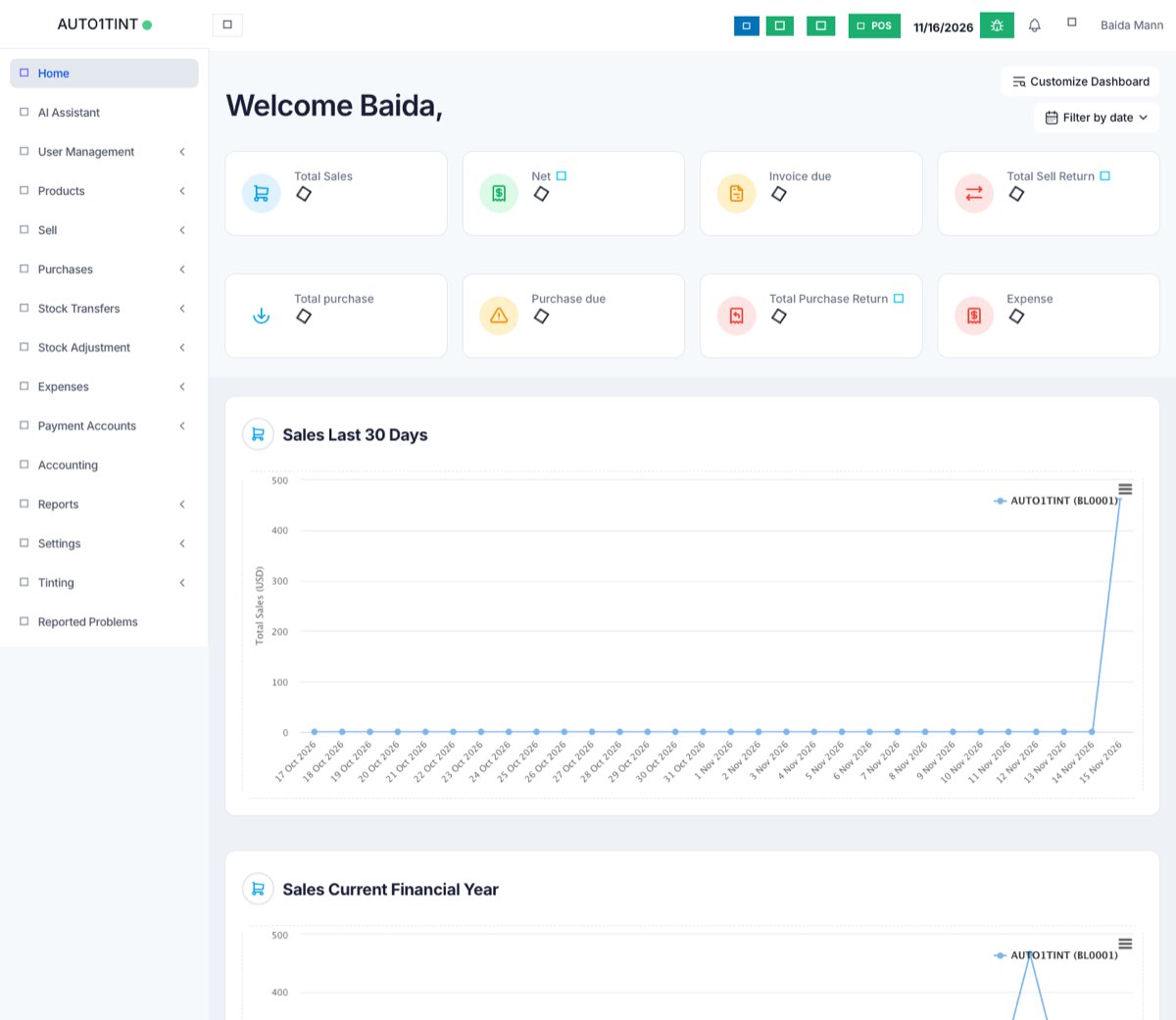
The dashboard is the first page you see after you log in. You can always get back to it with Home at the top of the left menu. It gathers the most important numbers from sales, purchases, expenses and stock into one screen.
Why you would use it
- To see in a few seconds how the business is doing today, this month or this year.
- To spot customers who owe you money and suppliers you need to pay soon.
- To catch products that are running low or about to expire before it becomes a problem.
What you will see
Users who are allowed to see business totals get summary boxes such as:
- Total Sales, Net, Invoice due, Total Sell Return
- Total purchase, Purchase due, Total Purchase Return
- Expense
- Account balances (Total Balance of all the accounts)
The note under the boxes explains the formula: NET = TOTAL SALES - INVOICE DUE - EXPENSE.
Below the boxes you will find:
- Sales Last 30 Days and Sales Current Financial Year charts.
- Sales Payment Due – sales whose payment is due within 7 days (based on the invoice pay term).
- Purchase Payment Due – supplier bills due within 7 days.
- Product Stock Alert – products at or below the alert quantity set on the product.
- Stock Expiry Alert – stock expiring soon (the number of days is set in Business Settings).
- Sales Order, Purchase Order, Purchase Requisition and Pending Shipments lists, when those features are switched on.
How to use it
- Click Home in the left menu.
- Use Filter by date at the top right to pick a period (today, this week, this month, a custom range, and so on). The boxes update straight away.
- If you have more than one location, use Select location to look at one branch only.
- Click an invoice number or product in any list to open it.
- In the due-payment tables, use the action button to add a payment directly.
Tips / common questions
- I can't see the money boxes. Your role does not have permission to view the business totals. Ask the owner to update your role. See Roles & permissions.
- Stock alert is empty but I know stock is low. Set an Alert quantity on each product. See Products.
- The expiry list uses the wrong number of days. Change View Stock Expiry Alert For in Settings > Business Settings > Dashboard. See Business settings.
- For deeper numbers, use the Reports menu, especially the Profit / Loss Report.