Reports
Every built-in report in the Reports menu, what each one tells you, and how to filter, print and export them.
What it is
The Reports menu turns your sales, purchases, stock, expenses and payments into ready-made reports. You don't build anything: open a report, pick a date range, and read or export it.
Why you would use it
- Know whether you are making money, and where.
- See which products sell, which sit on the shelf, and which are about to expire.
- Give your accountant tax and payment figures.
- Check what each staff member and cash register did.
The reports
You only see reports your role allows.
| Report | What it shows |
|---|---|
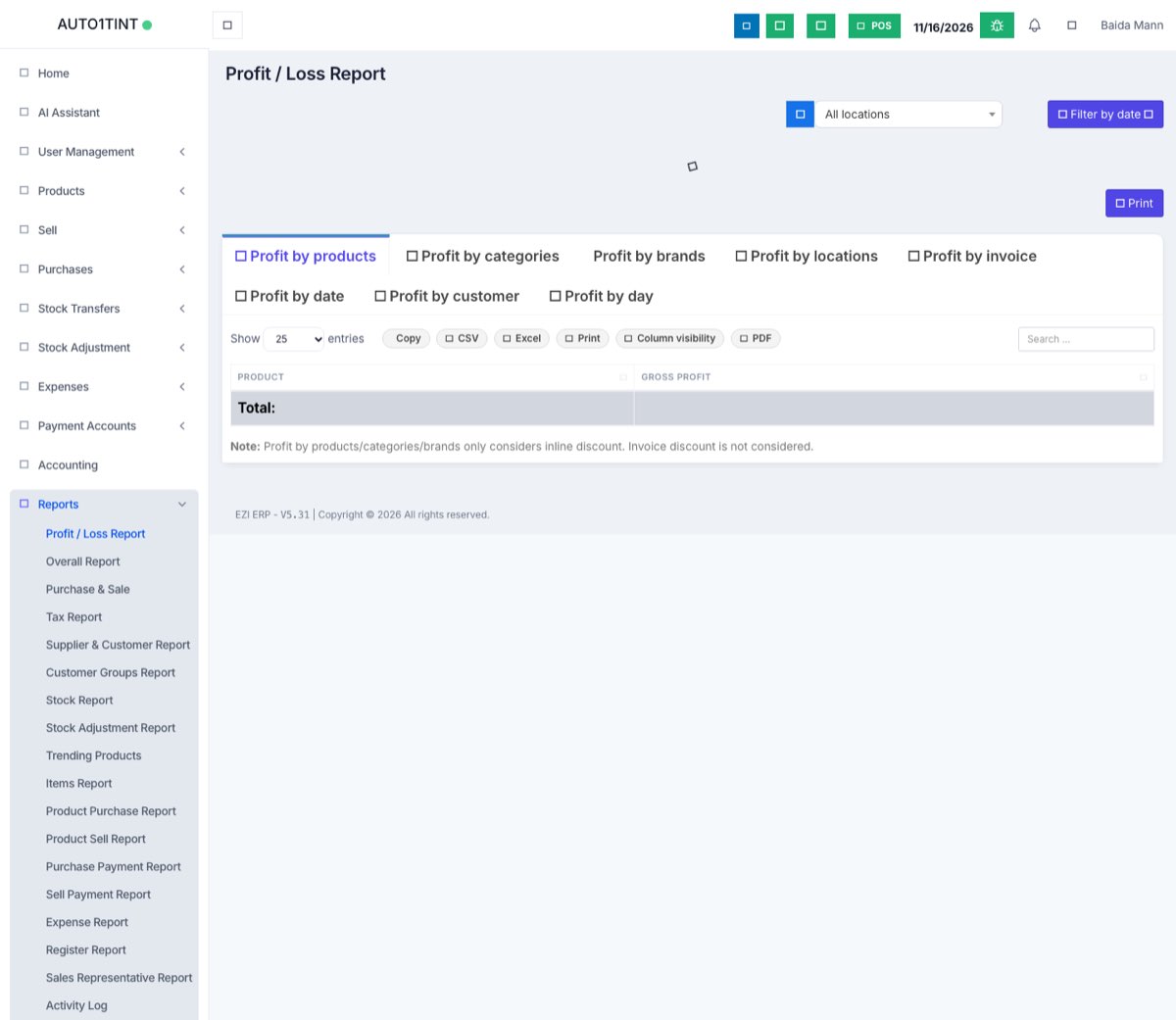
| Profit / Loss Report | Sales minus cost of goods, expenses and other costs for a period, by location. Also profit by product, category, brand, invoice, date and customer. |
| Overall Report | A printable summary of totals for a period, including expenses by category. |
| Purchase & Sale | Total purchases vs total sales, returns and dues side by side. |
| Tax Report | Tax collected on sales (output) and paid on purchases and expenses (input). |
| Supplier & Customer Report | Each contact's total purchases, sales, returns and balance due. |
| Customer Groups Report | Sales totals per customer group. |
| Stock Report | Current stock, stock value and units sold per product and location. |
| Stock Expiry Report | Stock that has expired or will expire soon (when expiry is on). |
| Lot Report | Stock by lot number (when lot numbers are on). |
| Stock Adjustment Report | Total normal and abnormal stock losses and amounts recovered. |
| Trending Products | Best-selling products in a chart. |
| Items Report | Each item bought and sold, with purchase and sale price side by side. |
| Product Purchase Report | Every product line purchased, by supplier and date. |
| Product Sell Report | Every product line sold, by customer and date (detailed or grouped). |
| Purchase Payment Report | Payments made to suppliers. |
| Sell Payment Report | Payments received from customers, by method. |
| Expense Report | Expenses by category and location. |
| Register Report | Each cash register session: opened, closed, totals by payment method. |
| Sales Representative Report | Sales, commission and expenses per staff member or agent. |
| Table Report / Service Staff Report | Restaurant only: sales per table and per waiter. |
| GST sales / purchase report (India) | Only shown when the India GST option is switched on. |
| Activity Log | Admins only: who added, edited or deleted what, and when. |
Some businesses also see Report 606 and Report 607 (Dominican Republic tax formats) if they are switched on for them.
How to use a report
- Open Reports in the left menu and click the report.
- Open Filters (if collapsed) and set them. Most reports have Business Location and Filter by date; others add customer, supplier, category, brand, unit or user.
- The figures update automatically.
- To share, use the buttons above the table:
- Copy – copy rows to paste elsewhere.
- CSV or Excel – download a spreadsheet.
- Print – print the table (or choose "Save as PDF" in the print window).
- Some screens also show a PDF button.
- Some reports (such as Profit / Loss) have their own Print button for the whole page.
Tips / common questions
- Numbers look wrong. Check the date range and location first. Drafts and quotations are not counted.
- Profit seems too high. Make sure all expenses are recorded and products have a purchase price. See Expenses.
- Need a report I can't see? Ask the owner to add the report permission to your role. See Roles & permissions.
- Balance Sheet, Trial Balance and Cash Flow are under Payment Accounts. See Payment accounts.
- The Accounting module adds many more reports (general ledger, ageing, statements). See Accounting.