Technicians, hours & time off
Set each installer's working week and leave, see who is free or overbooked at a glance, and put several technicians on one job.
What it is
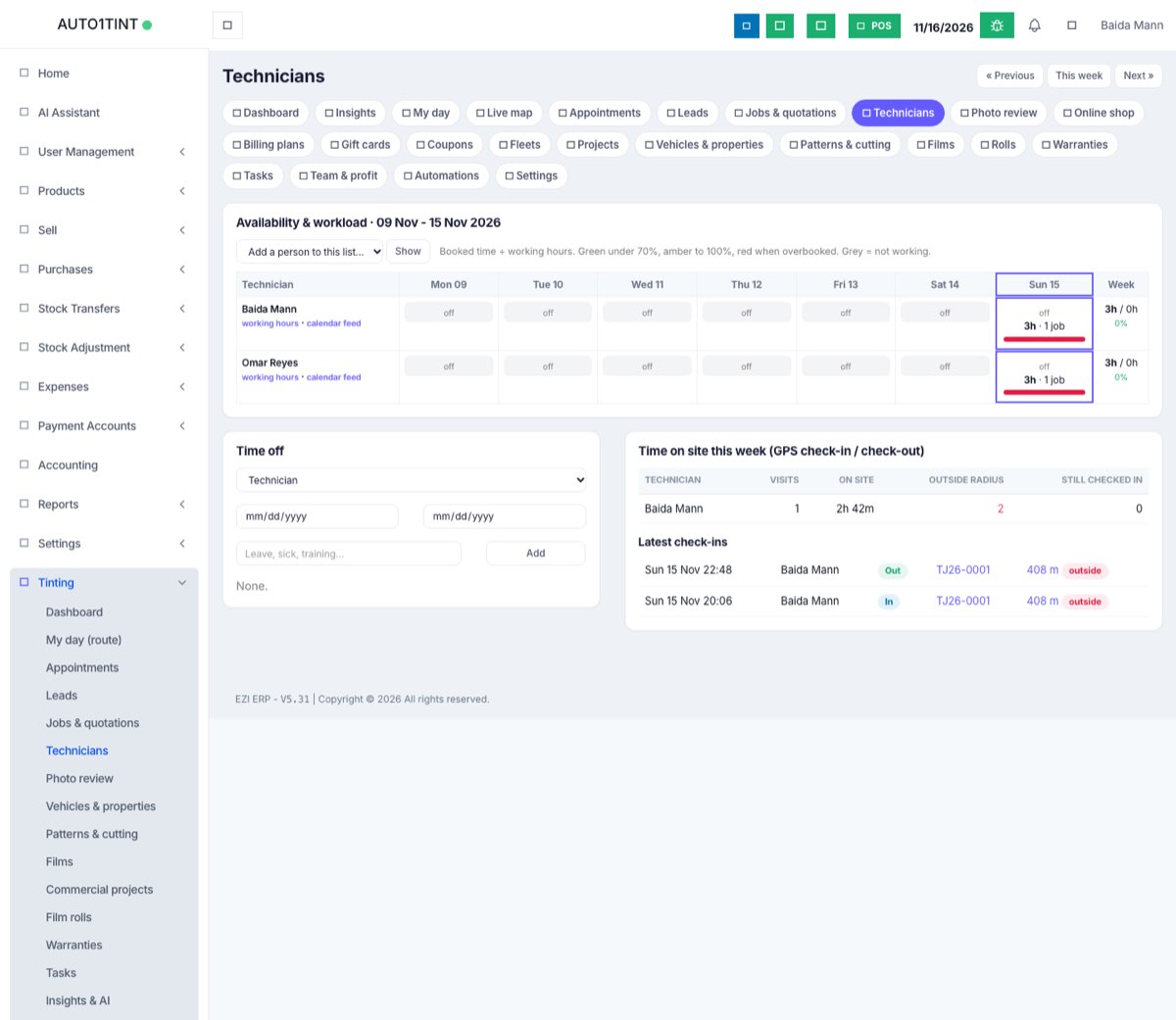
Tinting → Technicians is the weekly planning board for your installers. For each person it shows, day by day, their working hours, any time off, how much is booked, and a coloured bar of how full they are. Below the board you record time off and see how long each technician actually spent on site, from their GPS check-ins.
A "technician" is any EZI ERP user who works on tinting jobs. Nobody needs a special user type. People appear on the board once they have working hours or have been put on a job, and you can add anyone else from the drop-down.
Who uses it
- Owner / manager (
tinting.manage): the only role that can open this page, set hours and add time off. - Front desk with
tinting.manage: checks who is free before promising a customer a day. - Technicians (
tinting.accessonly) cannot open it. They see their own work in My day, the calendar and their jobs.
Why it matters
The booking tools rely on this page. Clash warnings, Find a free slot on the job form and the waiting list all read each technician's working hours and time off. Get the hours right and the system stops you from booking someone on their day off or giving one person ten hours of work in an eight-hour day.
How to use it
Set working hours
- Go to Tinting → Technicians.
- If the person is not listed, choose them in Add a person to this list… and click Show.
- Click working hours under their name.
- Tick each day they work and set the start and end times (for example Mon-Fri 09:00-18:00, Sat 10:00-14:00).
- Click Save hours.
A day with no tick, or with an end time before the start time, counts as a day off.
Read the board
Each cell shows the hours for that day, the booked time and the number of jobs, or free. The bar is booked time divided by working hours:
- Green: under 70% booked
- Amber: 70-100%
- Red: overbooked
- Grey: not working that day
The Week column totals booked time against working time. Use « Previous, This week and Next » to move between weeks.
Add time off
- In the Time off card, choose the technician and the from and to dates, and type a reason (leave, sick, training…).
- Click Add.
If the person already has bookings in those dates, the message tells you, for example "Time off added. Reassign: Omar is booked 20 Nov 09:00-11:00." Move those appointments on the calendar. Click remove to delete a time-off entry.
Put several technicians on one job
On the job form (Quotations & jobs), choose a Lead technician and add others under Team (other technicians on this job). Everyone on the team:
- sees the job and its appointments as their own,
- is checked for clashes when the job is booked,
- can GPS check in on the job,
- shares in commission according to your crew split rules.
Find a free slot only offers times when the lead and the whole team are free together.
Give each technician their own calendar feed
Click calendar feed next to a name. A box shows a private link. The technician pastes it into Google Calendar under Other calendars → From URL (Apple Calendar and Outlook can subscribe too), and their jobs, including team jobs, appear on their phone.
Time on site
The Time on site this week (GPS check-in / check-out) card shows visits, total time on site, check-ins outside radius (in red) and anyone still checked in. Latest check-ins lists each one with its distance from the site and a map link. See Field service.
Rules & limits
- The whole page and every action on it need
tinting.manage. - A technician with no working hours is treated as unavailable. Free-slot suggestions skip them, their cells show "off", and clash warnings for them only catch double bookings, not out-of-hours bookings.
- Time off needs a technician and both dates. The end date cannot be before the start date.
- Your plan may limit how many technicians can be on open jobs at the same time. Going over shows "Your plan allows N technicians on jobs at a time…". See Usage limits.
- Pay, attendance and payroll stay in the ERP (HRM / Essentials). This page plans work; it does not pay people. Overtime on pay statements uses Standard working hours a day from Settings.
Tips
- Set hours for everyone on day one, including part-timers. Clash warnings depend on them.
- Enter leave as soon as it is agreed so that nobody books over it.
- Check the board every Monday. Red cells are where customers will wait.
- Keep calendar feed links private. Anyone with the link can read that diary.