Customer portal
A self-service website where your customers log in with a one-time code to see their bookings, installment schedule and ledger, and upload payment slips.
What it is
The customer portal is a separate, simple website for your customers. They do not need a username or password. They type their registered mobile number, email or customer code, receive a 6-digit code on WhatsApp or SMS, and get into their own page.
Inside, a customer can:
- see their property bookings and the Total Booking Value, Amount Paid to Date and Remaining Balance;
- see their installment schedule with due dates and status (Paid, Overdue, Upcoming);
- Download Statement: a PDF ledger with a QR code that anyone can scan to check it is genuine;
- Upload Payment Slip: send a photo or PDF of a bank deposit, transfer or cheque.
Your staff then check each slip in the Payment Slips Queue before it counts as a payment.
Why you would use it
- Customers stop calling to ask "how much do I still owe?" They can check it any time.
- Payment proof arrives in one queue instead of scattered WhatsApp photos.
- The verified QR statement reduces disputes about balances.
How to use it
Open the portal for a customer
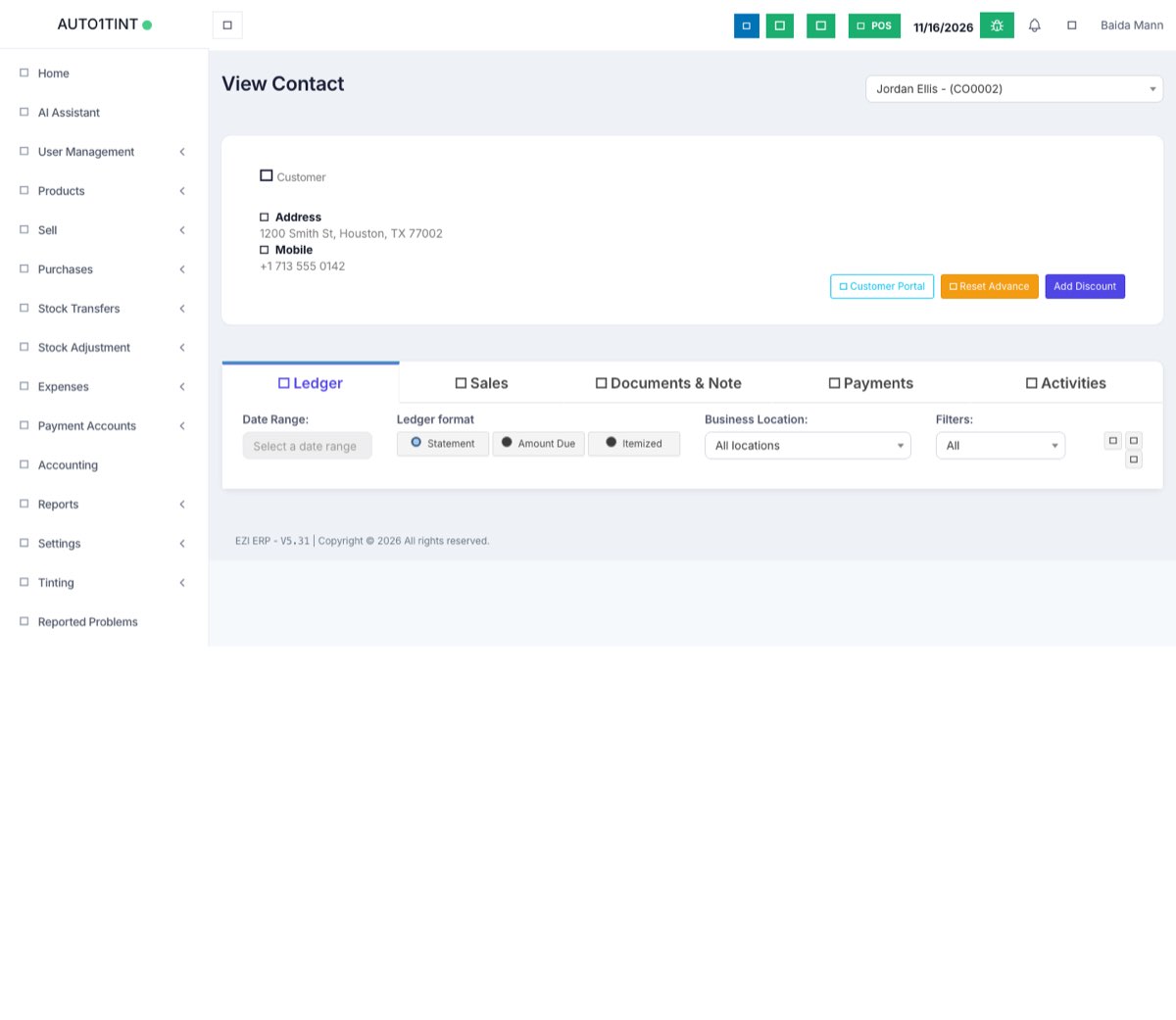
- Go to Contacts > Customers and open the customer.
- Click the Customer Portal button. The portal login page opens in a new tab with the customer already filled in.
- Share the portal address with the customer. They can also reach it at
/portal/login.
What the customer does
- On the Customer Login page, enter the Registered Mobile / Customer Email (or customer code).
- Click Send Verification Code. If several accounts match, the customer chooses one under Select Your Account.
- Enter the 6-digit code and click Verify & Access Portal. The code is valid for 3 minutes; if it expires, click resend.
- To send a payment, click + Upload Slip and fill in Select Booked Property, Amount Paid (Rs), Payment Date, Payment Method (Bank Transfer / IBFT, Bank Cash Deposit, Cheque, Online Mobile App), the reference number and bank name, then attach the slip (JPG, PNG or PDF, up to 5 MB).
- The slip shows as Under Review until your team decides.
Review slips (staff)
- Go to Contacts > Payment Slips Queue. The page is titled Customer Payment Slips.
- Filter by Approval Status: All Slips, Pending Review, Approved, Rejected.
- Open the slip document and compare it with your bank statement.
- Click approve to post it. The amount is recorded as a payment and matched to the next unpaid installment of that booking.
- Or click reject, type a Reason for Rejection and click Confirm Rejection. The customer sees this reason in the portal.
Customer logins inside the ERP
A customer or supplier can also be given a normal ERP login. When such a "contact user" signs in, the side menu only shows Payments and Ledger for their own account (plus the dashboard). They cannot see other customers or your business data. See Users.
Tips / common questions
- The customer gets no code. Check their mobile number on the contact, and check your WhatsApp/SMS setup in Business settings.
- "Too many OTP requests". For safety, one device can ask for at most 10 codes in 15 minutes. Wait and try again.
- Suppliers cannot use the portal; it is for customers only.
- Approved slips appear in the customer's ledger. See Contacts.