Customer portal
A private web page for each customer where they accept quotations, sign, pay, ask to reschedule, see photos, download documents and leave a review.
What it is
Every customer can have one private portal link. Whoever opens it sees only that customer's jobs, quotations, appointments, invoices, shared photos and documents. No password is needed, although customers can choose an email and password to sign in later.
Who uses it
- Customers use the portal from their phone or computer.
- Owner or manager makes and sends the link.
- Front desk sends payment links and answers reschedule requests.
Why it matters
Customers can approve a quote in a minute without coming in, pay online, and always find their warranty. You get signatures and payments faster and fewer "can you resend that?" calls.
How to use it
Send the portal link (staff)
- Open the job in Tinting → Jobs & quotations.
- In the Customer portal & signatures panel click Make customer link.
- Copy the link or click the green WhatsApp button to send it with the message "Your quotation, appointments, photos and documents".
- If a link was shared by mistake, click Make a new link. The old one stops working at once.
When an invoice has a balance and online payments are set up, Send pay link on the job sends a WhatsApp message that opens the portal at the payment section.
What the customer sees on the home page
- Upcoming appointments, each with Need another time? → Preferred date and time → Ask to reschedule.
- Invoices to pay (for example from billing plans) with a Pay button.
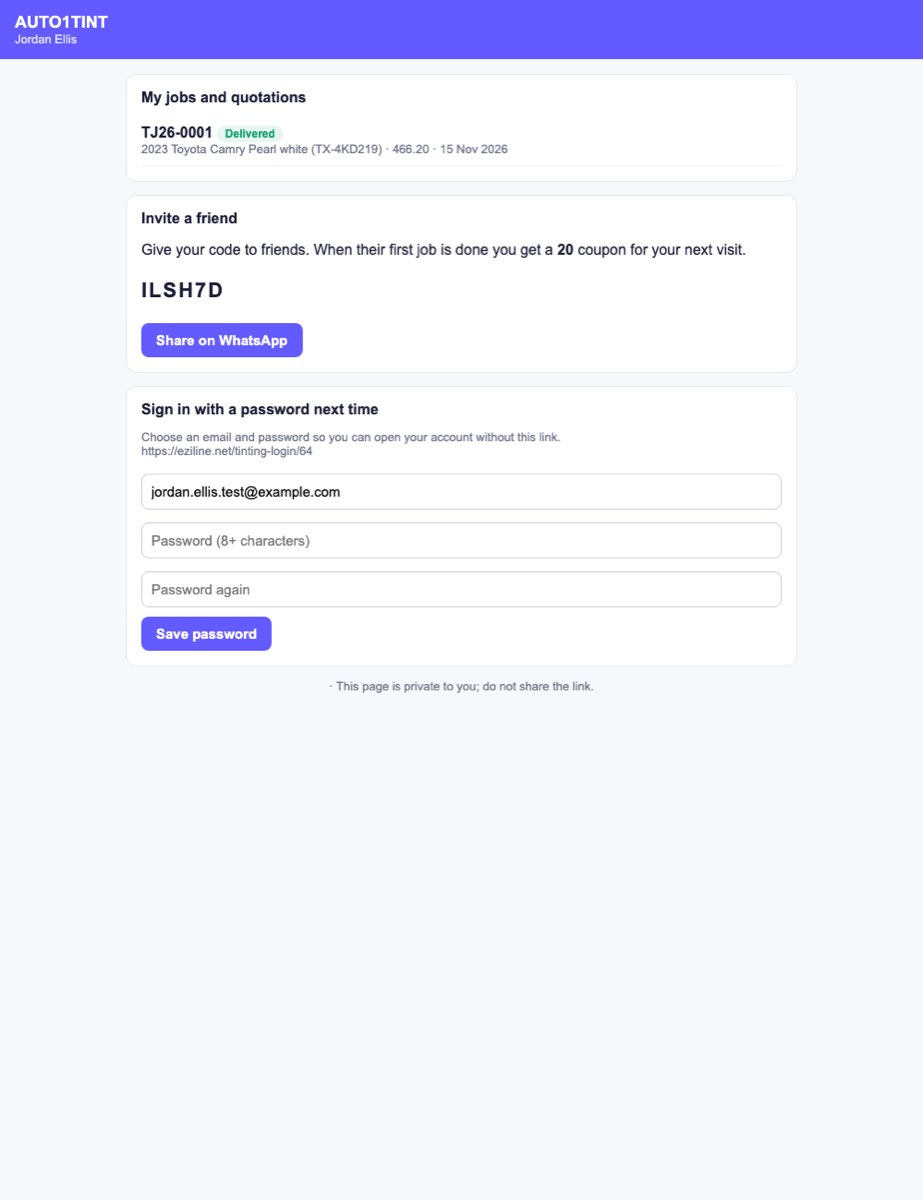
- My jobs and quotations: all their jobs. A fleet customer sees every vehicle's job here.
- Invite a friend (when a referral reward is set): their referral code, Share on WhatsApp, and any reward coupons they have earned.
- Sign in with password next time: choose an email and password (8+ characters, typed twice) and click Save password.
Inside a job
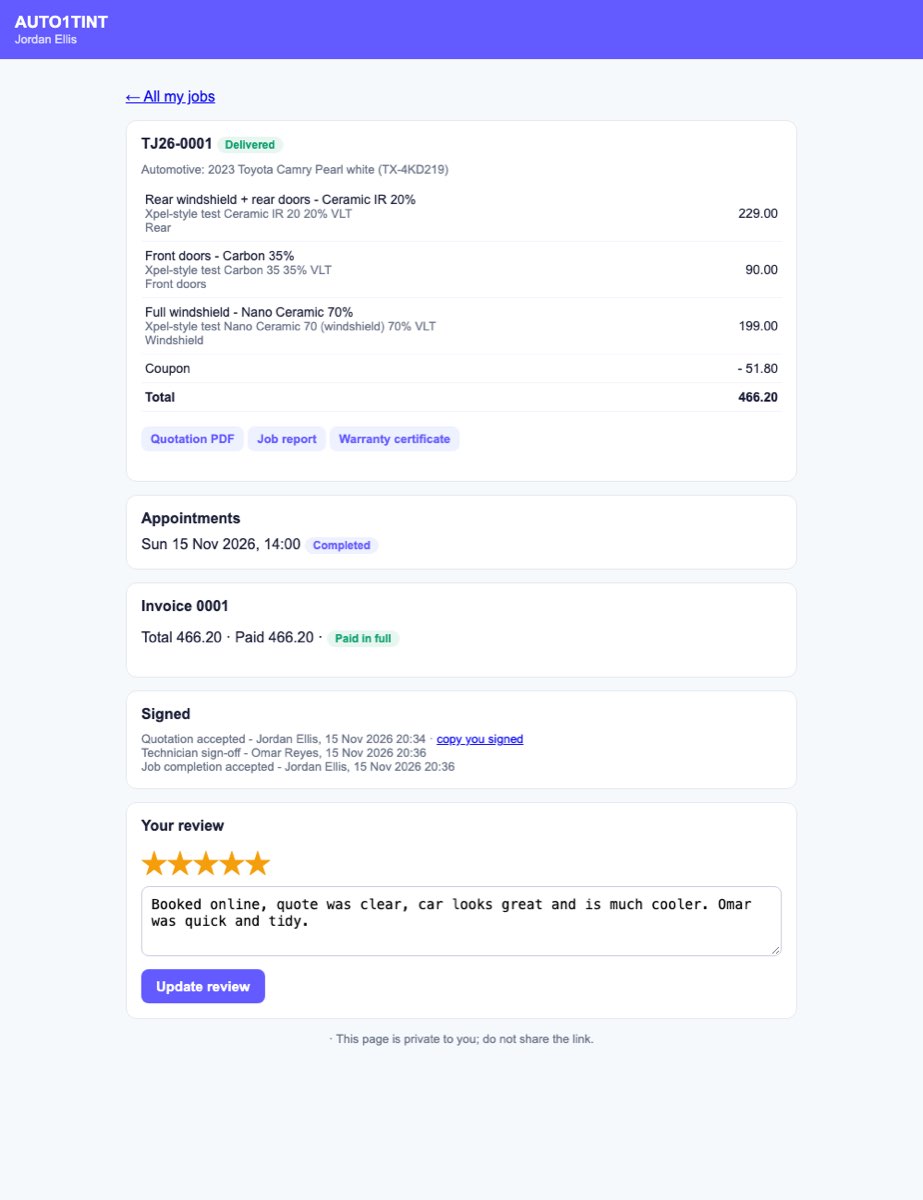
- The quotation lines, discount, coupon and Total, with buttons Quotation PDF, and once finished Job report and Warranty certificate.
- Preview tint shades on your car opens the tint visualizer while the job is a quotation, approved or scheduled.
- Accept this quotation: the customer types their name, signs with a finger or mouse, ticks the terms and clicks Accept and sign. The job becomes Quotation approved and the linked lead becomes Won.
- Not going ahead?: pick a reason and click Decline quotation. The job becomes Quotation rejected and the lead Lost.
- Existing damage noted before the work appears when the technician uploaded damage photos, for the customer to acknowledge and sign.
- Sign off the finished work appears once the job reaches quality inspection or later.
- The Invoice card shows total, paid and balance, any instalments, and a pay button that opens a fresh Stripe or Clover card page. If financing is set up and the invoice is over your minimum, a financing link shows too.
- Photos shows only photos a manager approved and marked to share.
- Signed lists each signature with a link to the copy you signed.
- After completion, the customer picks 1–5 stars, writes a comment and clicks Send review (or Update review).
See Signatures and documents and Invoices and payments.
Sign in with email and password
The Customer sign-in page address is shown in Tinting → Settings; link it from your website.
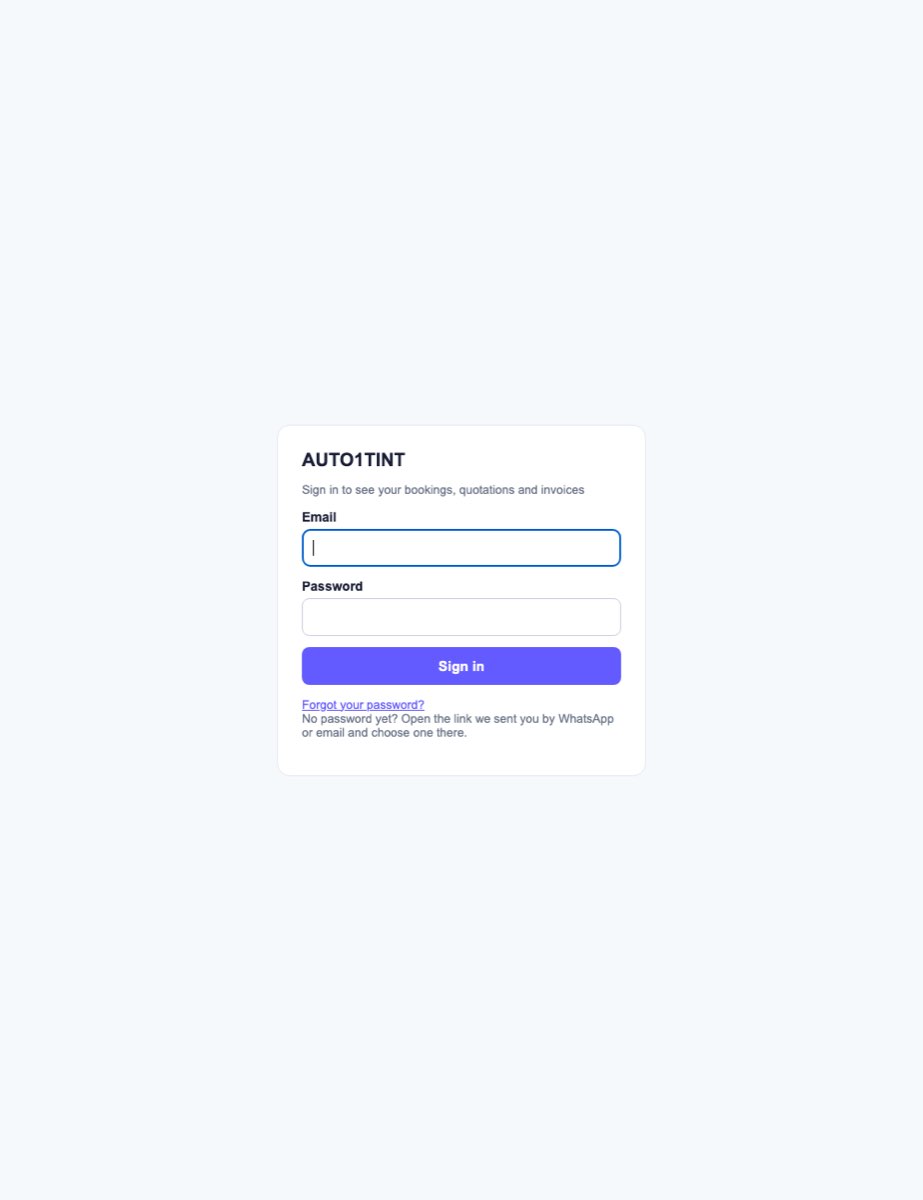
- Enter Email and Password, click Sign in.
- Forgot it? Click Forgot your password?, enter the email and click Send reset link. The emailed link works for one hour; choose a New password (8+ characters), type it Again and click Save and sign in.
- Sign out is at the top of the portal.
Rules & limits
- The link is a 40-character secret. Anyone with it can see that customer's portal, so send it only to the customer.
- A quotation can be answered once: "This quotation has already been answered."
- Completion can't be signed early: "The job is not finished yet." Each form can be signed once: "Already signed."
- Reviews only after the job is Completed or Delivered.
- Reschedule requests must be in the future. They set the appointment back to Requested; staff confirm the new time.
- Five wrong passwords lock sign-in for 15 minutes ("Too many attempts. Try again after …").
- One email can only belong to one customer account per business.
- Cancelled jobs are hidden. Pay buttons only appear when Stripe or Clover is connected.
- Making or resetting portal links needs
tinting.manage. - The portal stops working if the Tinting module is switched off.
Tips
- Send the portal link right after creating the quotation so the customer can accept and sign straight away.
- Tick "share with customer" and approve the best after photos in photo review; they make the portal look professional.