Sales, quotations, returns and shipments
Create invoices, quotations, drafts and sales orders, take payments, handle returns and track deliveries from the Sell menu.
What it is
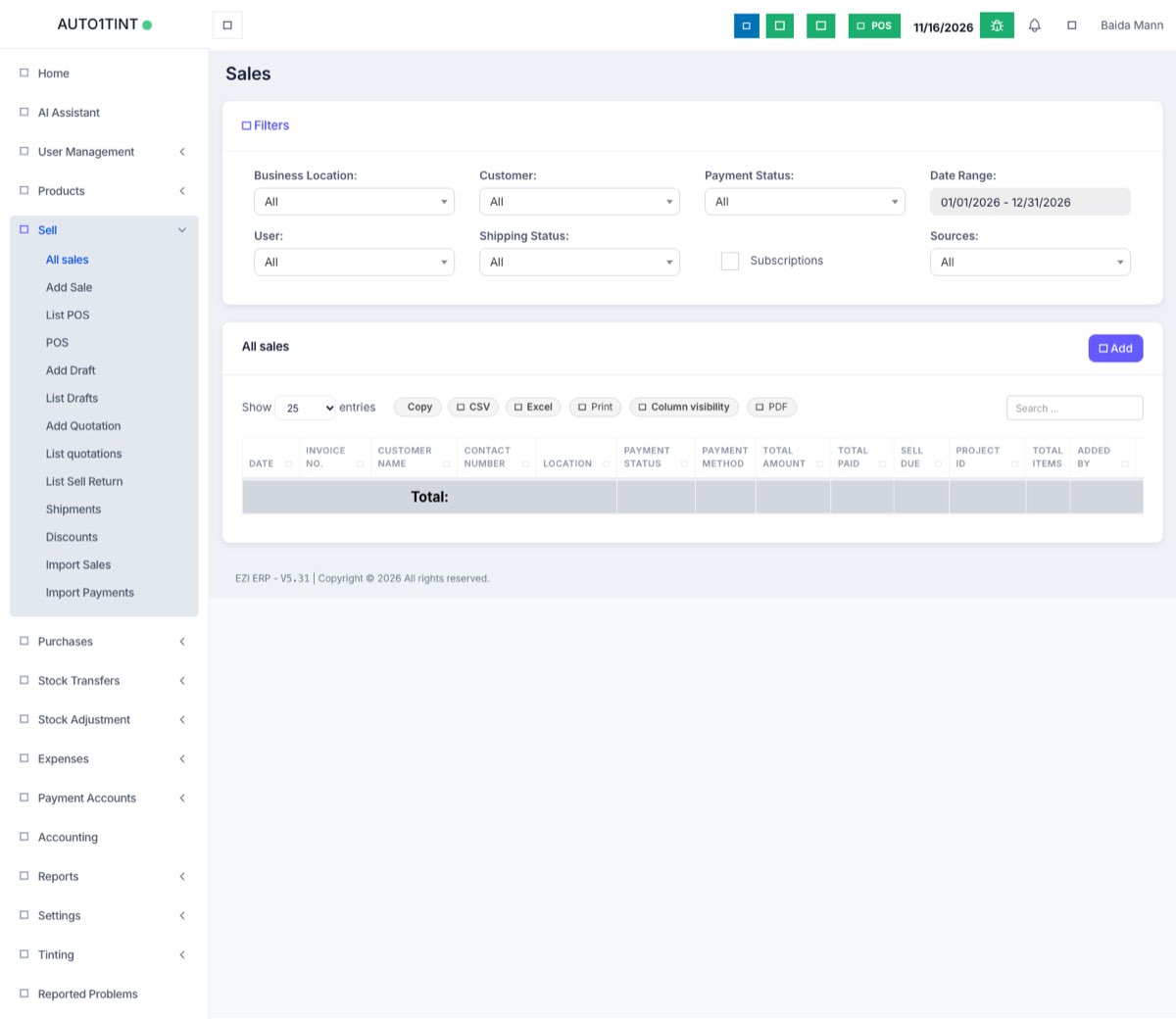
The Sell menu is where you record everything you sell. It has two ways to sell:
- Add Sale – a full invoice form, best for office sales, credit customers and detailed invoices.
- POS – a fast till screen for walk-in customers. See Point of sale (POS).
It also holds quotations, drafts, sales orders, returns, shipments, discounts and subscriptions.
Why you would use it
- Each sale reduces stock and records what the customer owes.
- Customers get a proper printed or emailed invoice.
- Quotations and sales orders let you agree a price before you deliver.
- Reports and the dashboard are built from these records.
How to use it
Add a sale (invoice)
- Go to Sell > Add Sale.
- Choose the Business Location (if you have more than one) and the Customer.
- Check the Pay term, sale date and Status:
- Final – a real invoice. Stock is reduced.
- Draft – saved but not counted yet.
- Quotation – a price offer for the customer.
- Search products by name, SKU or barcode. Adjust quantity, price and line discount.
- Add an overall discount, order tax and shipping details if needed.
- In the payment box, enter what the customer paid now and the method. Leave the rest as due.
- Click Save or Save and print.
Quotations and drafts
- Sell > Add Quotation and Sell > Add Draft open the same form with that status preset.
- Find them later in Sell > List quotations and Sell > List Drafts. Open one and change the status to Final to turn it into an invoice. Quotations can be printed or shared by link.
Sales orders
When switched on in Business Settings > Sale, Sell > Sales Order lets you take an order first and invoice it later. On Add Sale, choose the sales order so its items load.
Take a payment later
- Open Sell > All sales.
- Click Action > Add Payment on the invoice, enter the amount and save. You can also bulk-import payments with Sell > Import Payments.
Sell returns
- In Sell > All sales, click Action > Sell Return on the original invoice.
- Enter the quantity coming back for each item and save. Stock goes up and the customer's balance is reduced (or you refund them).
- All returns are listed in Sell > List Sell Return.
Shipments
Sell > Shipments lists sales with delivery details. Use Action > Edit Shipping to update the Shipping Status (ordered, packed, shipped, delivered, cancelled), the delivery person and documents.
Discounts
Sell > Discounts lets you create automatic discounts: pick products, brand or category, location, Priority, discount amount, Starts At and Ends At. Matching items get the discount automatically in sales and POS.
Subscriptions (recurring invoices)
If enabled, tick Subscribe on a sale and set the Subscription Interval and No. of Repetitions. The system creates the next invoice automatically. Manage them in Sell > Subscriptions. For flat monthly charges to many customers, see Monthly recurring.
Import sales
Sell > Import Sales loads past invoices from a spreadsheet.
Tips / common questions
- Can't edit an old invoice? Transaction Edit Days in Business Settings blocks edits after a number of days.
- Invoice looks wrong? Change the layout in Settings > Invoice Settings. See Invoice settings, barcodes, printers and tax.
- Bank payments may need the owner's OK. See Payment approvals.
- Useful reports: Product Sell Report, Sell Payment Report, Profit / Loss Report. See Reports.