Recurring billing plans
Bill a customer the same amount every week, month or year automatically, for maintenance contracts, fleet care or regular film inspections.
What it is
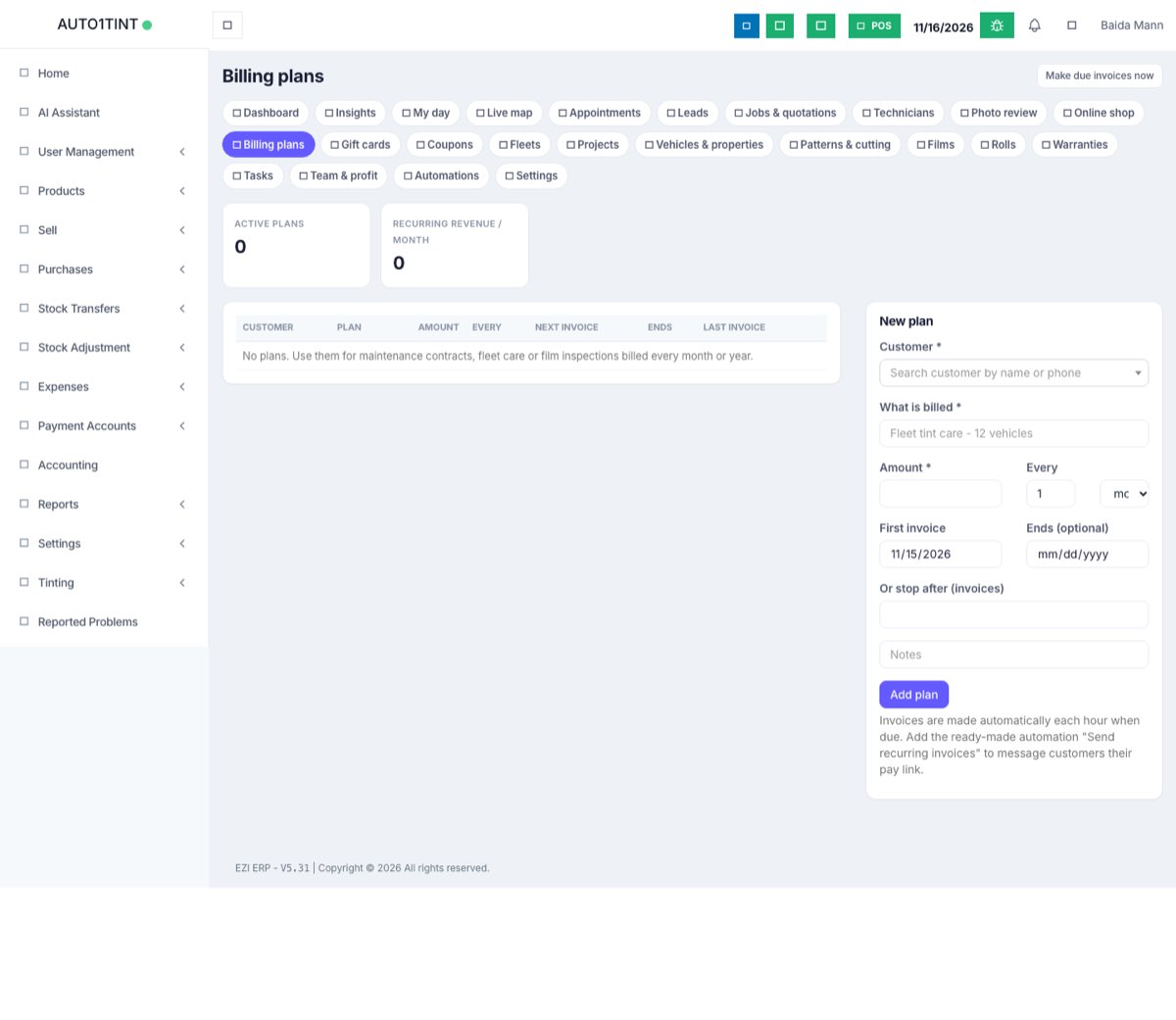
A billing plan makes an invoice for a fixed amount on a regular schedule, without anyone having to remember. You choose the customer, what is being billed, the amount, how often (every N weeks, months or years), the first invoice date, and optionally when it stops. Each invoice is a normal EZI ERP sale invoice, so it appears in the customer's ledger, in sales reports and in their customer portal, where they can pay it by card.
Who uses it
- Owner / manager sets up and pauses plans (only managers can open this page).
- Front desk checks which invoices were made and follows up unpaid ones.
- Customers receive the invoices and pay them in the portal.
Why it matters
Recurring revenue is the most stable money a shop can earn. A fleet owner might pay a monthly fee for tint care on 12 vehicles, or an office building might pay yearly for film inspection. Billing plans turn those deals into invoices on time, every time, and the page shows your Recurring revenue / month at a glance.
How to use it
Add a plan
- Go to Tinting → Billing plans.
- In New plan, pick the Customer.
- Fill in What is billed (for example "Fleet tint care - 12 vehicles") and the Amount.
- Set Every (a number) and choose month, week or year.
- Set the First invoice date.
- To stop the plan later, either set Ends (optional) or Or stop after (invoices) to limit the number of invoices. Leave both empty for a plan that runs until you pause it.
- Add Notes if you like, then click Add plan.
You will see "Billing plan added. The first invoice is made on …".
What happens next
- Invoices are made automatically every hour once a plan's date has come. Each invoice line names the period it covers, for example "Fleet tint care (01 Dec 2026 - 31 Dec 2026)".
- If the system was off for a while, missed periods are caught up (up to 12 invoices per plan per run).
- The table shows each plan's Next invoice, Ends, and Last invoice with its payment status and how many have been made.
- When the end date passes or the number of invoices is used up, the plan switches itself off.
Make due invoices straight away
Click Make due invoices now at the top of the page. It makes any invoices whose date has already come and tells you how many were made. It does not bill future dates early.
Pause or resume
Click Pause on a plan to stop new invoices. Paused plans are shown faded. Click Resume to start again.
Tell the customer
Turn on the ready-made automation Send recurring invoices in automations. It messages the customer when each invoice is made, with their pay link. Unpaid plan invoices are listed in the customer's portal with a card payment button when Stripe or Clover is set up (see invoices & payments).
Rules & limits
- Only tinting.manage users can see or change billing plans.
- Amount must be at least 0.01; Every is 1 to 52.
- Ends must be after the first invoice date; Or stop after (invoices) is 1 to 1000.
- The customer must already exist in your contacts.
- Each invoice is for the fixed amount, with no tax line added by the plan.
- A plan cannot be edited or deleted from this page; pause it and add a new one if the price changes.
Tips
- Use plans for service contracts, not one-off jobs; a one-off job is invoiced from its job card.
- For one big bill paid over time, use instalments on the job invoice instead (see invoices & payments).
- Add the Invoice unpaid N days after issue automation to chase late payments.
- Fleet customers can also be billed for many jobs on one invoice from fleets.