Quotations and jobs
How to price work as a quotation, turn it into a job, and move it through every status from quote to delivery.
What it is
In the Tinting module a quotation and a job are the same record. You write a quotation, the customer accepts it, and the same record (for example TJ26-0001) carries on as the job: appointment, photos, film used, inspection, invoice and warranty all hang off it. Numbers run TJ + two-digit year + a counter, so the first job of 2026 is TJ26-0001.
Who uses it
- Owner / manager and front desk (with
tinting.manage): create, edit, price and move jobs through every status. - Technicians (with only
tinting.access): see only the jobs they lead or are on the team of. They can Start job and Send for inspection, nothing else. - Customers see and answer the quotation in the customer portal.
Why it matters
One record from first price to final warranty means nobody re-types anything and the customer signs exactly what you priced.
How to use it
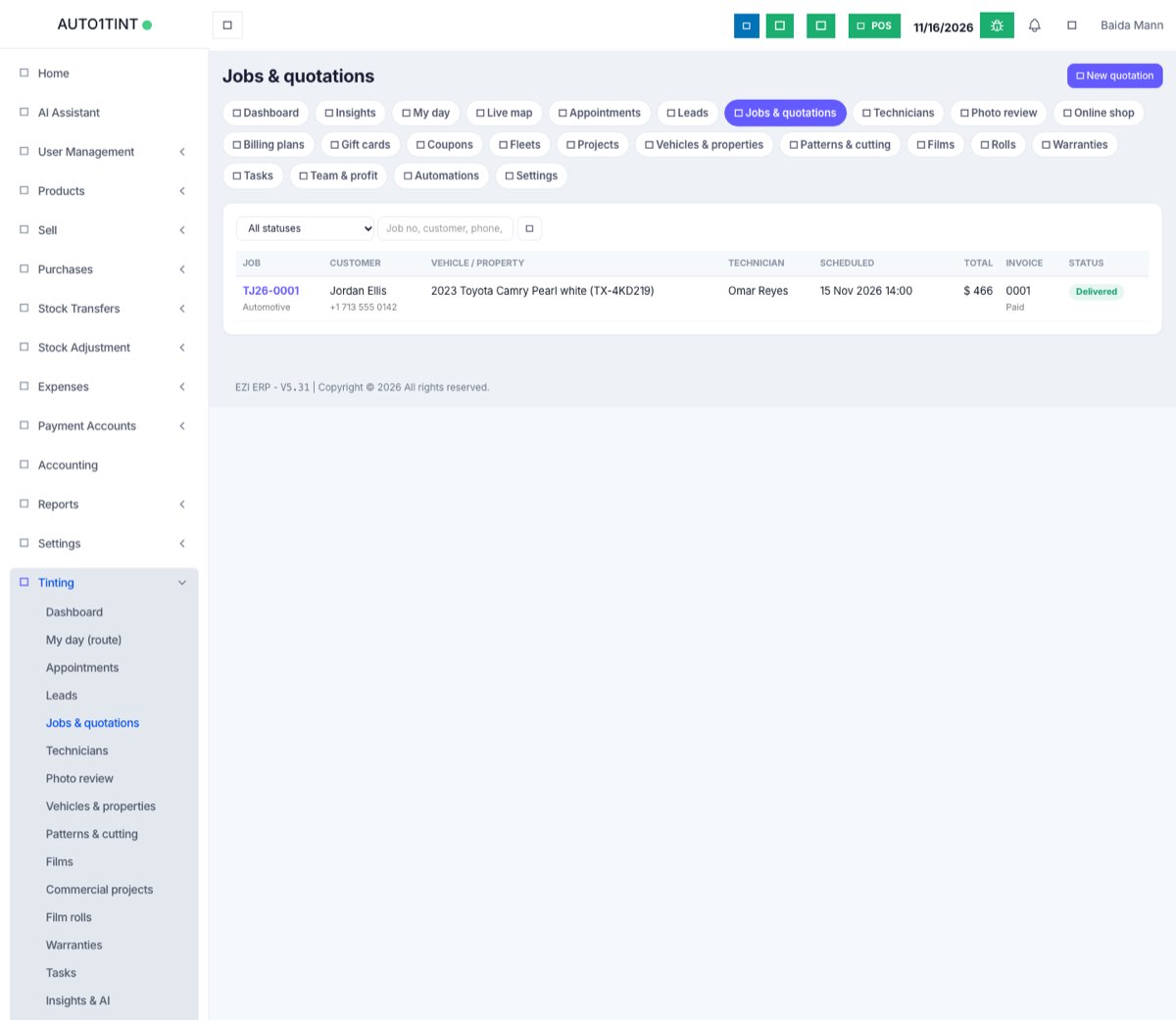
Find a job
- Go to Tinting → Jobs & quotations.
- Use the All statuses drop-down (each status shows how many jobs it has) or type a job number, customer name, phone or registration number and press the search button.
Create a quotation
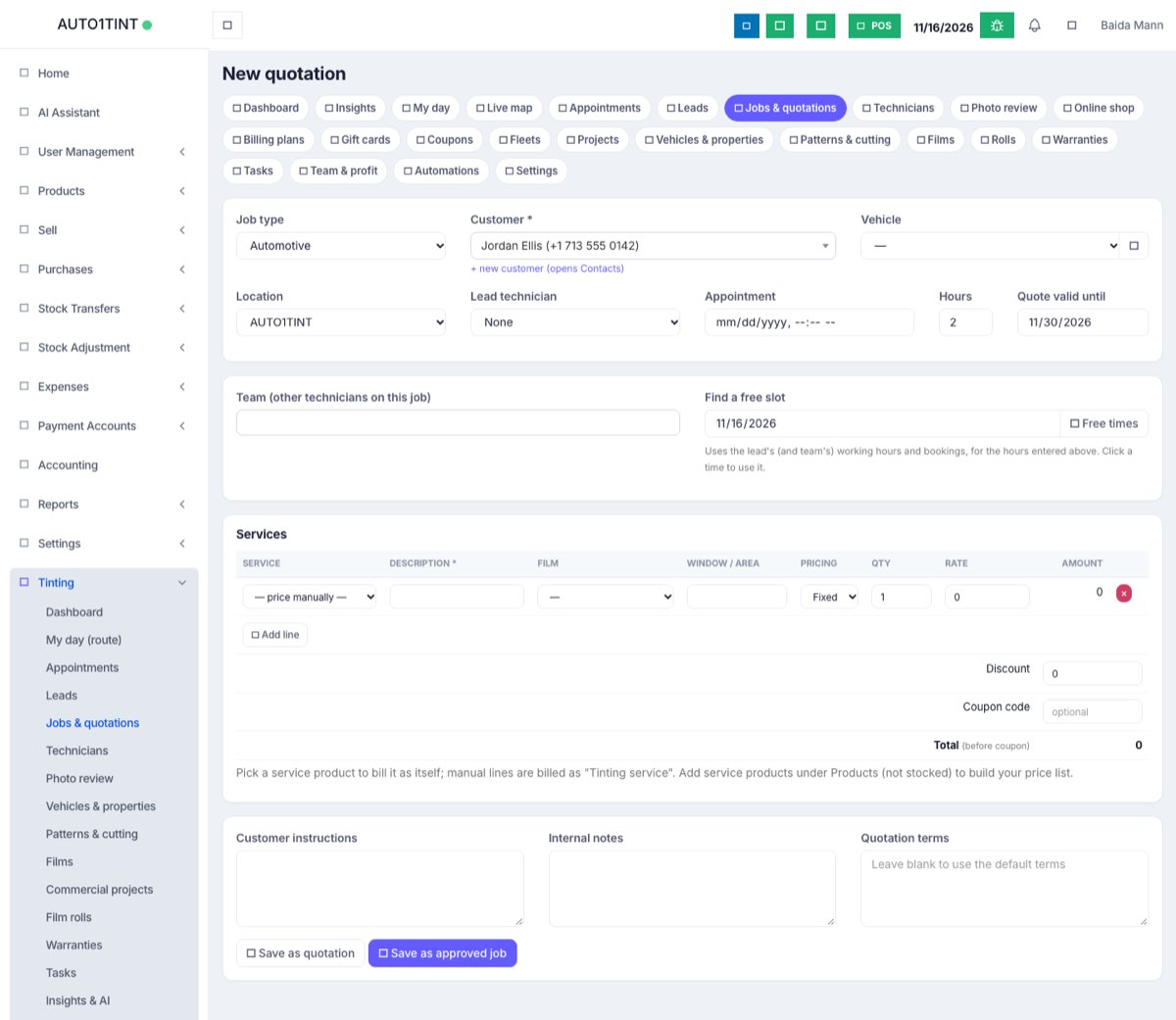
- Go to Tinting → Jobs & quotations and click New quotation.
- Choose the Job type: Automotive, Residential or Commercial. Automotive shows a Vehicle box; the other two show Property.
- Pick the Customer. If they are new, use + new customer (opens Contacts), then come back.
- Pick their vehicle or property, or click + to add one on the spot. See Vehicles & properties.
- Fill in Location, Lead technician, Appointment date and time, Hours (how long it takes) and Quote valid until (defaults to 15 days ahead).
- Optional: add other technicians under Team. Under Find a free slot, pick a date and click Free times; click a time to put it in the Appointment box. The suggestions respect each technician's working hours and existing bookings.
- Add the Services lines (see below). Use Add line for more.
- Enter a Discount (a fixed amount) and/or a Coupon code.
- Fill in Customer instructions, Internal notes (staff only) and Quotation terms (leave blank to use the default terms from Settings).
- Click Save as quotation (waits for the customer) or Save as approved job (the customer already said yes).
Service lines and pricing methods
Each line has: Service (a service product from your price list, or "— price manually —"), Description, Film, Window / area (suggestions such as Front windshield, Driver rear, Sunroof, Whole vehicle), Pricing, Qty and Rate. The amount is always Qty × Rate. The Pricing method tells everyone what the quantity means:
| Pricing | Qty means |
|---|---|
| Fixed price | 1 job |
| Per window | number of windows |
| Per sq ft / Per sq m | area of glass |
| Per vehicle | number of vehicles |
Picking a service product fills in its selling price and description. Lines priced manually are invoiced as "Tinting service". To build your price list, add service products (not stocked) under Products in the ERP.
Each line can also be booked on its own day with its own technician from the job page (the book link in the Services table), for example film removal on Monday and installation on Wednesday. See the job card.
Coupons
Type the code (for example WELCOME10) in Coupon code. It is checked when you save. If it cannot be used the job still saves, but a message says why, such as "Coupon not applied: that coupon expired on …", "… belongs to another customer", "… needs a job of at least …" or "… has been used up". The Total (before coupon) on the form leaves the coupon out; the job page shows the coupon line and the final total. See Coupons, referrals & gift cards.
Statuses and what they mean
| Status | Meaning | How it gets there |
|---|---|---|
| Quotation | Priced, waiting for the customer | Save as quotation, or Reopen quotation |
| Quotation approved | Customer said yes | Customer approved, portal acceptance, or a signed "Quotation accepted" |
| Quotation rejected | Customer said no (with a lost reason) | Customer rejected, or declined in the portal |
| Scheduled | Booked in | Mark scheduled |
| In progress | Work has started | Start job (technician or manager) |
| Quality inspection | Technician says it's done | Send for inspection (needs After photos) |
| Completed | Inspection passed | Pass & complete in Quality inspection |
| Delivered | Car or keys handed back | Mark delivered |
| Cancelled | Job dropped | Cancel job |
Approving or rejecting also moves the linked lead to Won or Lost. Completing or delivering marks open appointments completed; cancelling cancels them.
Edit a job and revisions
- Open the job and click Edit (managers only; the button disappears once the job is invoiced).
- Change what you need and click Save.
If the priced content changed (lines, discount, coupon, total or terms), the previous version is kept and the job moves to the next revision: "Updated (revision 1 - the previous version is kept)". On the job page, open Revisions in the Customer portal & signatures panel to see each older version with its total and lines. The printed quotation shows "rev. N". Changing only the valid-until date does not make a new revision.
If the customer already signed for a different amount, a yellow warning appears: "The customer signed for … ; the job now totals … . Get the change approved."
Rules & limits
- At least one service line is needed; Qty must be at least 0.01 and Rate 0 or more.
- The vehicle or property must belong to the chosen customer.
- Only
tinting.manageusers can create, edit, approve, reject, schedule, deliver or cancel. - Your plan may limit jobs per month and technicians on jobs; going over shows "Your plan allows … Ask your provider to raise the limit." See Usage limits.
- If the customer booked online and has a future requested appointment, the new job takes over that appointment instead of making a second one, and their open lead moves to Quoted (or Won if saved as approved).
Tips
- Saving with a date and time creates or updates the job's appointment on the calendar. If the crew is busy or off, the save message adds a "Note: …" listing the clash.
- Send the quote with the WhatsApp button or the customer portal. Next: the job card.