Phone app for technicians (/m)
A phone-first version of Tinting at eziline.net/m that installs on iPhone and Android, works at the car with big buttons, and keeps photos safe when the signal drops.
What it is
eziline.net/m is Tinting made for a phone held in one hand at the car. It opens in Safari or Chrome, and you can install it like an app so it gets its own icon, opens full screen and can show notifications. It uses the same sign-in, jobs and permissions as the full site - nothing to set up.
Who uses it
- Technicians: today's stops, checking in, the walk-around, photos, starting work, sending for inspection, signatures, clocking in and out.
- Managers / front desk: everything above plus quality inspection, invoices, taking payment, quick quotes and the full team's day.
Install it on your phone (1 minute)
- iPhone (Safari): open eziline.net/m, sign in, tap Share → Add to Home Screen → Add.
- Android (Chrome): open eziline.net/m, sign in, tap Install app when Chrome offers it (or ⋮ → Install app / Add to Home screen).
The first time you check in or take a photo, the phone asks for location and camera - tap Allow.
Today
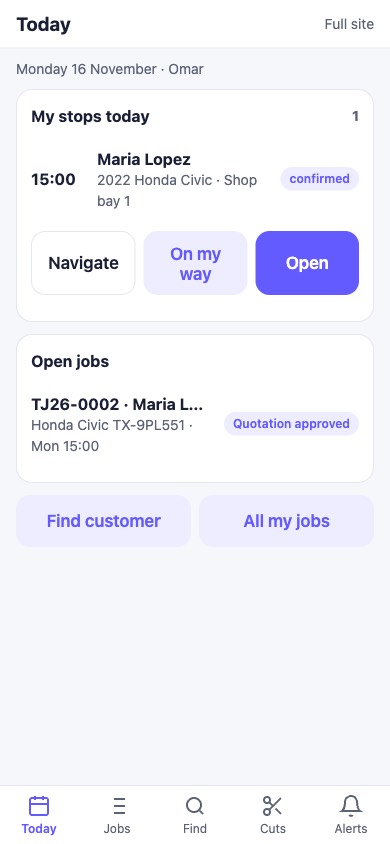
Your stops in time order with three buttons each: Navigate (opens Google Maps), On my way (texts the customer your arrival time) and Open. If your business uses the HRM time clock, Clock in / Clock out is at the top - it saves your location with the time. Managers can tap Show the whole team.
Attending a car - one screen, numbered steps
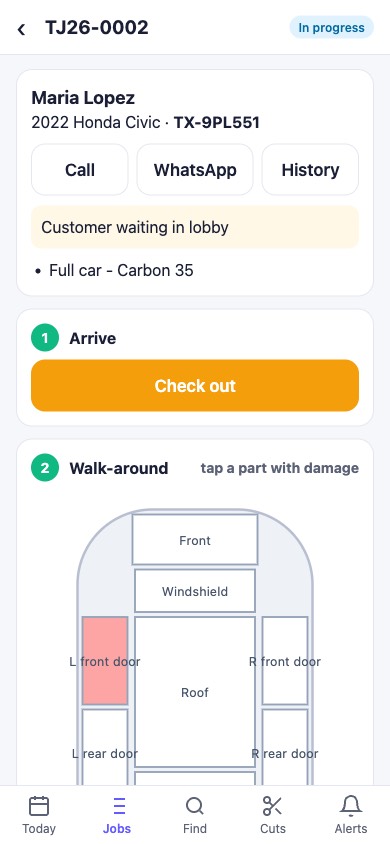
Open a job and work down the page. Each step turns green when done.
-
Arrive - Check in (GPS). Your position is saved; check-ins far from the site are flagged for the manager. At the end, the same button says Check out.
-
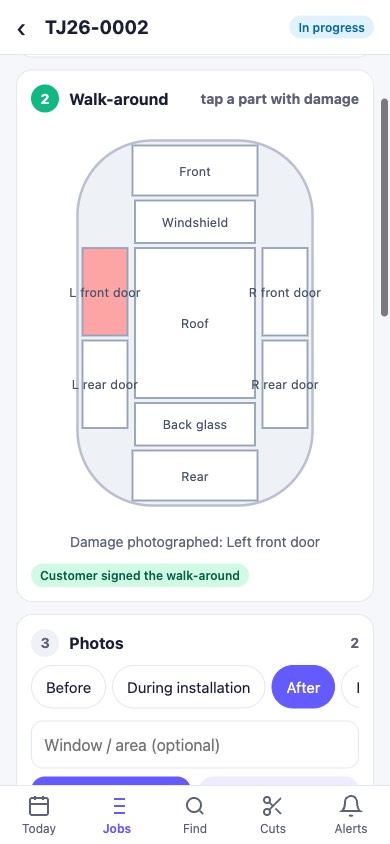
Walk-around - tap any part of the car diagram that has damage. The camera opens; the photo is filed as Damage for that part and the part turns red. The customer then signs that the damage was already there.
-
Photos - pick Before / During / After / Damage…, tap Camera (or Gallery / video). Photos are saved on the phone first and upload in the background.
-
Work - Start work, then Send for inspection (needs at least one After photo).
-
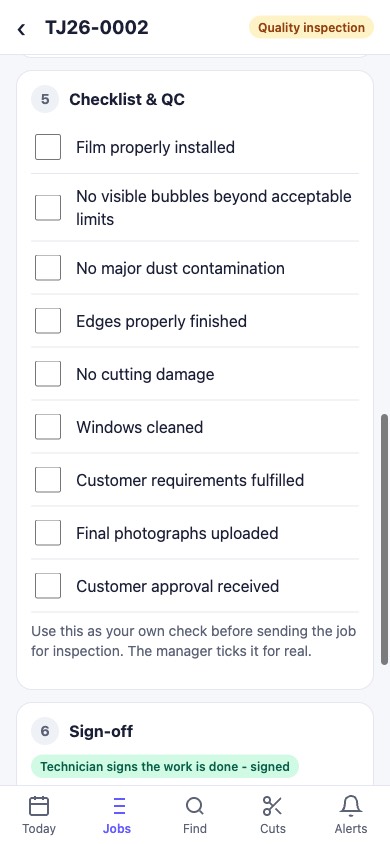
Checklist & QC - technicians use the checklist as a self-check; the manager ticks it and taps Pass or Send back with a remark.
-
Sign-off - technician signs, then the customer signs to accept the finished job, with a finger on the screen.
-
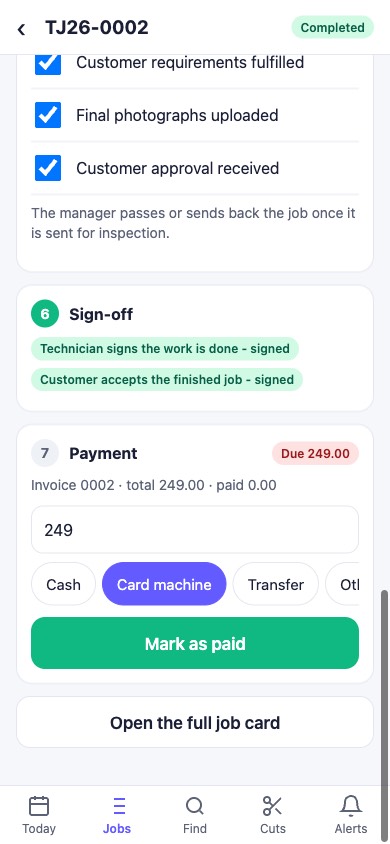
Payment - managers tap Create invoice (any deposit is taken off automatically). Enter the amount, choose Cash / Card machine / Transfer / Other and tap Mark as paid. With Clover or Stripe set up, Card payment link opens a payment page the customer can pay on their own phone.
Find a customer or vehicle
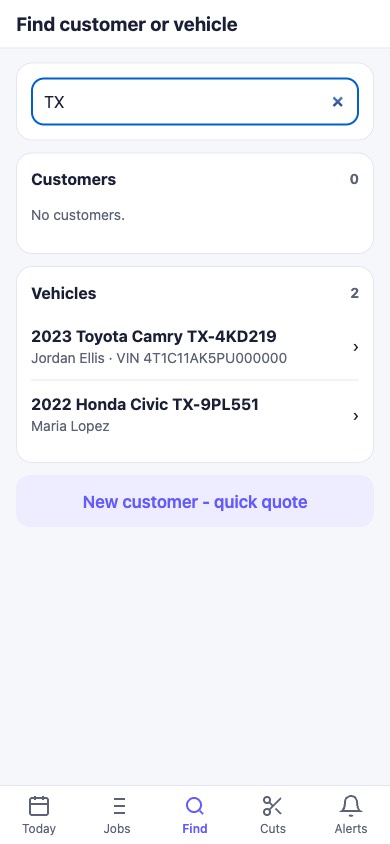
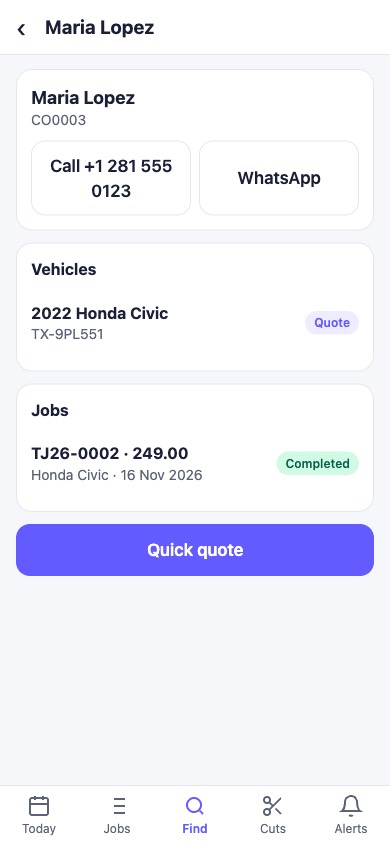
Type a name, phone number, plate, VIN or make. Open a customer to see their vehicles, past jobs and what they owe, and Call or WhatsApp them.
Quick quote (managers)
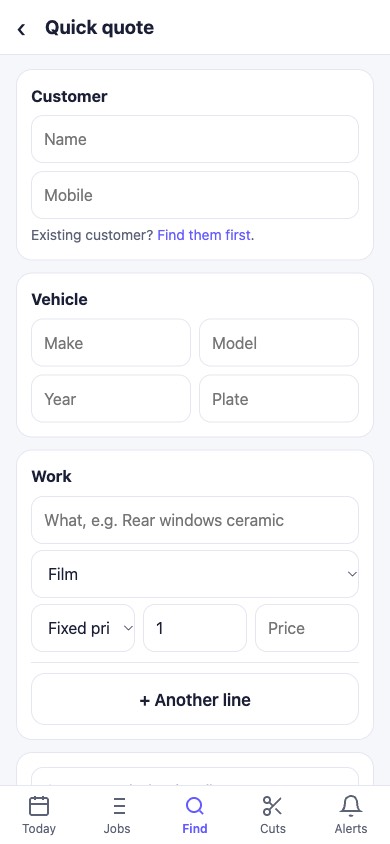
Customer (or a new name and mobile), vehicle, one or more lines with film and price. Save quote lets the customer accept and sign in their portal; Customer agreed makes it an approved job straight away.
Cut queue
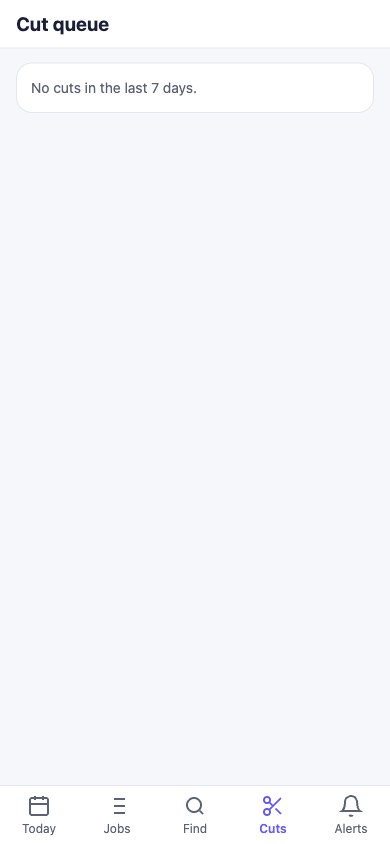
Cuts from the last 7 days. When a cut is sent to cutter, tap Cut OK, take film or Failed (with a note). Send again retries a cut that could not reach the cutter. See Cutter bridge and cut queue.
Alerts
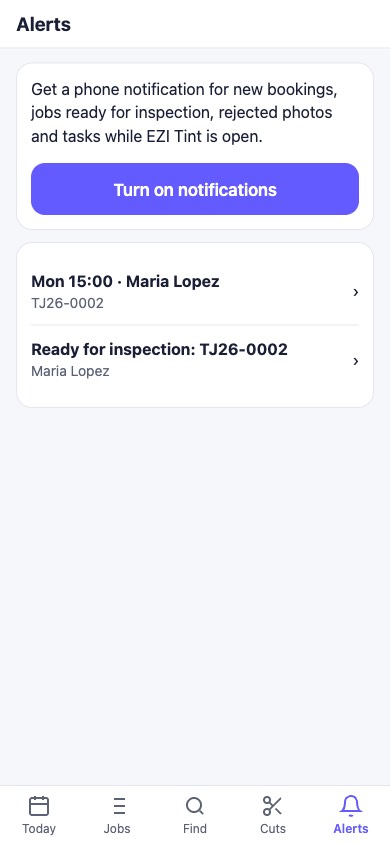
Upcoming appointments, booking requests and jobs waiting for inspection (managers), rejected photos and tasks due. Tap Turn on notifications to get them as phone notifications while EZI Tint is open. On iPhone this needs the app installed on the home screen (iOS 16.4 or newer).
Weak or no signal
- Photos are made smaller on the phone and kept on the phone until they upload. A dark bar shows "⬆ 3 photos waiting for signal"; they go up by themselves when the signal returns (on Android even after the app is closed).
- If the server refuses a photo (for example your storage limit is full), the bar says so - tap it to try again or discard.
- Pages you opened before still show without signal (marked as a saved copy); buttons that change something need signal.
Rules & limits
- You only see the jobs you are allowed to see on the full site: technicians see their own and their team's jobs.
- Technicians cannot pass QC, create invoices, take payments or make quotes.
- Clock in/out appears only if the HRM module is on and your role may record attendance from the web.
- Notifications work while the app is open or in the background recently; true push notifications when the phone is idle are not included yet.
Related: Field service, Photos & videos, The EZI Tint Android app.