Fleet accounts
Look after business customers with many vehicles with a fleet discount, bulk vehicle import, one quotation run for many vans, history per vehicle and one invoice for many jobs.
What it is
A fleet account is a business customer with many vehicles, such as a taxi firm, a delivery company or a car dealer. The fleet account sits on top of a normal ERP customer. It adds a fleet discount, a choice of one invoice for many jobs or an invoice per job, a list of the fleet's vehicles with their history and warranties, and tools to quote or book many vehicles in one go.
Who uses it
- Owner / manager (
tinting.manage): sets up fleet accounts, imports vehicles, makes bulk quotations or jobs, and raises consolidated invoices. Only managers can open fleet pages. - The fleet customer's manager: receives quotations and invoices. The customer portal link on any of their jobs shows all of the fleet's jobs (see Customer portal).
Why it matters
Fleet work is repeat work with set prices. Doing it one car at a time is slow and easy to get wrong. With a fleet account you quote 30 vans in one step with the agreed discount, spread the bookings over several days, and send the customer one monthly invoice instead of thirty.
How to use it
Create a fleet account
- Make sure the business exists as an ERP customer (contact).
- Go to Tinting → Fleets and click New fleet account.
- Choose the Business, enter the Fleet % discount, choose Billing (One invoice for many jobs or Invoice per job), and optionally the fleet manager's name on their side.
- Click Create. The fleet page opens.
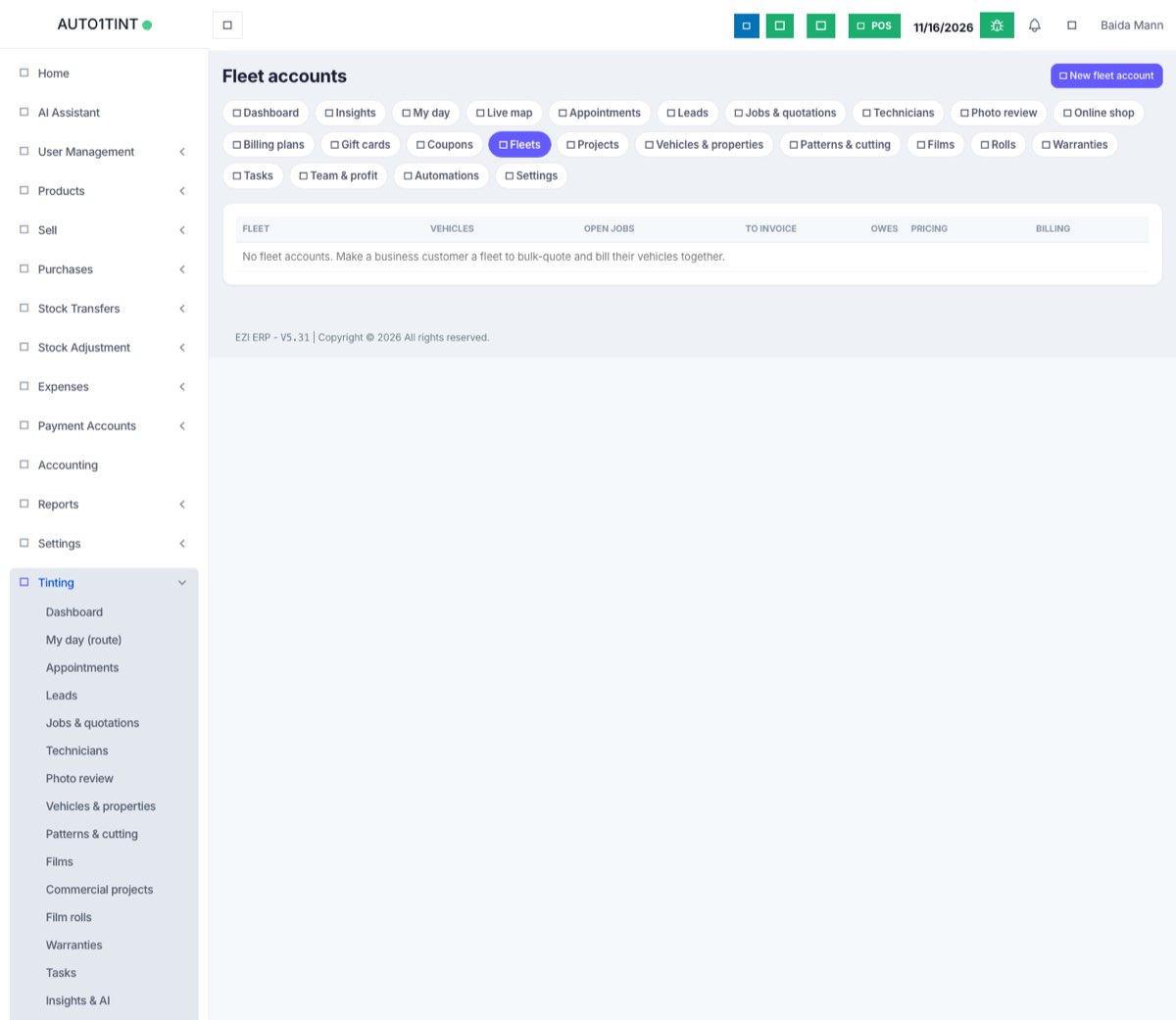
The Fleet accounts list shows each fleet's vehicles, open jobs, jobs waiting to be invoiced, the amount they owe, and their pricing and billing.
Add the vehicles
In Add vehicles on the fleet page, paste one vehicle per line in the order unit no, make, model, year, plate, colour (for example V-01, Toyota, Hilux, 2023, LEA-1234, White), separated by commas or tabs. You can paste straight from a spreadsheet. A header line starting with "unit" is skipped. Click Add. Vehicles whose plate number is already on file for this fleet are skipped, so pasting the same list twice is safe.
Quote or book many vehicles at once
- In the vehicle table (Vehicles & service history), tick the vehicles, or tick the box in the header to select all.
- Under Quote ticked vehicles, enter one or more service lines: description (e.g. "Full ceramic tint"), film, area, quantity and unit price. Use the add-line button for more lines.
- Choose As: Quotations or Approved jobs.
- Optionally choose a Technician, a Start date, a From time, how many vehicles Per day and the Hours each takes.
- Click Create jobs.
EZI makes one job per vehicle, priced per vehicle with the fleet discount taken off and a note saying "Fleet order". If you gave a start date, it books a confirmed appointment for each one, filling each day back to back from the start time and moving on to the next day when the per-day number is reached. See Appointments.
Send one invoice
The Invoice completed jobs panel lists the fleet's completed jobs that are not invoiced yet. Tick them and click One invoice for the ticked jobs. You will see "Invoice INV-… for N job(s) created." Payments, deposits and online payment work as described in Invoices and payments.
Keep track
The fleet page shows the vehicle count, jobs, amount billed, jobs ready to invoice and the fleet price. Each vehicle row shows its unit number, plate, its latest jobs (click to open), the last service date and when its warranty ends (in red if it has expired). Under Account you can change the discount, billing, fleet manager, Notes / contract terms and the Active tick, then click Save. The Ledger link opens the customer's ERP account statement.
Rules & limits
- Fleet pages need the
tinting.managepermission. - Each customer can have one fleet account. Creating one again for the same customer updates it.
- New fleet accounts count towards your plan's Fleet accounts limit, and each bulk job counts towards Jobs & quotations a month. A bulk run is refused if it would go over (see Usage limits).
- The fleet discount is 0–100%. A bulk run can cover up to 500 vehicles and up to 50 per day.
- Only completed or delivered jobs that are not already invoiced can go on a fleet invoice. Otherwise: "None of those jobs can be invoiced (complete them first, and they must not be invoiced already)."
- Pasted vehicle fields are cut to 50 characters each.
Tips
- Put the agreed rates and payment terms in Notes / contract terms so everyone quotes the same.
- Make quotations rather than approved jobs when the fleet manager has to sign off first. They can approve them in the portal.
- Keep unit numbers matching the customer's own fleet numbers. It makes their invoice easy to check.
- Fleet vehicles also appear under Vehicles & properties.