Users (staff logins)
Give every staff member their own login so you control what they can see and know who did what.
What it is
A user is a person who can log in to EZI ERP: you, a cashier, a manager or an accountant. Each user has a username, a password and a role. The role decides what the user is allowed to do.
Why you would use it
- Staff never need to share the owner's password.
- Each sale, payment and edit is recorded against the person who made it (you can see this in the Activity Log report).
- You can limit a user to certain locations, a maximum discount, or only some customers.
- When someone leaves, you switch off their login without losing their history.
How to use it
Add a user
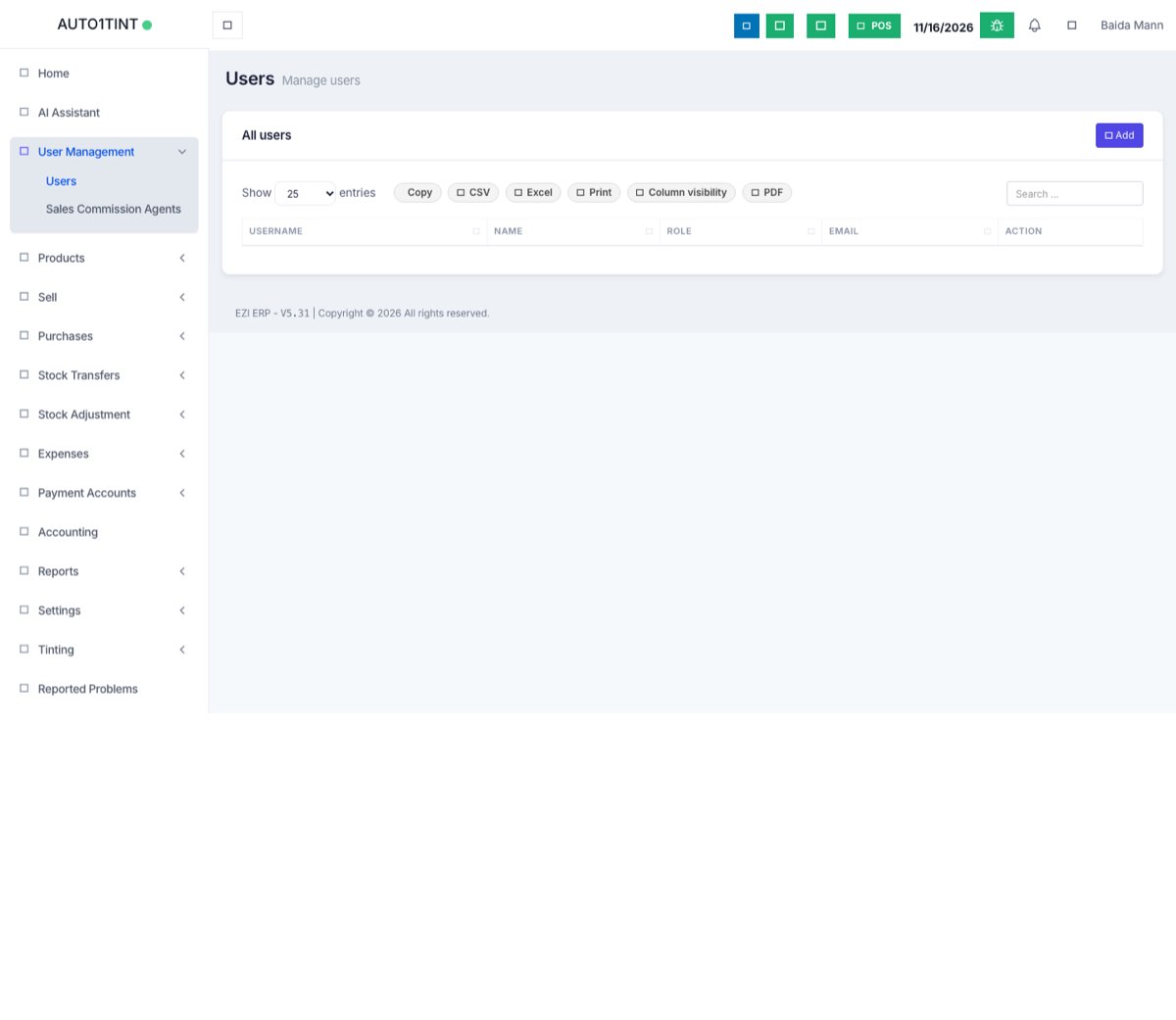
- Go to User Management > Users.
- Click Add.
- Fill in Prefix (Mr / Mrs / Miss), First Name, Last Name and Email.
- Leave Is active ? ticked so the user can work.
- Under Roles and Permissions:
- Keep Allow login ticked if this person will log in. (Untick it for staff you only want to track, for example sales agents who never use the system.)
- Enter a Username or leave it blank to auto generate one.
- Enter a Password and Confirm Password.
- Choose a Role, for example Cashier or Admin. See Roles & permissions.
- Under Access locations, tick All Locations or only the branches this user works at.
- Under Sales you can optionally set:
- Sales Commission Percentage (%) – used if commission agents are switched on.
- Max sales discount percent – the highest discount this user may give.
- Allow Selected Contacts – then pick Select Contacts so the user only sees those customers or suppliers.
- If you use service staff, you can Enable service staff pin and set a Staff Pin.
- Click Save.
Edit or deactivate a user
- Open User Management > Users.
- On the user's row, click Edit to change details or reset the password.
- To stop someone logging in, untick Is active ? and save. Their past work stays in the system.
- Click View to see the user's details, Documents & Note and Activities.
Sales commission agents
User Management > Sales Commission Agents lists people who earn commission on sales. They can be added without a login. Their sales show in the Sales Representative Report.
Tips / common questions
- The user forgot their password. The owner or an admin edits the user and types a new password. Leave the password field blank if you don't want to change it.
- Admins see every location no matter what you tick.
- How many users can I add? It depends on your subscription package.
- Customers and suppliers can also get a login to the customer portal. That is set on the contact, not here. See Contacts.
- Each user can change their own name, password and language under Profile in the top-right menu.