Purchases, purchase orders and returns
Record what you buy from suppliers so stock goes up, supplier balances are right and your costs are known.
What it is
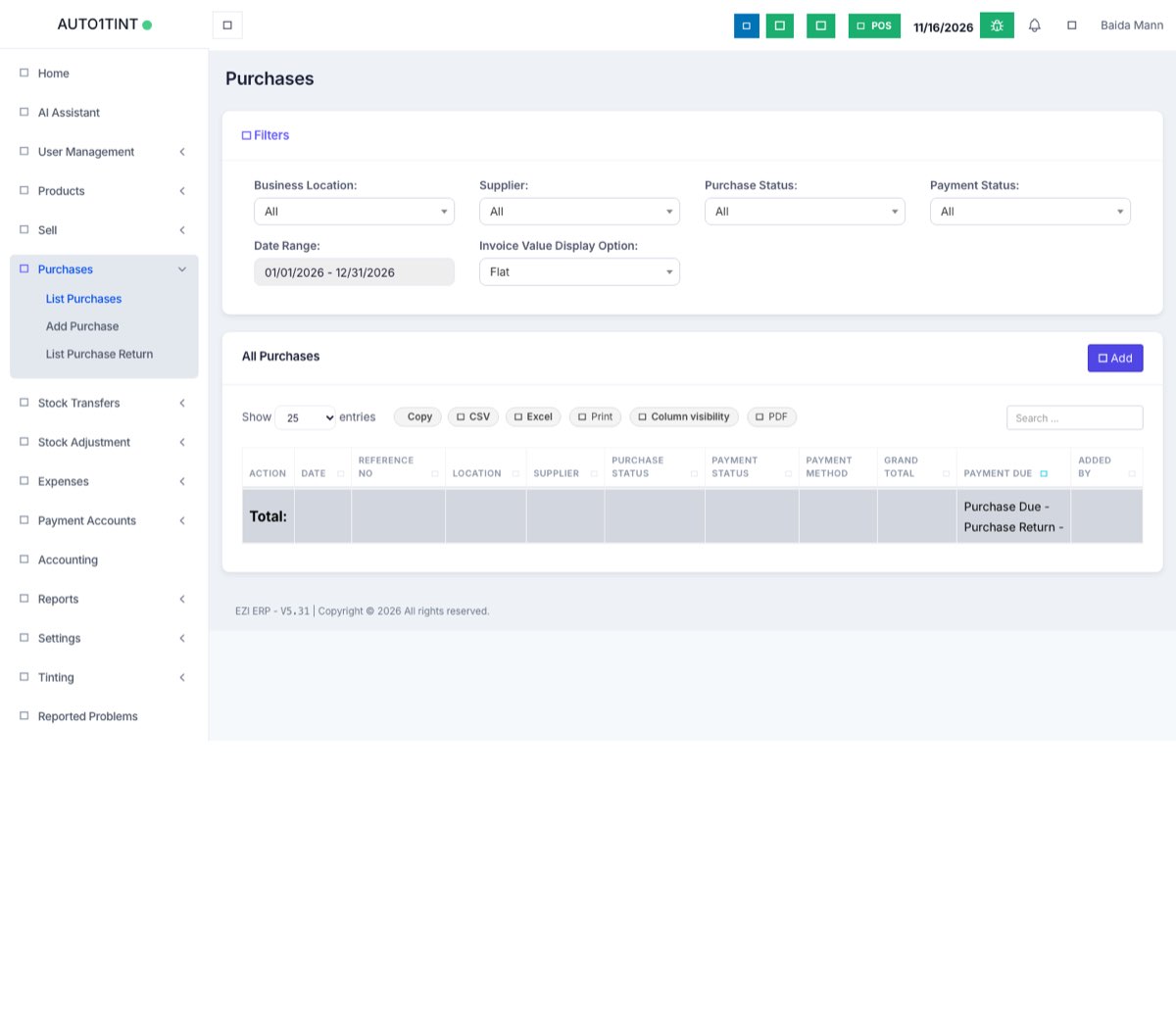
The Purchases menu records stock coming in from suppliers. It covers the whole buying cycle:
- Purchase Requisition – staff ask for items to be bought (optional).
- Purchase Order – you order from a supplier (optional).
- Purchase – the goods arrive and the bill is recorded. Stock goes up.
- Payment – you pay the supplier, in full or in parts.
- Purchase Return – you send items back.
Why you would use it
- Stock only increases through purchases (or opening stock), so this keeps stock counts right.
- The purchase price feeds your profit reports.
- You see exactly what you owe each supplier and when it is due.
How to use it
Add a purchase
- Go to Purchases > Add Purchase.
- Choose the Supplier (or add a new one with the + button).
- Reference No – leave empty to autogenerate, or type the supplier's bill number.
- Set the Purchase Date, Business Location and Purchase Status. Stock is only added when the status is Received.
- Optional: set Pay term, attach Docs (a photo of the bill), or link a Purchase Order.
- In Enter Product name / SKU / Scan barcode, find each product and enter the Purchase Quantity and Unit Cost (Before Discount). You can also set a discount, Lot Number, MFG Date and EXP Date per line, and see the new Unit Selling Price.
- Below the items, add an overall Discount, Purchase Tax, Shipping Details and Additional Shipping charges, or Add additional expenses such as loading costs.
- In Add payment, record what you paid now (amount, method, account). Leave it at zero if you will pay later.
- Click Save.
Purchase orders and requisitions
These menus appear once switched on in Settings > Business Settings > Purchases.
- Purchases > Purchase Requisition – staff list items and a Required by date. Managers review them and turn them into orders.
- Purchases > Purchase Order – click Add, choose supplier, Order date, Delivery date and items, then Save. Later, on Add Purchase, pick the order so its items load automatically.
Pay a supplier
- Open Purchases > List Purchases.
- On the purchase, click Action > Add payment.
- Enter amount, date, method and account, then Save.
You can also pay several bills at once from the supplier's page in Contacts.
Return goods
- Open Purchases > List Purchase Return, or use Action > Purchase Return on the original purchase.
- Enter the quantity returned for each item and save. Stock goes down and the supplier's balance is reduced.
Tips / common questions
- Stock didn't go up. Check the Purchase Status is Received.
- Buying in another currency? Switch it on in Business Settings > Purchases, then enter the Currency Exchange Rate on the purchase.
- Bank payments may need owner approval. See Payment approvals.
- Useful reports: Purchase & Sale, Product Purchase Report, Purchase Payment Report and Supplier & Customer Report. See Reports.
- Purchase document printing options are in Settings > Purchase Print Settings.