Business settings
One page where you set your business name, currency, tax, invoice numbering, email and many other defaults that every other screen uses.
What it is
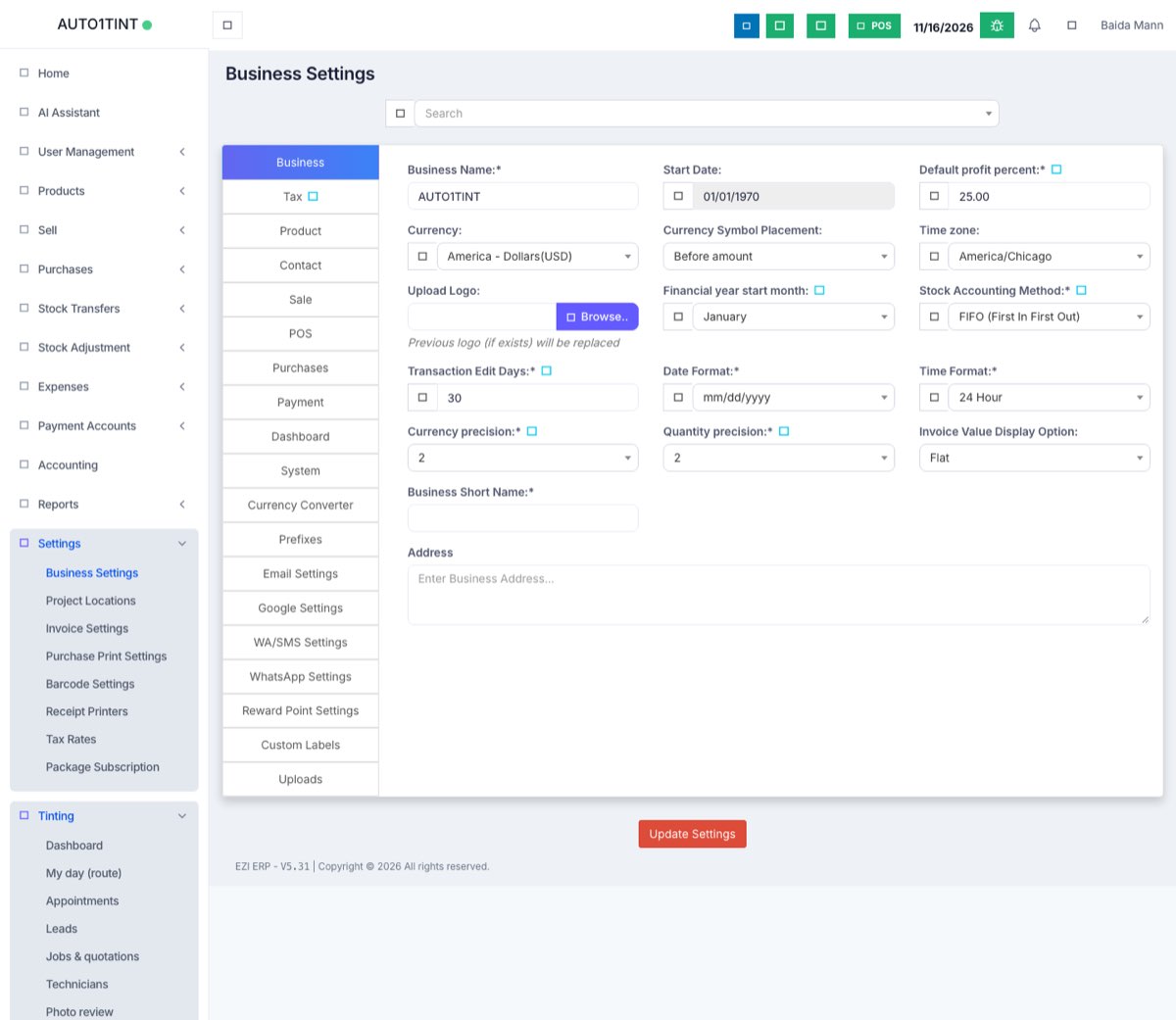
Business Settings is the control panel for your whole business. The choices you make here (currency, date format, financial year, default tax, prefixes and so on) are used by every sale, purchase, report and invoice.
Why you would use it
- To put your real business name, logo and currency on invoices.
- To match the app to how you work (for example, your financial year or how prices are rounded).
- To switch on extra features such as purchase orders, reward points or SMS.
- To connect email, SMS and WhatsApp so the app can send messages to customers.
How to use it
- In the left menu, open Settings > Business Settings.
- Pick a tab from the list on the left (see the table below).
- Change what you need.
- Click Update Settings at the bottom. Nothing is saved until you click it.
| Tab | What you set there |
|---|---|
| Business | Business Name, Start Date, Default profit percent, Currency, Currency Symbol Placement, Time zone, Upload Logo, Financial year start month, Stock Accounting Method, Transaction Edit Days, Date Format, Time Format, Currency precision and Quantity precision. |
| Tax | Tax 1 Name / Tax 1 No. and Tax 2 Name / Tax 2 No. (for example your GST or VAT number) printed on invoices. |
| Product | SKU prefix, product expiry options, Default Unit and whether products can have sub units, brands, categories and warranties. |
| Contact | Default credit limit for new customers. |
| Sale | Default Sale Discount, Default Sale Tax, Sales Item Addition Method, Amount rounding method, sales commission agent type, and whether Sales Orders are used. |
| POS | Options for the point-of-sale screen, such as keyboard shortcuts and which buttons show. |
| Purchases | Purchase in a different currency, Lot number, Purchase Order and Purchase Requisition on/off. |
| Payment | Cash Denominations, and on which screens they are used. |
| Dashboard | View Stock Expiry Alert For (number of days). |
| System | Theme Color and Default datatable page entries (rows per table). |
| Currency Converter | Exchange rates used to show amounts in another currency. |
| Prefixes | Letters put in front of auto numbers, e.g. for Purchase, Purchase Return, Stock Transfer, Expenses, Contacts, Sell Payment, Draft and Sales Order. |
| Email Settings | Mail Driver, Host, Port, Username, Password, Encryption, From Address, From Name, and Send test email. |
| Google Settings | Google account connection used by some features. |
| WA/SMS Settings | SMS Service (Nexmo, Twilio or Other), keys, and Send test SMS. |
| WhatsApp Settings | WhatsApp connection used for messages and reminders. |
| Reward Point Settings | Earning and redeeming rules for customer loyalty points. |
| Custom Labels | Your own names for custom fields on contacts, locations, users, purchases, sales and shipping. |
| Uploads | Signature and Stamp images printed on documents. |
Tips / common questions
- Changes don't show? Make sure you clicked Update Settings. Some changes appear only after you reload the page.
- Transaction Edit Days stops staff from editing old sales and purchases. Set it to a small number once your books are settled.
- Test before you rely on it. After filling in Email or SMS settings, use Send test email / Send test SMS.
- Who can open this page? Only users whose role has the business settings permission. See Roles & permissions.
- Invoice look and numbering live in a separate page: Invoice settings, barcodes, printers and tax.
- Locations (branches, shops, projects) are set up in Business locations.