Signatures and documents
Collect signed quote acceptance, work authorisation, damage acknowledgement, completion and technician sign-off, and print the quotation and job report.
What it is
The Tinting module lets people sign with a finger or mouse, either on your tablet in the shop or on their own phone in the customer portal. Every signature is saved with the exact sentence the person agreed to, their name, the time, the device and the job total at that moment. When a customer accepts a quotation, a frozen copy of the quotation is kept exactly as it was signed.
There are five kinds of signature:
| Kind | Who signs | What they agree to |
|---|---|---|
| Quotation accepted | Customer | "I accept quotation … for a total of … and the terms shown with it, and authorise the work." |
| Work authorisation | Customer | "I authorise the work described in job … on the vehicle / property shown." |
| Existing damage acknowledged | Customer | "I have seen the photos of existing damage recorded on job … before the work started, and agree they were present beforehand." |
| Job completion accepted | Customer | "The work on job … is complete and I have inspected it." |
| Technician sign-off | Technician | "I confirm the work on job … was carried out as recorded." |
You can also print two documents from any job: the Quotation and the Job report.
Who uses it
- Front desk / manager: collects quote acceptance on the tablet, prints documents, sends the portal link.
- Technician: collects damage and completion signatures on site and signs off their own work. Technicians can only sign on jobs they are assigned to.
- Customer: signs on your device or in their portal and downloads the documents.
Why it matters
A signed quotation stops "I never agreed to that price". A damage acknowledgement, backed by Damage photos, protects you from blame for a chip that was already there. Frozen copies show exactly what was signed, even after the quotation is revised.
How to use it
Sign on your device (shop tablet or phone)
- Open the job from Tinting → Jobs & quotations.
- In the Customer portal & signatures panel, click Sign on this device.
- Under What is being signed, choose the kind. The sentence they are agreeing to appears underneath. Quotation accepted is only offered while the job is still a quotation.
- Check Name of the person signing (it starts with the customer's name).
- Hand over the device. They sign in the box; Clear starts again.
- Click Save signature. The message says, for example, "Quotation accepted signed."
Signing Quotation accepted changes the job to Quotation approved and moves its lead to Won.
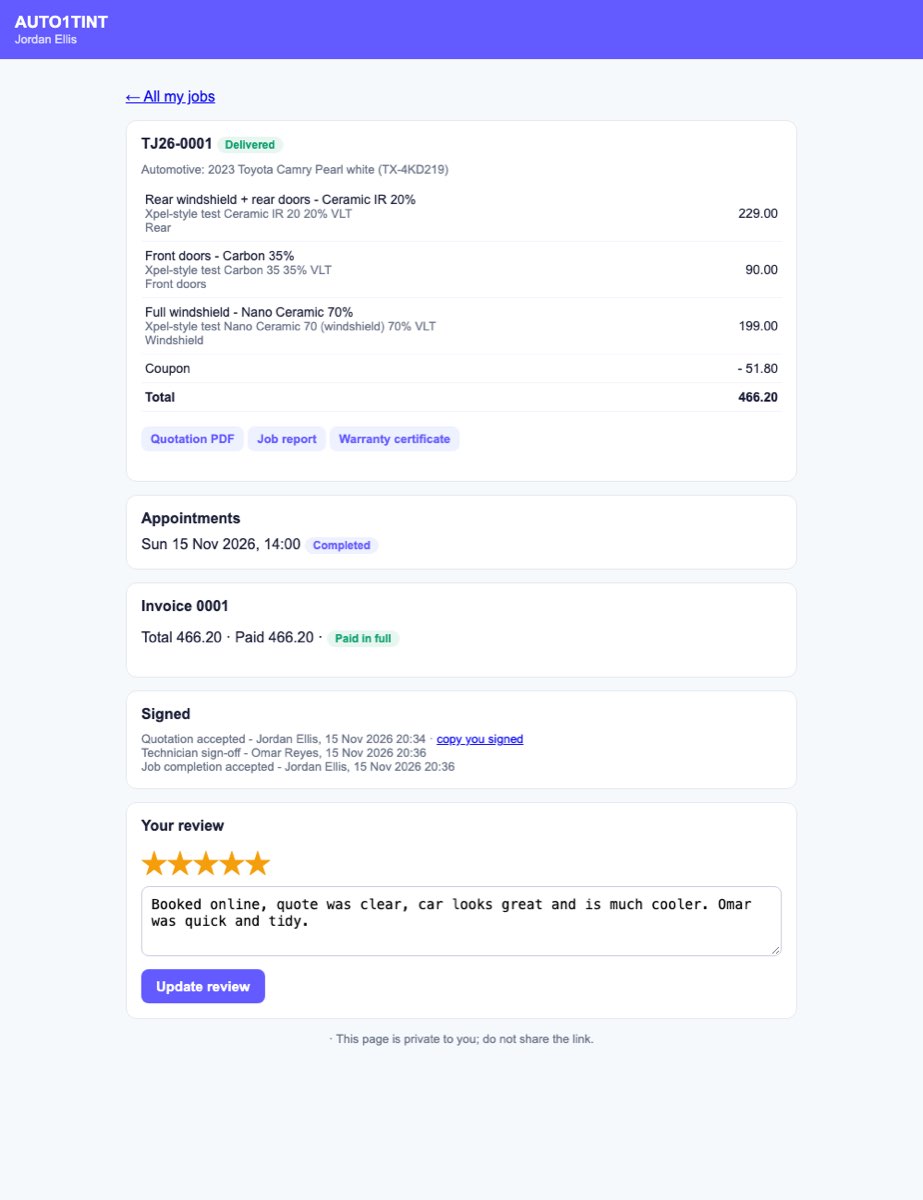
The panel then lists each signature with a small image, the kind, the signer's name and the time. For quote acceptance there is also a signed copy link: the quotation exactly as it was at that moment, headed "Copy as signed on … (revision …). Later changes to the quotation do not alter this copy."
Customer signs in the portal
- In Customer portal & signatures, click Make customer link and send it with the WhatsApp button.
- In the portal, the customer opens the job and sees:
- for a quotation: their name, the signature box, a tick box with the acceptance sentence, and Accept and sign. Under Not going ahead? they can pick a reason and click Decline quotation;
- when Damage photos exist and the job is past the quotation stage: Existing damage noted before the work with a Sign button;
- once the job is in inspection, completed or delivered: Sign off the finished work with a Sign off button.
- Their signatures appear on your job page straight away.
Print the quotation
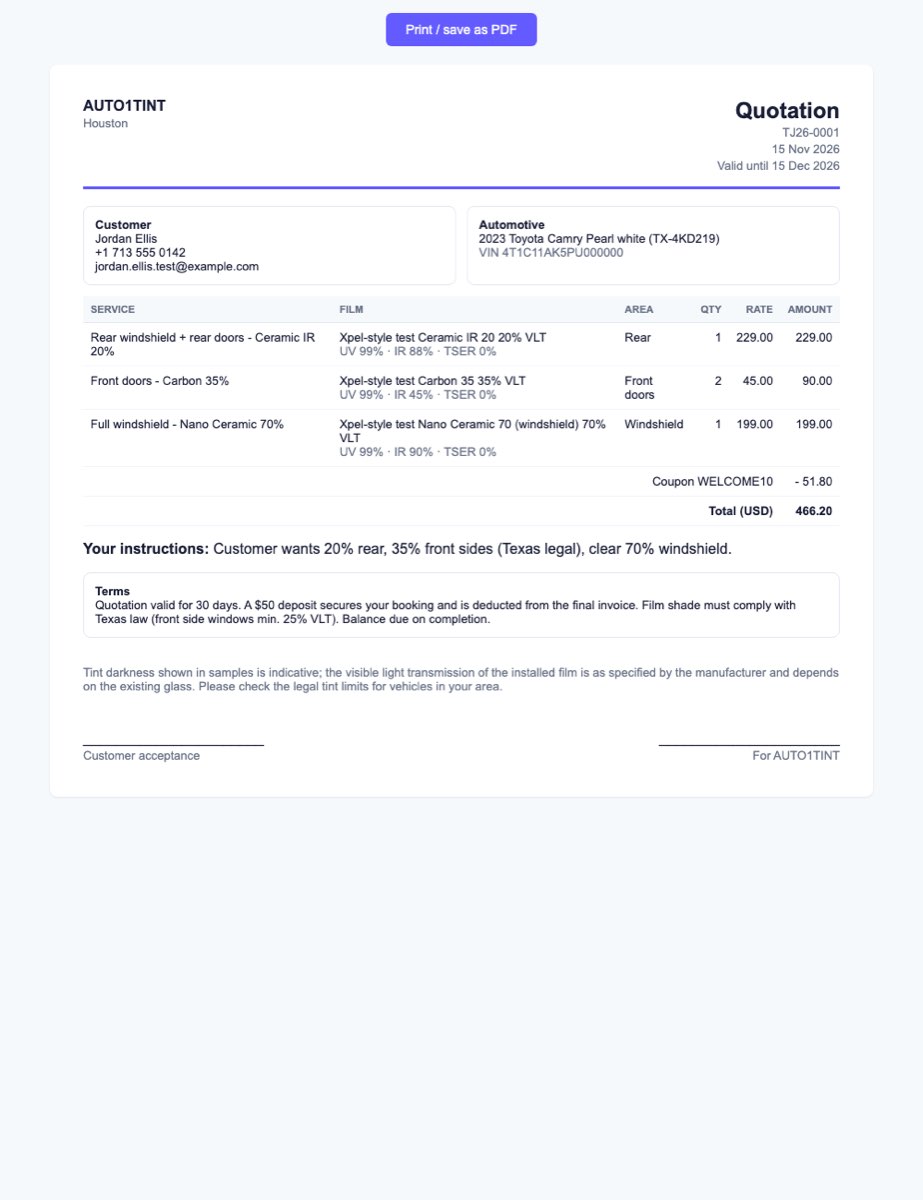
- On the job page click Quotation (top right). A printable page opens in a new tab.
- It shows your business details, the customer and vehicle or property, the lines, discount, coupon and total, the customer's instructions, up to four tint previews if any (marked as simulations), the terms, and lines for signatures. A revised quotation shows "rev. N".
- Use your browser's print or Save as PDF.
Print the job report
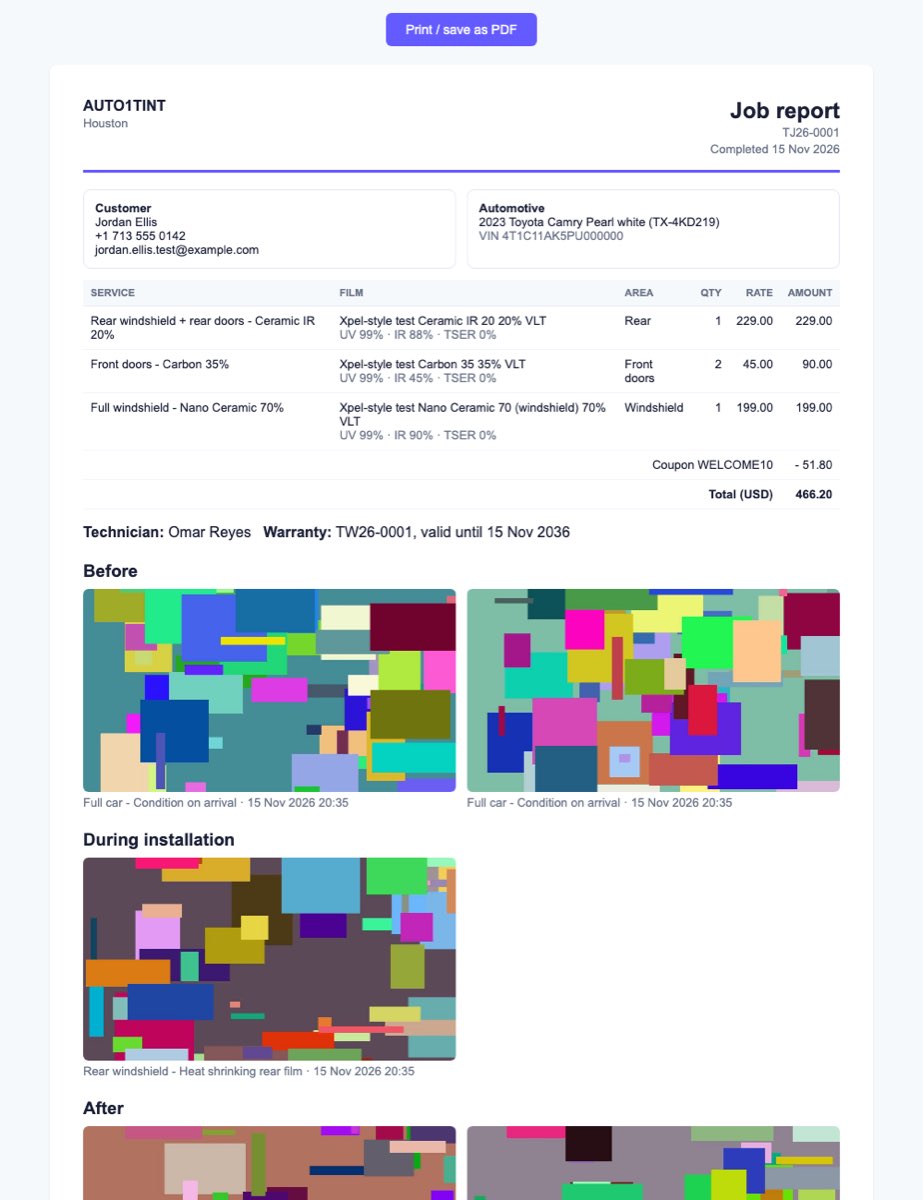
- On the job page click Job report.
- It shows the customer, lines, technician, completion date, warranty number and expiry, and the approved photos grouped by category (Before, During installation, After and so on). If you marked some photos Share, only those are used; otherwise all approved photos appear. Videos are left out.
Rules & limits
- A blank or tiny scribble is refused with "Please sign in the box."
- Signing Quotation accepted on a job that is no longer a quotation is refused with "The quotation is no longer open." In the portal: "This quotation has already been answered."
- In the portal each kind can be signed once ("Already signed."), and completion only after the work is finished ("The job is not finished yet.").
- If the job total changes after the customer signed, the job page warns: "The customer signed for …; the job now totals … . Get the change approved." See Quotations & jobs.
- Only managers can make or reset the portal link. Make new link stops the old link working.
- In the portal the customer can open Quotation PDF at any time, Job report once the job is completed or delivered, and Warranty certificate once one is issued. See Warranties.
Tips
- Take Damage photos before you start, then get the damage acknowledgement signed before any film goes on.
- Use the technician sign-off together with the quality inspection, so you have both the technician's word and the manager's check.
- Choose which photos the customer sees with Share in the Photos panel. See Photos & videos.