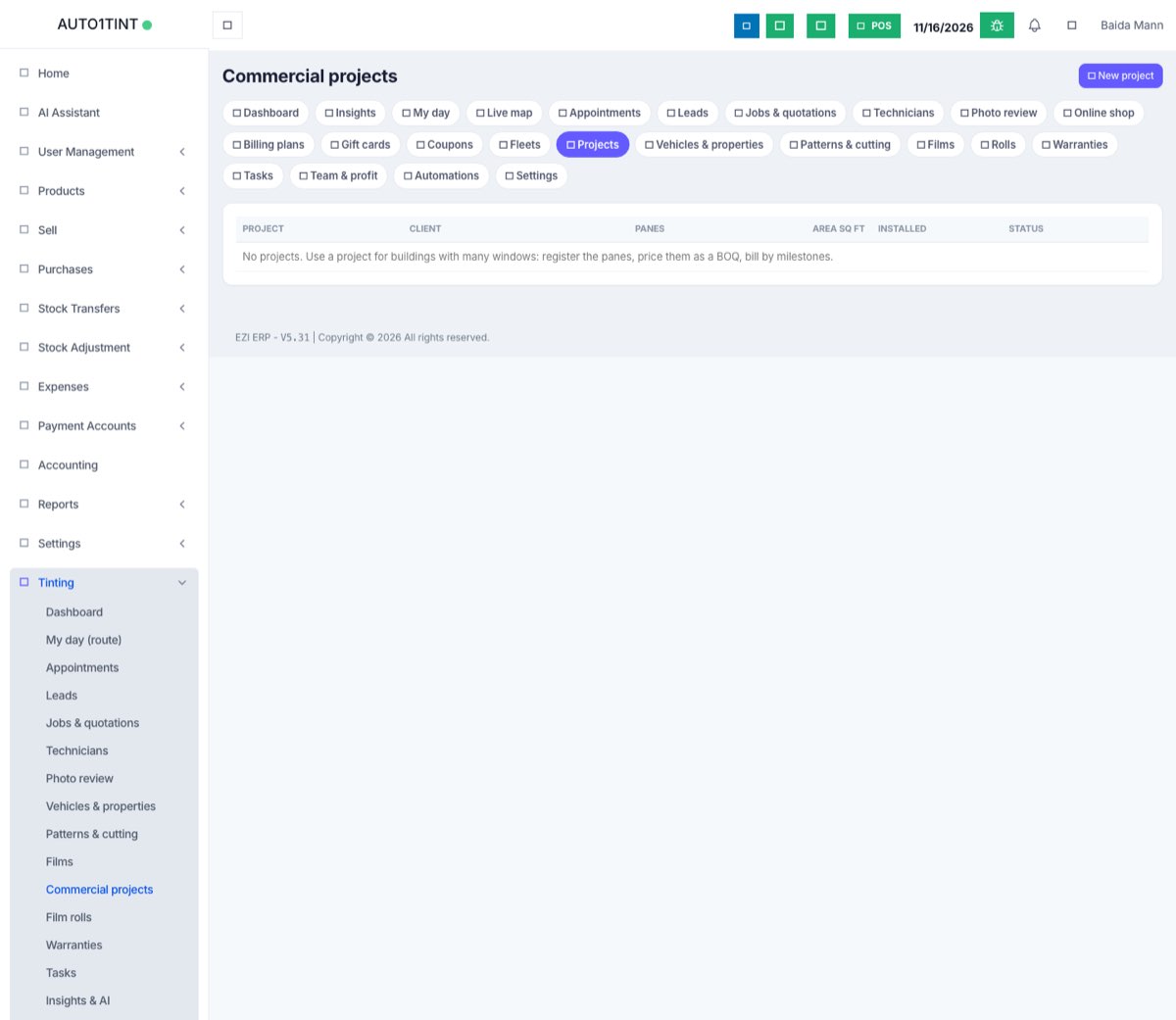
Commercial projects
Run large building jobs pane by pane. Register every window by building and floor, measure, price a bill of quantities, track installation, bill by milestones with retention, and issue a completion certificate.
What it is
A commercial project is for buildings with many windows: an office tower, a mall, a school. Instead of one quotation with "200 windows", you keep a window register: every pane gets its own number, size, film and status. From the register EZI makes a BOQ (bill of quantities) quotation. Anything added after that becomes a variation order. You then track installation floor by floor, invoice by milestones while holding back a retention, and print a completion certificate at the end.
Who uses it
- Owner / manager (
tinting.manage): creates projects, adds, measures and edits panes (including measuring from photos), prices the BOQ, sets milestones, raises invoices, releases retention and completes the project. - Technicians: open projects and mark panes installed or inspected.
Why it matters
A pane register stops windows being missed or counted twice, variation orders keep extra work apart from the agreed price, and milestone billing with retention matches how building contractors pay.
How to use it
1. Create the project
- Go to Tinting → Projects and click New project.
- Choose the Client, then enter the Project name (e.g. "Blue Area Tower - facade"), the Site address and the Retention % (0–50; held back from each progress invoice until completion).
- Click Create. The project gets a number like PRJ26-0001 and starts in survey status. A commercial property is made for it automatically.
2. Register the panes
Under Add panes, enter the Building (e.g. B1), Floor (e.g. F3), How many, and optionally the Width in, Height in, Film, label and glass type. Click Add. Panes are numbered building-floor-number, e.g. B1-F3-W012. Leave the size empty to measure later.
Progress by building and floor shows each floor's panes, area and % installed. Click the edit icon on a pane to change its label, size, quantity, glass type, film or notes. Tick Checked with a tape measure to mark it verified.
3. Measure from a photo (optional)
- Click Measure from photo.
- Take or choose a photo of the window, with a reference object stuck on the glass: an A4 sheet, US letter, bank card or Other length….
- Tap both ends of the reference edge, then the glass corners: top-left, top-right, bottom-right, bottom-left.
- EZI shows the size, the sq ft and a confidence %.
- Under Save to, choose an existing pane or New pane (with building and floor), then click Save measurement.
Photo sizes show as "photo 80%" in the register until checked. Always check them with a tape before cutting.
4. Price the BOQ
In the Quotation / BOQ panel, unpriced panes are grouped by film with their total sq ft. Enter a Rate per sq ft for each film, add up to two extra lines (e.g. "Old film removal", "Scaffolding / access"), and click Make quotation (or Make variation order once a quotation exists). The first BOQ becomes a normal quotation (e.g. TJ26-0005). Panes added later are priced as a variation order (TJ26-0005-VO1). Send, sign and approve them like any job: see Quotations and jobs.
5. Track installation
In the register, tick panes, choose who installed them, and click Mark installed, Mark inspected or Back to pending. The project moves to in progress. Photos and inspection reports go on the project's quotation job (see Photos and videos).
6. Bill by milestones
- Under Milestones & billing, enter a milestone name (e.g. "Floors 1-5") with either a % of contract or an amount, and an optional due date. Click Add milestone.
- When it is reached, click Invoice. The invoice is the milestone amount less the retention %.
- At the end, click Release retention to invoice everything held back.
The top of the page shows the contract value (approved quotations and variation orders), the amount billed and the retention held.
7. Complete and certify
When every pane is installed, click Mark project complete, then Completion certificate. It lists panes and area by building, floor and film, with signature lines for you and the client.
Rules & limits
- Anyone with Tinting access can open projects and mark panes installed or inspected.
- Only
tinting.manageusers can add, measure (by tape or photo), edit or delete panes, create projects, price the BOQ, edit the project, add or invoice milestones, release retention and complete the project. The Add panes box, the edit pencil and Measure from photo are hidden from everyone else. - Commercial projects count towards your plan's Commercial projects limit, and each BOQ counts as a job (see Usage limits).
- "Measure every pane before pricing (N without a size)." Every unpriced pane needs a width and height.
- "Every pane is already priced." Add new panes first.
- "Approve the quotation first; milestones are a share of the contract value."
- A pane on an approved quotation cannot change size: "This pane is on an approved quotation; add the change as a new pane so it goes on a variation order."
- Only unpriced panes can be deleted.
- "N pane(s) are not installed yet." Every pane must be installed before you can complete the project.
- Up to 500 panes can be added at once. Measurement photos count towards your storage limit.
Tips
- Measure large or important panes by tape. Use photo measurement for quick surveys and quoting.
- Milestone invoices are normal ERP invoices; see Invoices and payments.