The EZI Tint mobile app
The EZI Tint phone app for technicians and managers – what it is, how to sign in, and how photos from the camera reach the job.
What it is
EZI Tint is the phone app for the Tinting module. It opens your EZI ERP Tinting pages (/tinting) inside an app window, so it looks and works exactly like the website on a phone, with a few extras:
- it opens straight to the Tinting dashboard;
- photo upload can use the phone camera directly, or pick photos and videos from the gallery;
- it shows a friendly "No connection" screen with a Try again button when the phone is offline.
Because the app shows the live website, every improvement made on the server appears in the app at once – there is no app update to wait for.
The Android version is ready. An iPhone version is planned but not yet published (Apple requires extra native features first).
Who uses it
- Technicians – My day, check-in, photos, materials and sign-off from the job site.
- Managers and front desk – quick look at the calendar, jobs, quotations and warranties when away from the desk.
Customers do not use this app. They use their private customer portal link in any phone browser.
Why it matters
Technicians work with their hands full in a car or on a ladder. An app icon on the home screen that opens straight to their day, and takes photos without a separate upload step, means photos actually get taken and jobs actually get updated.
How to use it
Install and sign in
- Install EZI Tint on the Android phone (from Google Play once your provider has published it, or the install file your provider sends you).
- Open the app. Sign in with your normal EZI ERP username and password – the same login as the website.
- You land on the Tinting dashboard. Use the tabs along the top, or the left menu, as on the website.
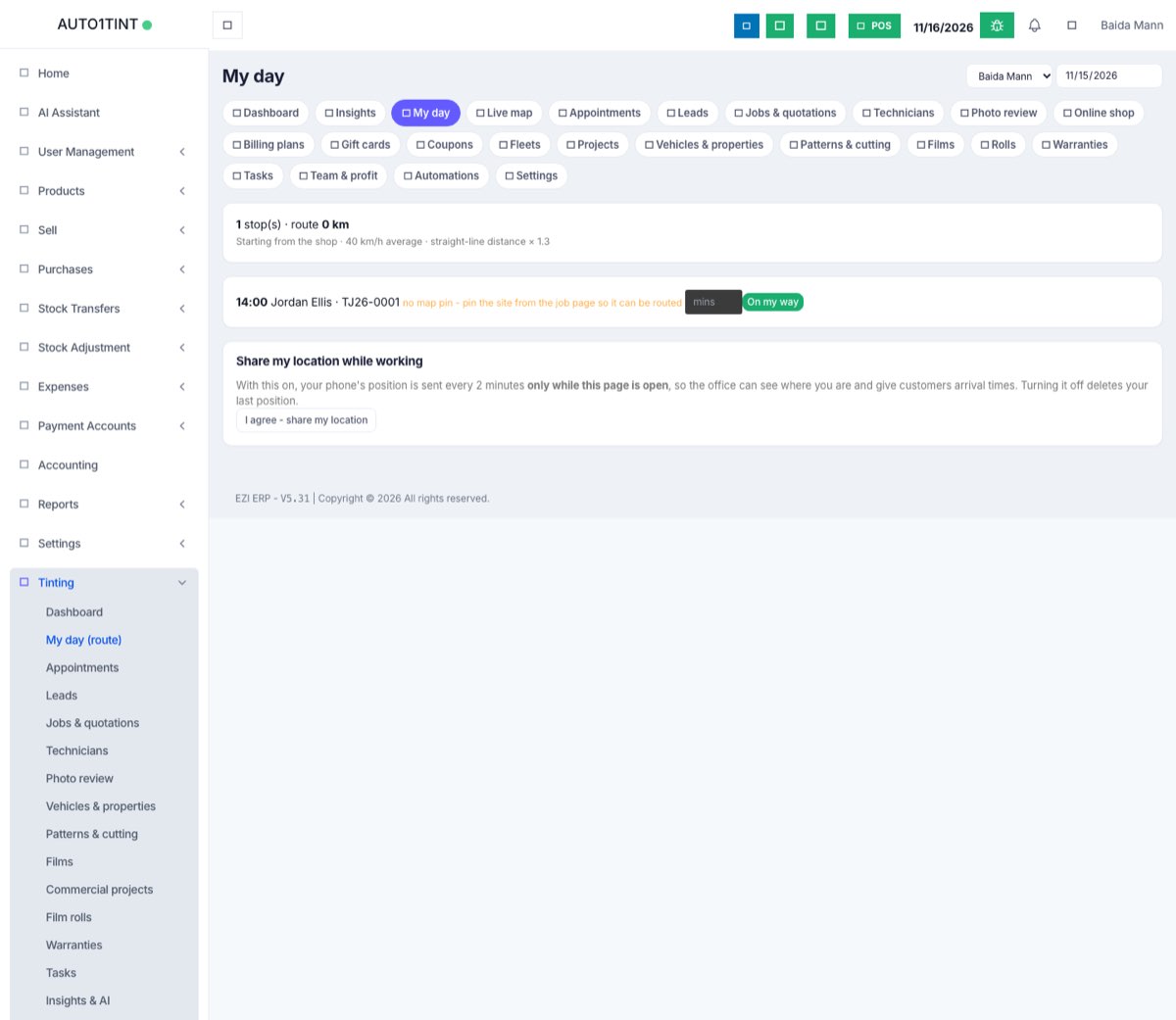
A technician's day in the app
- Open My day to see today's stops in order, with map links. See Field service.
- Tap On my way before driving so the customer gets an arrival estimate.
- On arrival, open the job and check in.
- In the photos panel of the job, tap the file picker and choose the camera to take before, during and after photos, or pick from the gallery. Choose the right category before uploading. See Photos & videos.
- Record film used and complete the job steps as on the website. See Job card walkthrough.
Rules & limits
- The app needs an internet connection; nothing is stored offline. If the signal drops you will see "No connection – EZI Tint needs the internet to load your jobs and upload photos." Tap Try again when you have signal.
- What you can see is exactly what your role allows on the website: technicians with only Tinting: use jobs, appointments and photos see only their own jobs. See Switching the module on.
- The app asks for camera and photo-library access the first time you upload. If you refuse, you can still pick existing files; allow the camera in the phone's app settings to take photos directly.
- The app asks for location the first time you press Check in, Check out or On my way. Allow it so the check-in is saved with your position. If you refused, check-in still works but without a position - turn location on for EZI Tint in the phone's Settings → Apps → EZI Tint → Permissions.
- Links to WhatsApp, Google Maps and Clover payment pages open as normal.
- Photos uploaded from the app count towards your plan's storage limit (Usage limits).
Tips
- If check-in says "No location was shared.", make sure the phone's location is switched on and EZI Tint is allowed to use it (Settings → Apps → EZI Tint → Permissions → Location). Apps installed before November 2026 need updating to the new version first.
- Take photos in good light: the system flags dark, over-exposed, blurry and duplicate photos for the manager.
- The app opens the shop's live server, so if something looks different from yesterday, it is the website that changed, not the app.