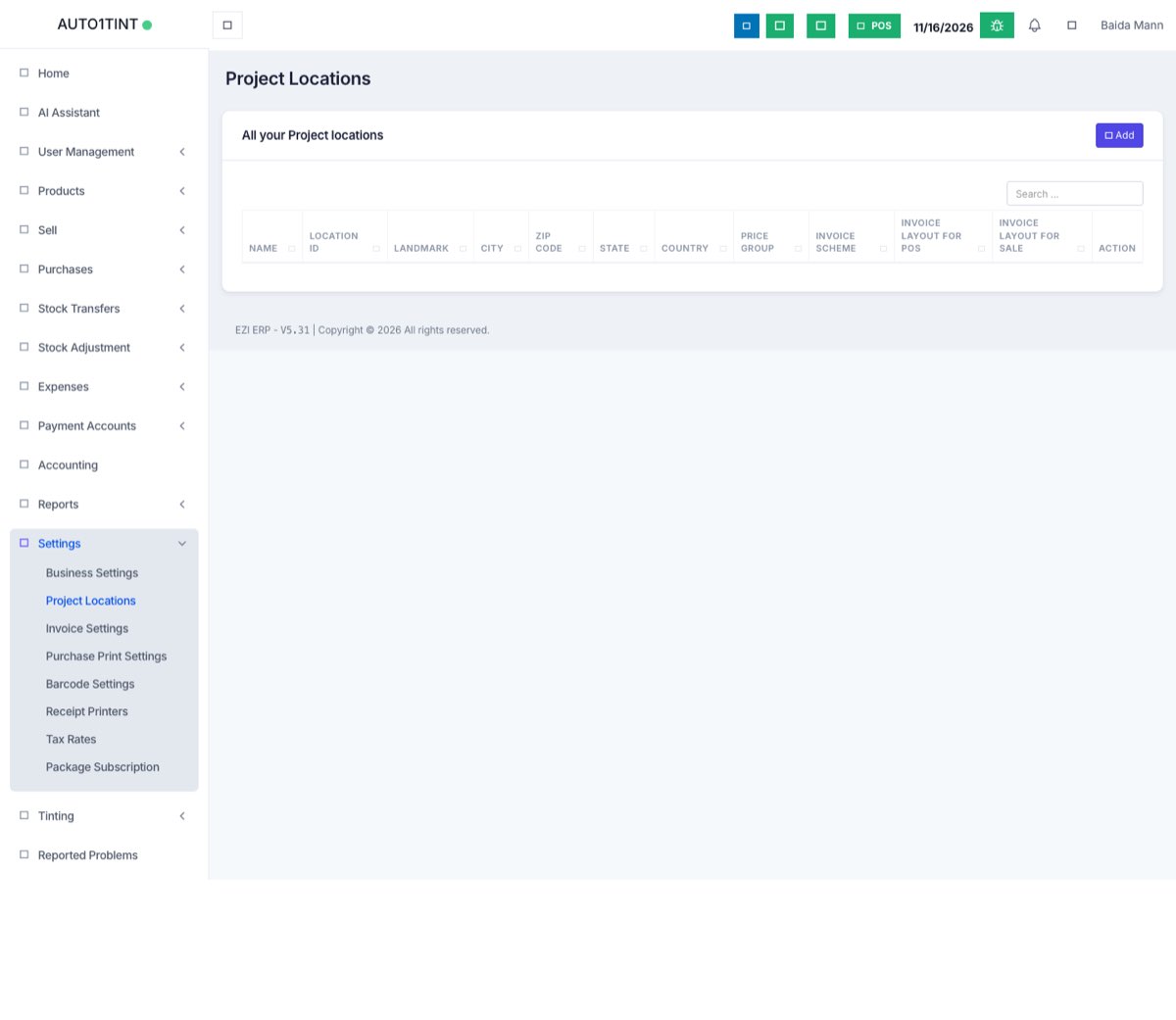
Business locations (Project Locations)
Locations let one business run several shops, warehouses or projects, each with its own stock, invoice layout and payment methods.
What it is
A location is a place where you keep stock or make sales: a shop, a warehouse, a branch or a project site. In the menu this page is called Project Locations. Every sale, purchase, expense and stock movement belongs to one location.
Why you would use it
- To keep stock separate for each shop or warehouse.
- To see sales and profit per branch in reports.
- To print a different invoice design or numbering for each branch.
- To limit staff so they only see the location they work at.
How to use it
Add a location
- Go to Settings > Project Locations.
- Click Add.
- Fill in the name, location ID (optional), address, phone and email.
- Choose the invoice settings for this location:
- Invoice scheme for POS and Invoice scheme for sale – how invoice numbers are formed.
- Invoice layout for POS and Invoice layout for direct sales – how printed invoices look.
- Pick a Default Selling Price Group if this branch sells at special prices.
- Under Payment Options, tick Enable for each payment method this location accepts, and choose a Default Account for each one so payments land in the right bank or cash account.
- Optionally pick POS screen Featured Products – they appear at the top of the POS screen.
- Click Save.
Edit, deactivate or configure a location
- In the list, use the Action buttons on a row to Edit, open Settings for that location, or Deactivate it.
- A deactivated location disappears from sale and purchase screens but its history is kept.
Give staff access
Locations are linked to users through roles. When you create or edit a user or role, choose Access locations – either All Locations or only the ones they need. See Users and Roles & permissions.
Tips / common questions
- How many locations can I have? That depends on your subscription package.
- Moving stock between locations is done with a stock transfer, not by editing products. See Stock transfers and adjustments.
- Opening stock per location can be entered when adding a product or with Import Opening Stock. See Products.
- If a payment method is missing on the POS screen for one branch, check that it is enabled under Payment Options for that location.
- Invoice layouts and schemes are created in Settings > Invoice Settings. See Invoice settings, barcodes, printers and tax.