Film rolls, cutting plans and waste
Track every physical roll of film, let the cutting plan pick the best roll for a job, and see where film goes in the usage and waste report.
What it is
A roll is one physical roll of film on your shelf, with its own number, width, length left, batch and cost. The Rolls page lists them all. On every job there is a Cutting plan where you enter the windows to cut. EZI then works out how much film the job needs, how much will be wasted, and which roll to cut it from. The Film usage & waste report shows where your film went: by film, by technician, by month and by job.
Who uses it
- Owner / manager (
tinting.manage): receives rolls, corrects the length left, marks rolls finished or damaged, and reads the usage & waste report. - Technicians: add pieces to the cutting plan on their own jobs, press Cut from this roll, and record film used.
Why it matters
Film is your biggest material cost. Tracking each roll shows what is really on the shelf, uses up leftover pieces (remnants) before you open a fresh roll, costs every job, and shows where waste happens.
How to use it
Receive rolls
- Go to Tinting → Rolls.
- Click Receive rolls.
- Choose the Film, enter How many rolls (up to 50 at once), the Width (in), the Length (ft) and the Cost per roll.
- Optionally add the Roll no (leave it on "Automatic" to get numbers like R26-0001), Batch / lot, Received date, Location and Supplier.
- Click Add.
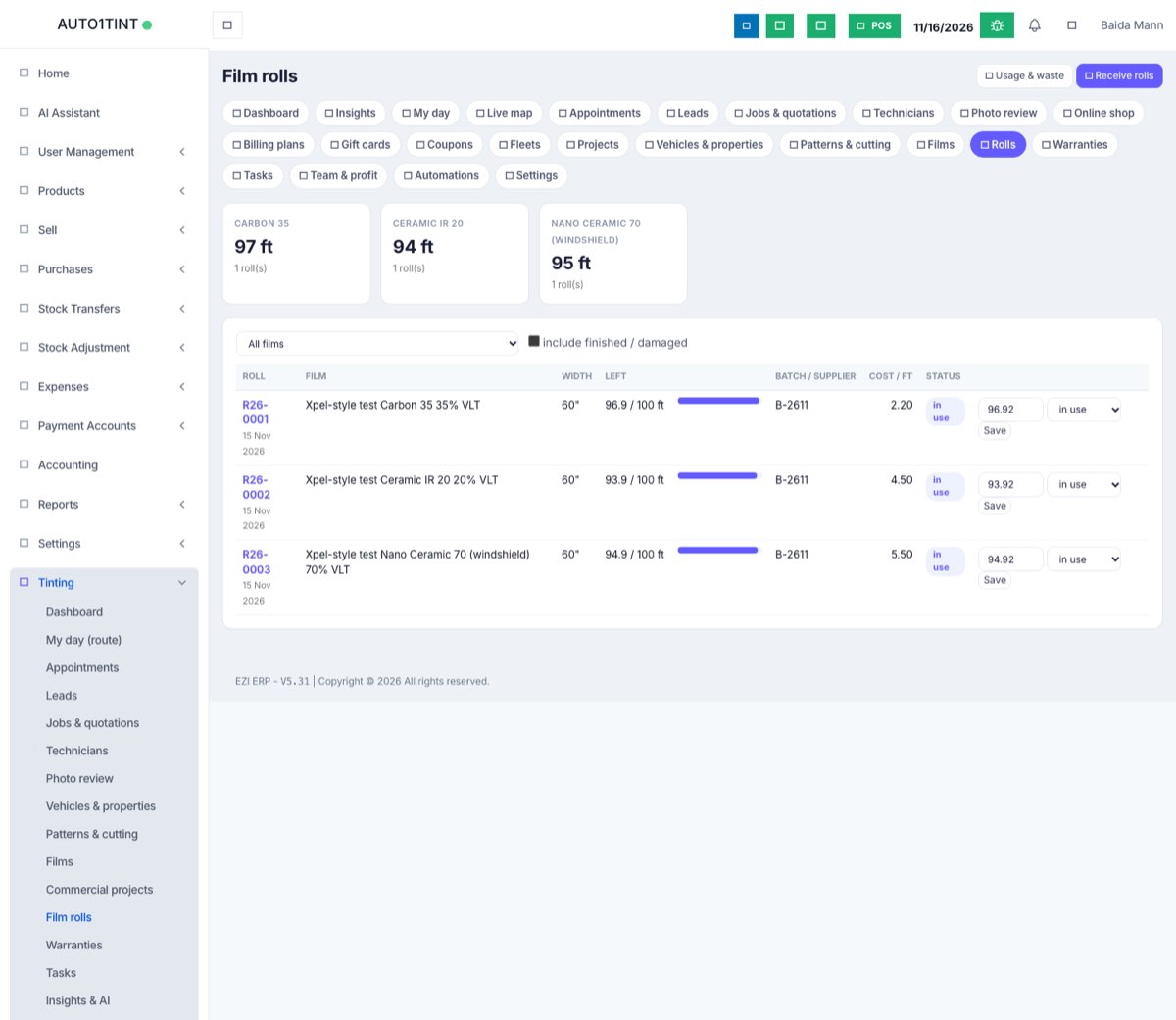
The top boxes show feet and rolls per film. Tick include finished / damaged to see old rolls; a roll's bar turns red below 15% left.
Rolls here track the physical rolls. Buy the film with a normal ERP purchase as well, so your stock and accounts stay right (see Films).
Correct a roll
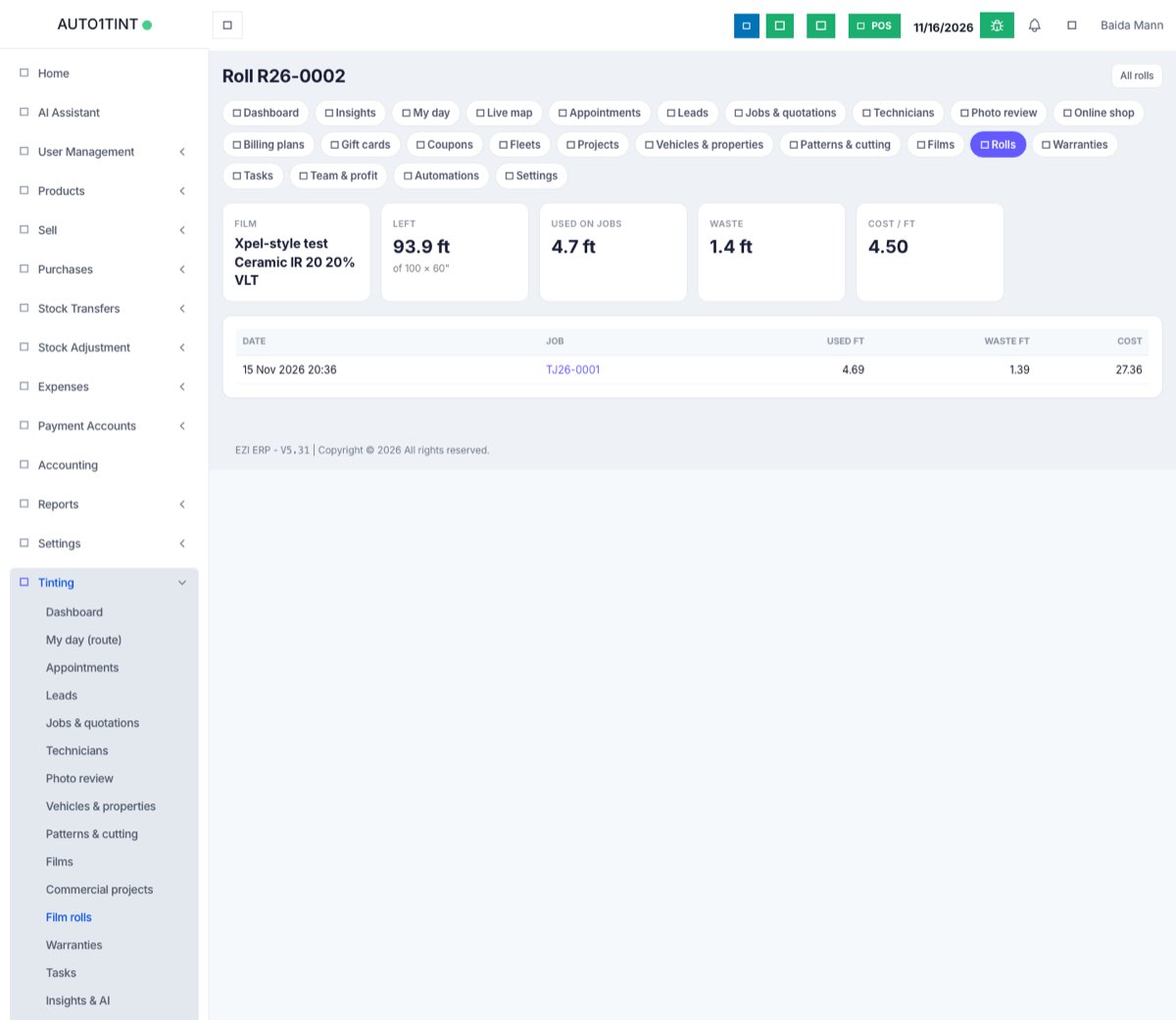
On the roll's row, type the measured feet left, choose in use, finished or damaged, and click Save. Click the roll number to open its history: film, feet left, feet used on jobs, waste, cost per foot and every job that took film from it.
Plan the cutting on a job
- Open the job from Tinting → Jobs & quotations and scroll to Cutting plan.
- For each window or pane, enter a label (e.g. "Driver front"), the width and height in inches, the quantity and the film. If you leave the film empty, the piece uses the job's first film. Click Add.
- EZI adds 0.5" on every side for trimming on the glass. For each film it shows:
- the feet of film needed, the sq ft of film against the sq ft of glass, and the waste %;
- a drawing of the roll with every piece laid out in rows (grey is waste);
- Suggested roll R26-xxxx: a roll with enough film left at a usable width. It prefers the roll that will have the least left over afterwards, so remnants get finished first, and avoids layouts that waste more than 35%.
- When you are ready to cut, click Cut from this roll and confirm. The film (used plus waste) is taken off that roll and, if the film is linked to a stock product, out of stock.
If you see "No roll of this film in stock has X ft left at a usable width", receive a new roll.
The Cut patterns button and any cutboards for the job link to the plotter tools (see Cutting and plotters).
Record film by hand
Under Film used on the job, choose the film, optionally the roll, and enter the length used, width and waste, then click Record. Use this when you cut without the plan.
Read the usage & waste report
- Go to Tinting → Rolls → Usage & waste.
- Choose the dates (the last 3 months by default) and click Show.
- The top shows film used, waste, waste rate, material cost and the value of the film left on your rolls. Below are tables By film, By technician, By month and Material cost per job (job price, film cost, film % of the price and waste feet).
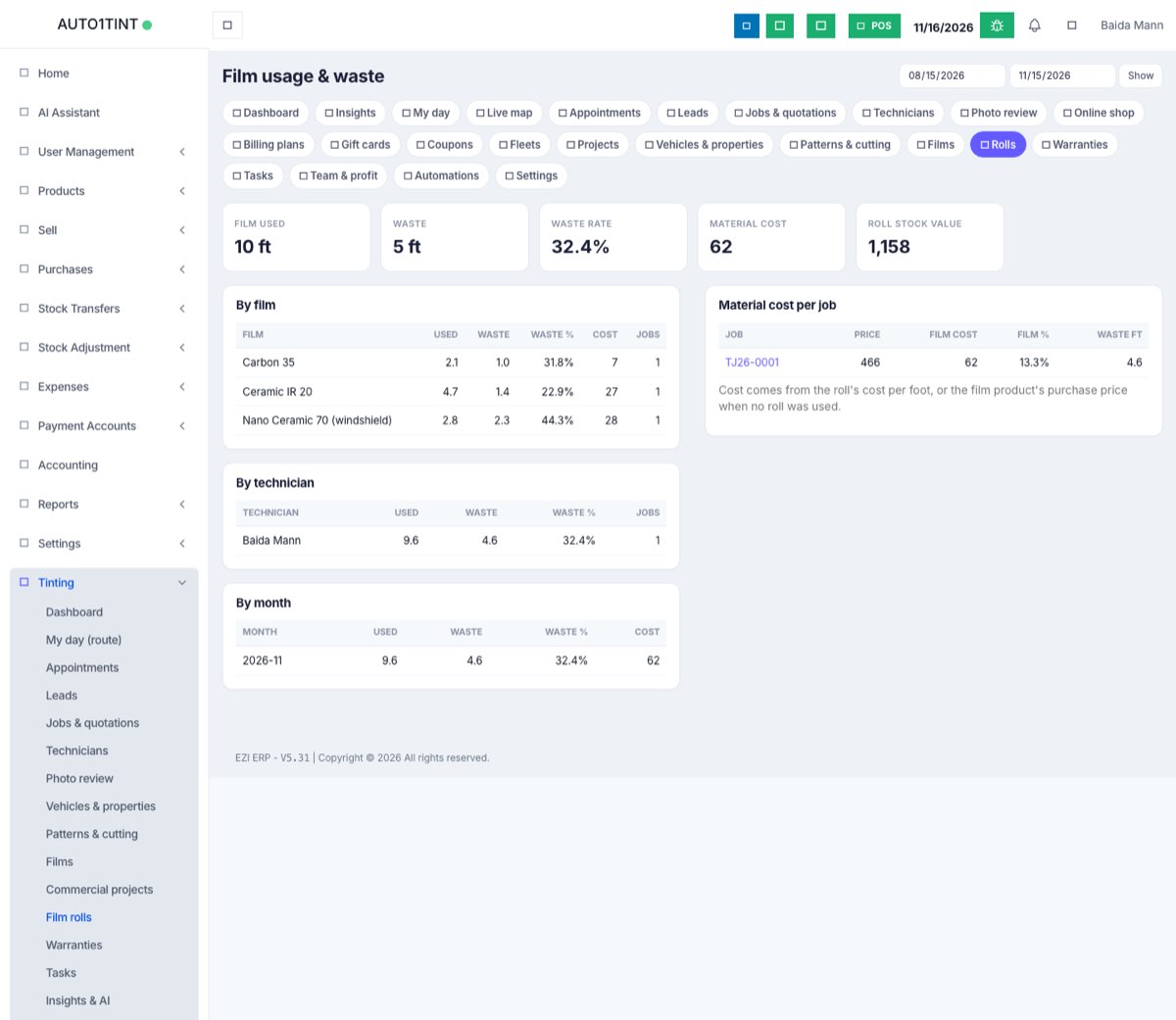
Cost comes from the roll's cost per foot, or from the film product's purchase price when no roll was used.
Rules & limits
- Only
tinting.manageusers can receive rolls, edit rolls and open the usage & waste report. - Technicians can add pieces and record film only on jobs they lead or are on the team of.
- A roll number must be unique. When adding several rolls at once, leave Roll no blank: "Leave the roll number blank when adding several rolls; each gets its own number."
- Width must be 1–200 inches, length 0.1–10,000 ft. Piece sizes must be 0.5–1,000 inches.
- A roll with 0.5 ft or less left is marked finished automatically.
- Choosing a roll of a different film gives "That roll is not this film."
Tips
- Enter pieces when you quote: the film needed then shows up as "Booked jobs need" on the Films page.
- A high waste % on one technician in the report is a coaching chance, not a telling-off. Check the jobs first.