Automations and tasks
Let the system send reminders, chase quotations, alert the manager and create follow-up tasks for you, and keep everyone's to-do list in one place.
What it is
An automation is a simple rule: When something happens → Only if some conditions are true → Then do one or more actions, each after an optional wait. For example: when a quotation is still not answered after 3 days, WhatsApp the customer the link, then two days later create a task for the salesperson to call.
Tasks are a shared to-do list. People add tasks by hand, and automations add them too. Your open tasks also show on the dashboard and as a red number next to Tasks in the menu.
Who uses it
- Owner / manager: creates and switches automations on and off and reads the log (needs tinting.manage).
- Everyone (front desk, technicians): uses Tasks. Technicians only see tasks assigned to them.
- Customers receive the messages.
Why it matters
Most lost sales and bad reviews come from things nobody remembered to do: a reminder the day before, a quotation never chased, an unpaid invoice. Automations do these the same way every time, and the log shows exactly what was sent.
How to use it
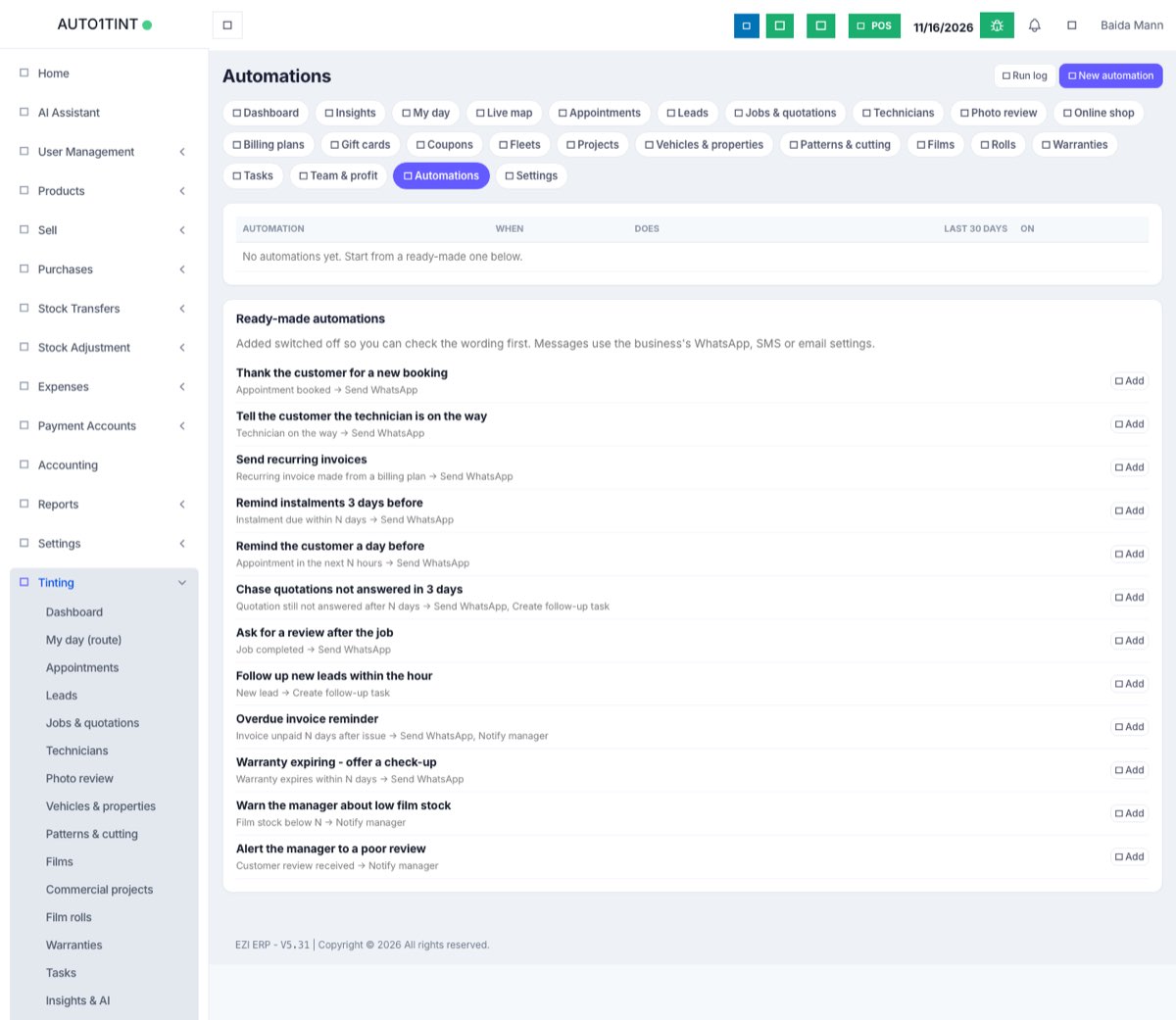
Start from a ready-made automation
- Go to Tinting → Automations.
- Under Ready-made automations, press Add next to one. Choices include: thank the customer for a new booking, tell the customer the technician is on the way, send recurring invoices, remind instalments 3 days before, remind the customer a day before, chase quotations not answered in 3 days, ask for a review after the job, follow up new leads within the hour, overdue invoice reminder, warranty expiring - offer a check-up, warn the manager about low film stock, and alert the manager to a poor review.
- It is added switched off and opens for editing. Check the wording, tick On and press Save.
Build your own
- Press New automation.
- Type a Name and choose When (the trigger):
- New lead · Quotation created · Quotation approved · Technician assigned to a job · Job moved to a status (pick the status) · Job completed
- Appointment booked · Technician on the way · Customer review received · Online deposit paid · Recurring invoice made from a billing plan
- Timed: Quotation still not answered after N days · Appointment in the next N hours · Invoice unpaid N days after issue · Instalment due within N days · Warranty expires within N days · Film stock below N. Enter the number in Value.
- Optional: press + Condition under Only if. Pick a field (job type, job status, job total, lead source, lead stage, lead estimated value, customer email or phone, technician, appointment status, review rating, invoice balance, film stock), an operator (is, is not, more than, less than, contains, is empty, is not empty) and a value. All conditions must be true.
- Press + Action under Then and choose:
- Send email, Send SMS or Send WhatsApp to the customer, lead technician, lead owner (salesperson), manager, or another address you type.
- Create follow-up task for a person, with Due in hours.
- Notify manager (a task for the manager, plus an email to the alert email in settings).
- Assign employee to the lead, job or appointment.
- Change status of the job, lead or appointment.
- Send to a webhook (Zapier, Make...): posts the event details as JSON to an https:// address.
- Set Wait (minutes) on each action (1440 = 1 day). Use placeholders such as
{customer_name},{job_no},{portal_link},{quotation_link},{appointment_time},{eta},{invoice_due}; the full list is under the actions. - Tick On and press Save.
To switch an automation on or off later, press the button in the On column. The trash button deletes it; anything still waiting to run is skipped.
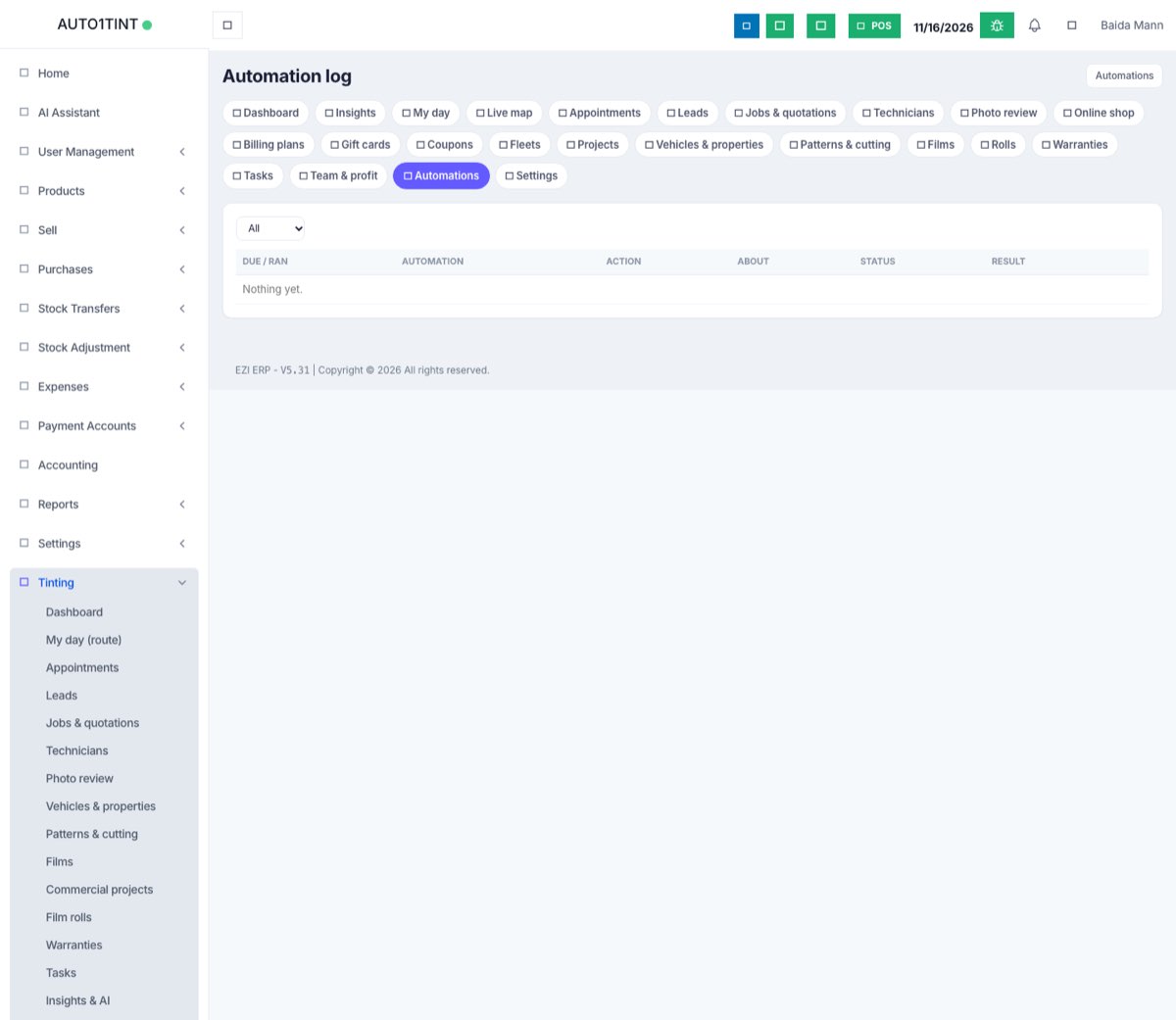
Read the run log
- Press Run log (a red badge shows failures in the last 7 days) or Log on one automation.
- Each row shows when it was due or ran, the action, what it was about, the status (pending, done, skipped, failed) and the result, e.g. WhatsApp sent to ....
- On a failed or skipped row press Retry after fixing the cause.
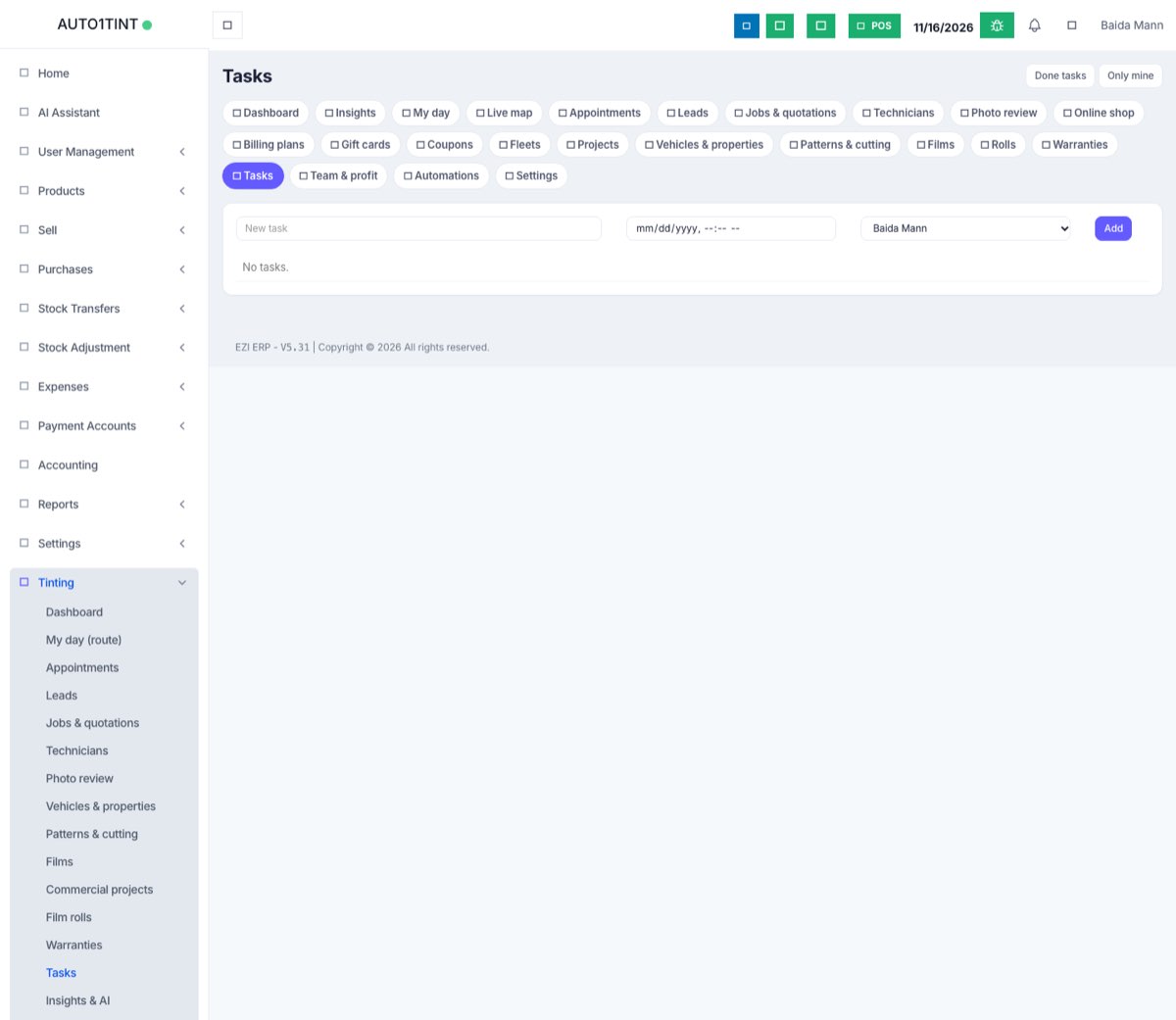
Tasks
- Go to Tinting → Tasks.
- Type in New task, optionally set a due date and time and a person, and press Add.
- Press the tick button to mark a task done (press again to reopen). Overdue tasks are shaded red; tasks made by an automation show a robot label.
- Use Done tasks / Open tasks to switch lists; managers can use Only mine / Everyone.
Rules & limits
- Automations run about every 5 minutes in the background; actions with no wait go out right after the event.
- Conditions are checked again when each action is due, so a chaser is skipped if the quotation was approved in the meantime (Conditions no longer met.).
- Timed triggers only fire for things that cross the line after the automation was created, and once per item. Low stock fires at most once a week per film.
- A failed action is tried 3 times, 10 and then 20 minutes apart. After the third failure a task Automation failed:
is given to the manager. - Email, SMS and WhatsApp use the business's ERP settings. If they are missing the log says, for example, SMS is not set up for this business (Settings > Business settings > SMS).
- Webhooks must be a public https:// address.
- Saving checks your form: Enter the number of days for this trigger., Action 1: write the message., Action 1: pick the employee., Action 1: enter the https:// webhook address., Action 1: pick the status.
- Up to 10 conditions and 10 actions per automation. Your plan may limit how many automations can be on at once (usage limits).
Tips
- Add ready-made ones first; they cover what most shops need.
- Fill Manager and Alert email in settings so manager alerts reach someone.
- Test a new automation on your own phone number before relying on it.