Tinting module overview
What the Tinting module does, the main things it keeps track of, and how a window-tint shop uses it from first enquiry to paid invoice.
What it is
The Tinting module is the part of EZI ERP built for window-tint shops: automotive tint, residential and commercial window film, and paint protection film. It sits on top of the normal ERP (customers, products, stock, invoices, payments, accounts) and adds everything a tint shop does day to day: quotations, jobs, appointments, technicians, film rolls, photos, quality checks, signatures, warranties, a customer portal and online booking.
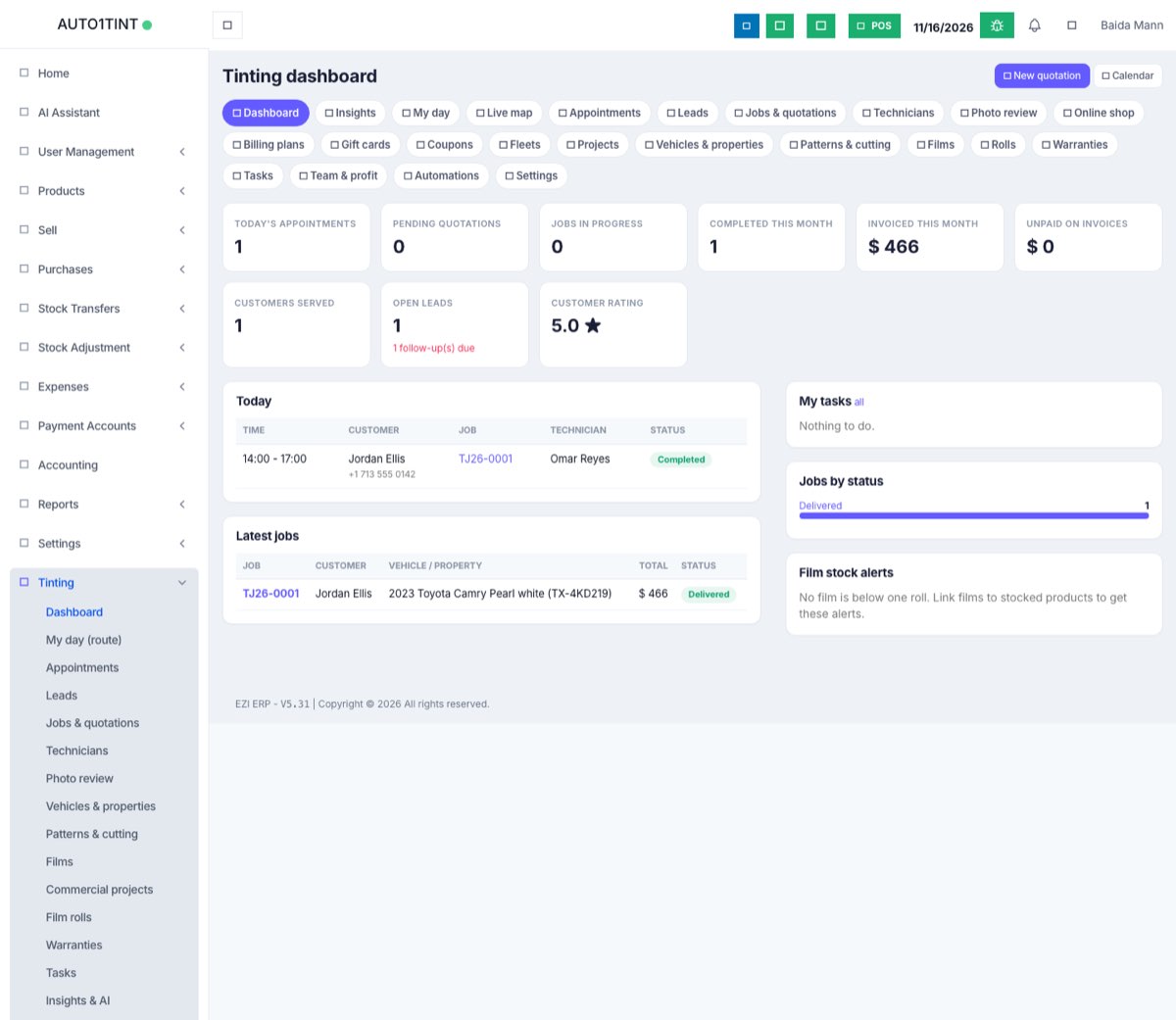
Once it is switched on you will see a Tinting menu in the left sidebar. Every Tinting page also has a row of tabs across the top (Dashboard, My day, Appointments, Leads, Jobs & quotations, and so on) so you can move around quickly.
Who uses it
- Owner / manager – sets prices, films and settings, approves quality checks, photos and commissions, creates invoices and watches the numbers.
- Front desk – takes calls and website enquiries, writes quotations, books appointments and takes payments.
- Technician – sees only their own jobs and appointments, follows My day, checks in by GPS, takes photos, records film used and signs off work.
- Customer – books online, approves and signs quotations, pays, reschedules and downloads documents in their private customer portal.
Why it matters
A tint job passes through many hands: an enquiry, a quote, a booking, an install, a check, a warranty and a payment. When those live on paper and in chat messages, deposits get forgotten, film goes missing and warranties cannot be found. The Tinting module keeps the whole story of each job in one place, connected to your real stock and your real accounts.
The main things it keeps track of
| Object | What it means |
|---|---|
| Customer | An ERP contact – the same customer list your sales use. |
| Vehicle / property | The car (make, model, plate) or building being tinted. See Vehicles & properties. |
| Film | A film you sell, such as "Ceramic 20%", with its shade (VLT), heat rejection and warranty length. See Films. |
| Roll | A physical roll of that film on your shelf, with its own number and remaining length. See Film rolls. |
| Lead | An enquiry that is not yet a job (phone, website, Facebook, Google Ads). See Leads & CRM. |
| Quotation / job | One record that starts as a quotation and becomes a job once approved. It moves through statuses: Quotation, Quotation approved, Scheduled, In progress, Quality inspection, Completed, Delivered (or Quotation rejected / Cancelled). See Quotations & jobs. |
| Appointment | A time slot on the calendar for a job, with one or more technicians. See Appointments. |
| Photo | Before, during, after, damage and other photos or videos attached to a job. See Photos & videos. |
| Warranty | A numbered warranty with a printable certificate, issued when a job is done. See Warranties. |
| Invoice | A normal ERP sale created from the job, so tax, payments and accounts all work as usual. See Invoices & payments. |
A day in the life of a shop
Here is the real test story behind the screenshots in this help centre (test shop AUTO1TINT):
- Booking. Jordan Ellis books a Toyota Camry tint on the shop's website and pays a $50 deposit online (Online booking).
- Quotation. The front desk opens the job, picks the film and applies coupon WELCOME10. Quotation TJ26-0001 comes to $466.20 (Quotations & jobs).
- Approval. Jordan opens his private portal link, reads the quote and signs it on his phone (Customer portal).
- Scheduling. The job goes on the calendar for technician Omar Reyes (Appointments).
- On the day. Omar opens My day, checks in by GPS when he arrives, and takes before, during and after photos (Field service).
- Cutting. Film is cut from rolls using the cutting plan, so stock and waste are recorded (Film rolls, Cutting & plotters).
- Quality. A manager works through the quality checklist and passes the job (Quality inspection).
- Hand-over. Jordan signs the completion form (Signatures & documents) and warranty TW26-0001 (120 months) is issued (Warranties).
- Payment. An invoice is created; the $50 deposit is applied automatically and Jordan pays the rest online (Invoices & payments).
- After the job. Jordan leaves a 5-star review and the technician's commission is approved (Team, commissions & profit).
How to use it
- Make sure the module is switched on for your business – see Switching the module on.
- Fill in Tinting → Settings – see Tinting settings.
- Add your films (Tinting → Films) and, if you track rolls, your rolls (Tinting → Film rolls).
- Set technicians' working hours (Tinting → Technicians).
- Create your first quotation with the New quotation button on the dashboard or from Tinting → Jobs & quotations.
The Dashboard (Tinting → Dashboard) shows today's appointments, pending quotations, jobs in progress, jobs completed this month, customers served, open leads (with follow-ups due), your customer rating, a Today list, Latest jobs, My tasks, Jobs by status and Film stock alerts. Managers also see Invoiced this month and Unpaid invoices. If your plan has limits and you are close to one, a yellow "Close to plan limit" banner appears at the top.
Rules & limits
- Two permissions control the module: Tinting: use jobs, appointments and photos (
tinting.access) and Tinting: manage pricing, films, quality approval and invoices (tinting.manage). The business Admin role has both automatically. - A user with only
tinting.accessis treated as a technician: they see only the jobs and appointments they lead or are on the team of, and the manager-only pages (Insights & AI, Live map, Technicians, Photo review, Online shop, Billing plans, Gift cards, Coupons, Fleets, Team & profit, Automations, Settings) are hidden. - Your provider may set plan limits – see Usage limits.
Tips
- Start small: films, one technician and a few quotations. Add automations, fleets and patterns later.
- Technicians can use the mobile app to take photos straight from the camera.
- Stuck? See FAQ & troubleshooting.