Commissions, tips and team pay
Pay technicians and salespeople fairly with automatic commission rules, tips, pay statements, a performance table and a profit report per job.
What it is
Team & profit is the area where the shop works out what each person earned and what each job really made. It has three tabs: Commissions, Technician performance and Profitability, plus a pay statement for each person.
- Commission rules say who earns what (for example "Installers share 5% of the job price").
- Commissions are worked out automatically the moment a job is marked Completed.
- Tips are recorded on the job and handed to the right technician.
- Pay statements add up commission, tips and hours clocked, with overtime.
Who uses it
- Owner / manager: sets rules, approves and pays commissions, reads performance and profit. All of these screens need the tinting.manage permission.
- Front desk: can record a tip on a job card.
- Technicians: see the commission lines and tips on their own job cards, but cannot open Team & profit.
Why it matters
Paying commission by hand from spreadsheets causes arguments and mistakes. Here the rule is written once, applied the same way to every job, and nothing is paid until a manager approves it. The profit report shows which jobs, films and services actually make money once film and commission are taken off.
How to use it
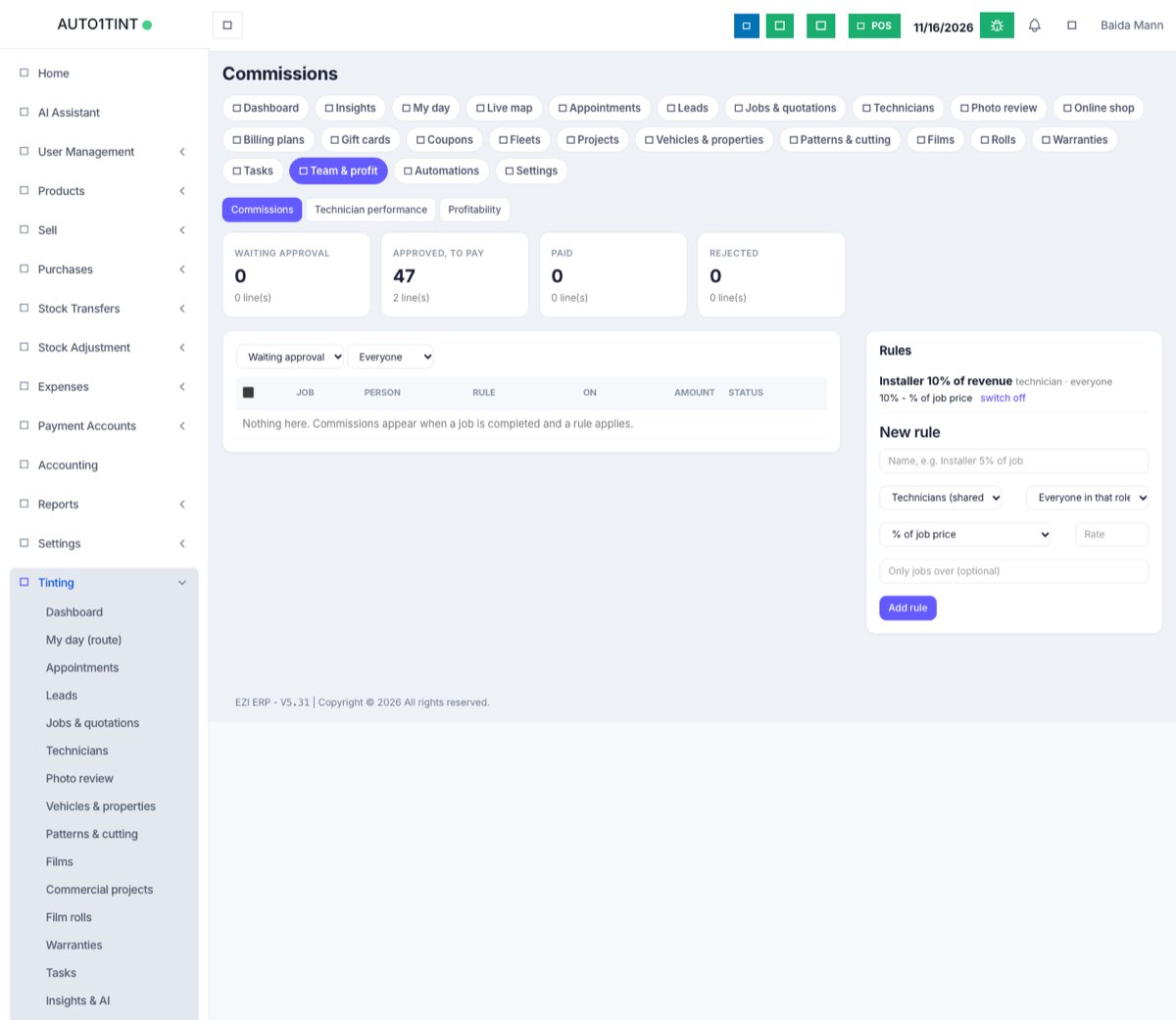
1. Create commission rules
- Go to Tinting → Team & profit. The Commissions tab opens.
- In the New rule box on the right, type a name, e.g. Installer 5% of job.
- Choose who it is for:
- Technicians (shared by crew): the amount is split equally between the lead technician and everyone else on the job's team.
- Salesperson: goes to one person, the owner of the lead the job came from, or (with no lead) whoever created the quotation.
- Leave Everyone in that role, or pick one person if the rule is only for them.
- Pick the basis and enter the Rate:
- % of job price
- % of job profit (price - film cost)
- Fixed per job
- Fixed per unit of a service: also pick the Service. The rate is multiplied by the quantity of that service on the job.
- Optionally fill Only jobs over so small jobs earn nothing.
- Press Add rule.
The rule applies to jobs completed from then on. To stop using a rule, press switch off next to it. Commissions already earned stay.
2. Approve and pay commissions
- When a job reaches Completed, one commission line appears per person per rule, with status Waiting approval.
- On the Commissions tab, the four boxes at the top show the totals for Waiting approval, Approved, to pay, Paid and Rejected. Click one to filter, or use the status and person drop-downs.
- Tick the lines (the top tick box selects all) and press Approve or Reject.
- When you pay, tick the approved lines, type a Payment reference (payroll run, cash...) and press Mark paid.
- Made a mistake? Back to waiting returns approved or rejected lines to waiting.
In our test shop, Omar Reyes's commission for Jordan Ellis's Camry job (TJ26-0001) was approved this way.
3. Recalculate a job
If you change the price, the crew or a rule after completion, open the job and press Recalculate commission in the Commission & tips panel (shown on completed and delivered jobs, managers only). Lines still waiting are rewritten. Approved and paid lines are never changed.
4. Record a tip
- Open the job card. In Commission & tips, choose the technician, enter the amount, choose cash, card or bank and press Add tip.
- The tip shows on that person's pay statement as owed until you hand it over.
5. Pay statements
- Click a person's name on the Commissions list (or in Technician performance).
- Choose the from and to dates and press Show. The default is the current month.
- The boxes show Jobs completed, Commission approved (and how much is still waiting), Commission paid, Tips (and how much is not handed over), Hours clocked and Overtime.
- When you give the tips to the person, press Mark tips handed over.
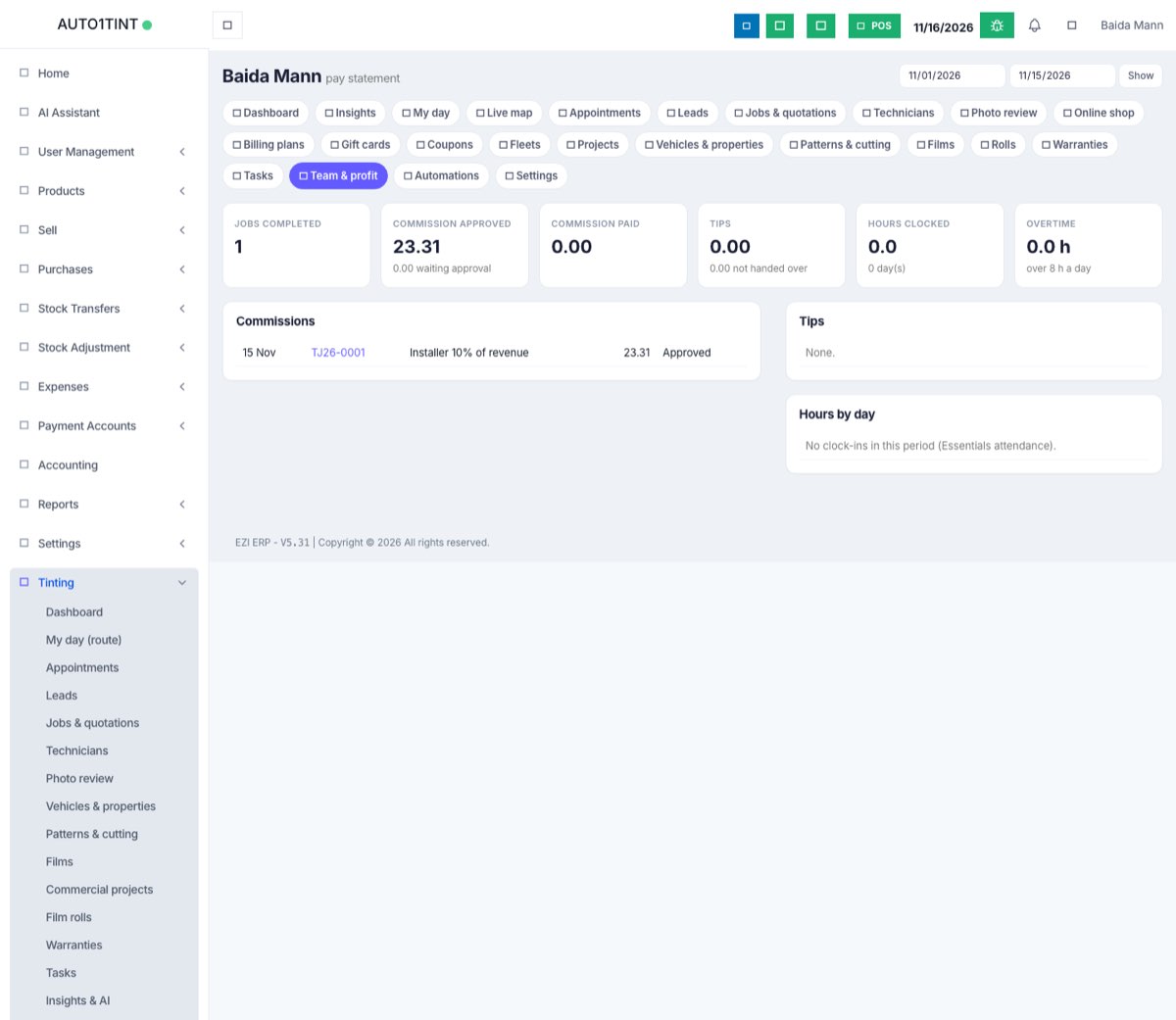
Hours and overtime come from the ERP's Essentials attendance (clock in / clock out). Any hours over the Standard working hours a day in Tinting settings count as overtime. Without Essentials attendance the hours table says No clock-ins in this period (Essentials attendance).
6. Technician performance
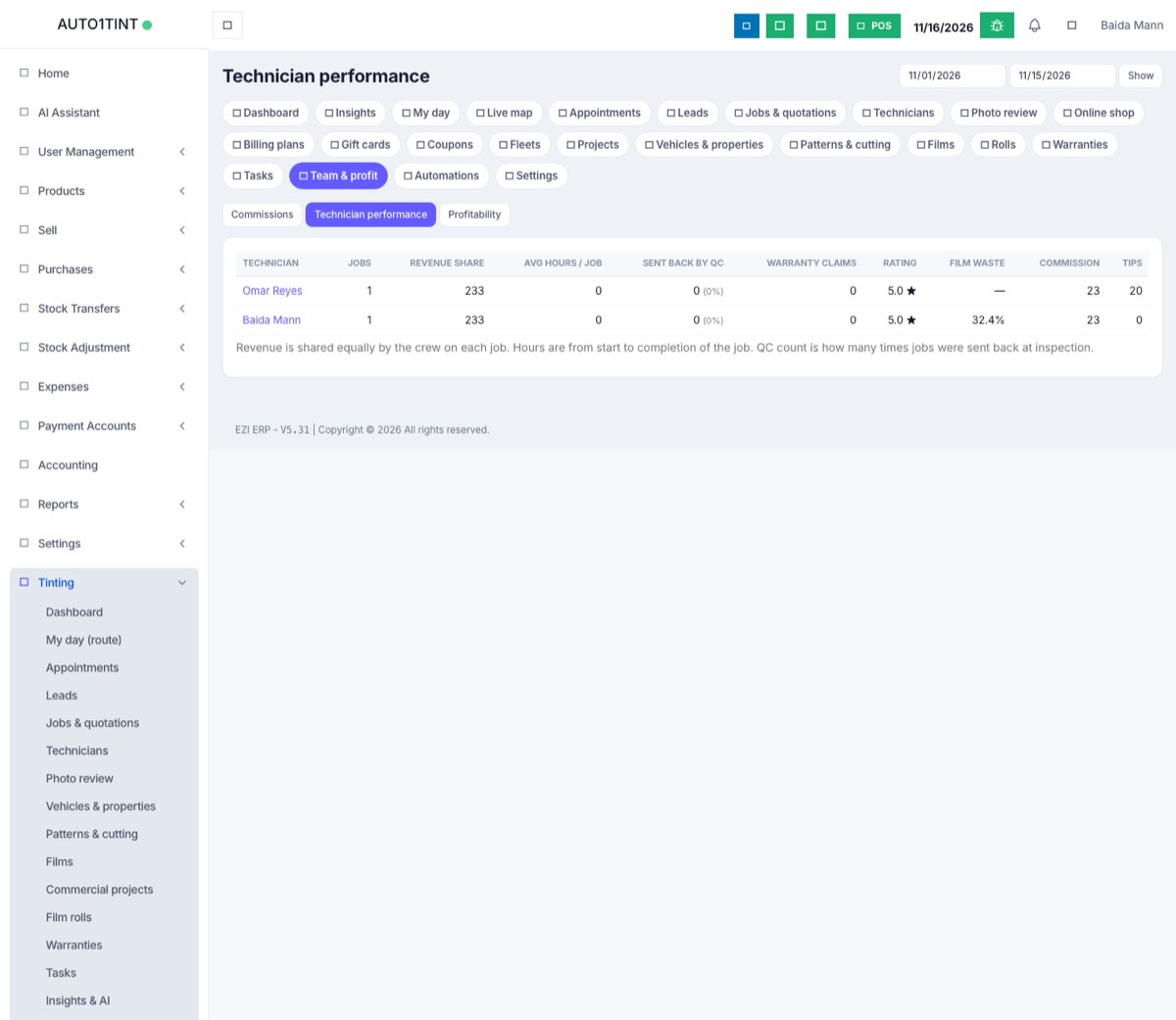
Tinting → Team & profit → Technician performance lists, for completed jobs in the chosen dates: jobs, revenue share (split equally across the crew), average hours per job (start to completion), how many times jobs were sent back at quality inspection, warranty claims, average customer rating, film waste %, commission and tips.
7. Profitability
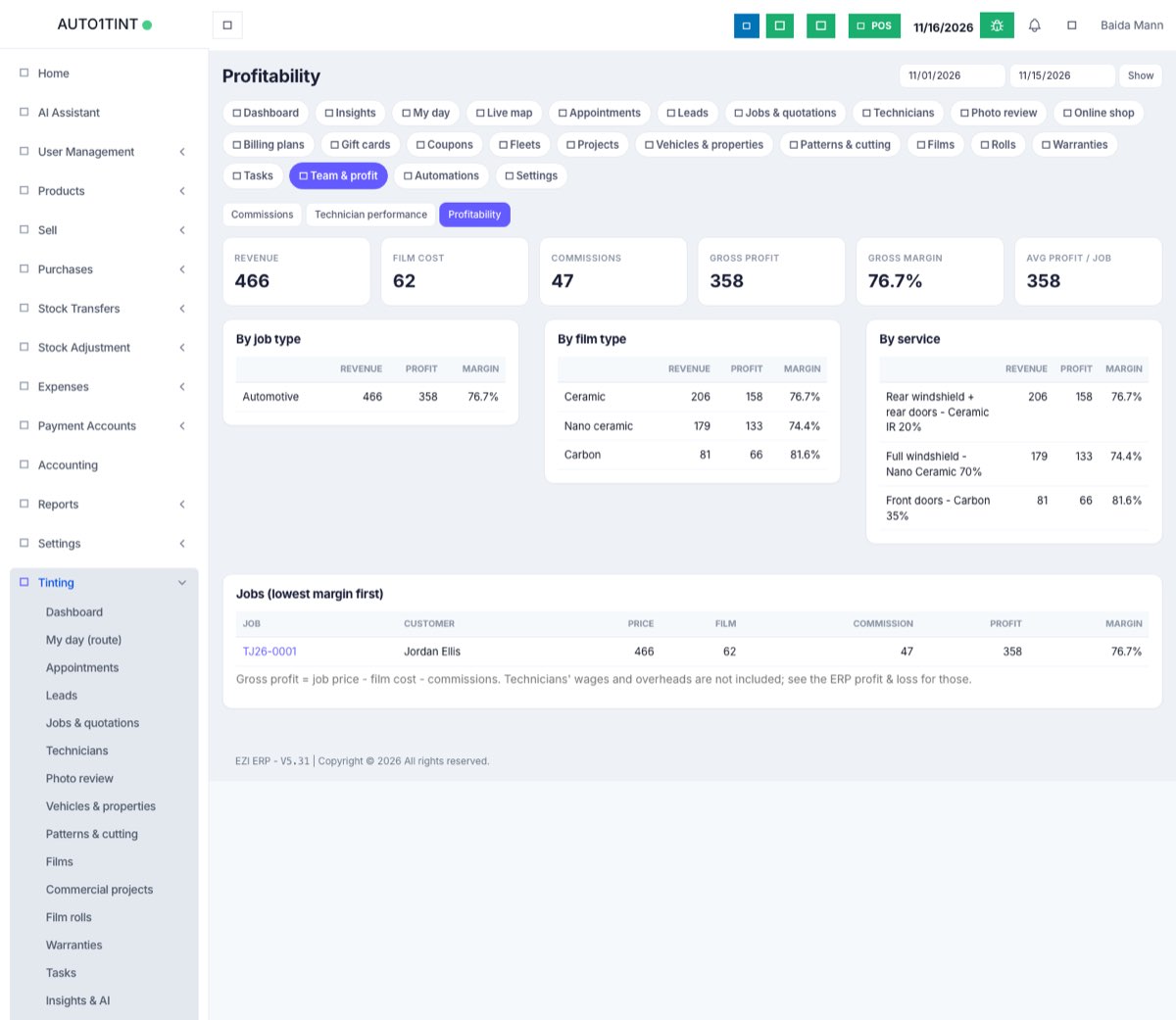
Tinting → Team & profit → Profitability shows revenue, film cost, commissions, gross profit, gross margin and average profit per job, then breaks profit down By job type, By film type and By service, and lists Jobs (lowest margin first).
Rules & limits
- Team & profit, statements, rules and recalculation need tinting.manage.
- A percentage rate cannot be over 100 (A percentage cannot be over 100.).
- Mark paid only works on approved lines; Approve and Reject only on waiting lines.
- A tip must go to someone who worked on the job (Tips go to someone who worked on the job.), unless a manager records it.
- % of profit uses film cost only; a job with no profit earns nothing on that rule.
- Gross profit = job price - film cost - commissions. Wages and overheads are not included; use the ERP profit & loss for those.