Leads and sales pipeline
Track every enquiry from first contact to won or lost, with sources, follow-ups and a conversion report, so no customer slips through the cracks.
What it is
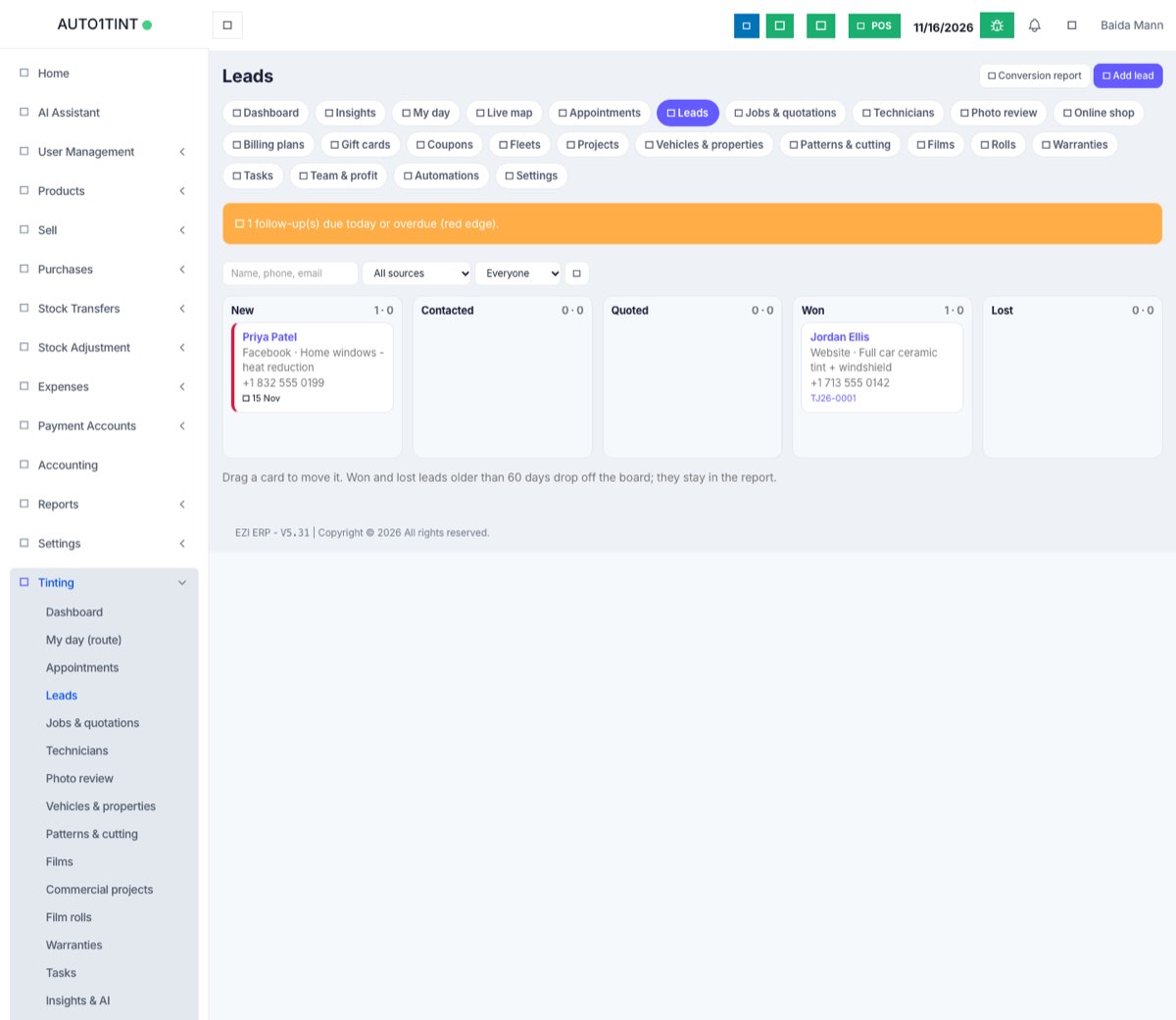
A lead is someone who has asked about tinting but has not booked or paid yet: a phone call, a walk-in, a Facebook message or a website form. The Leads page is a board with five columns, one for each stage:
New → Contacted → Quoted → Won / Lost
Each card shows the name, where the lead came from (the source), the estimated value, the next follow-up date and who is looking after it.
Who uses it
- Front desk and sales staff add leads, log calls and move cards along.
- Owner or manager turns leads into quotations, assigns leads to staff and reads the conversion report.
- Technicians (with only the
tinting.accesspermission) see leads assigned to them or not assigned to anyone.
Why it matters
Most tint shops lose work because nobody called back. The board shows at a glance who is waiting, which follow-ups are due today, and which sources (Google Ads, Instagram, referrals) actually bring paying customers.
How to use it
Add a lead by hand
- Go to Tinting → Leads and click Add lead.
- Fill in Name (required), Phone, Email and Source (required). Sources are: Website, Facebook, Instagram, Google Ads, Google Maps, Referral, Walk-in, Phone call, WhatsApp, Repeat customer, Other.
- Optionally add Campaign / ad, Interested in (for example "Ceramic tint, 2023 Civic"), Estimated value, Assigned to, Follow up on, Referred by (customer) and Notes.
- Click Add. If the phone number matches an existing customer, the lead is linked to that customer automatically.
Work a lead
-
Click a card to open it.
-
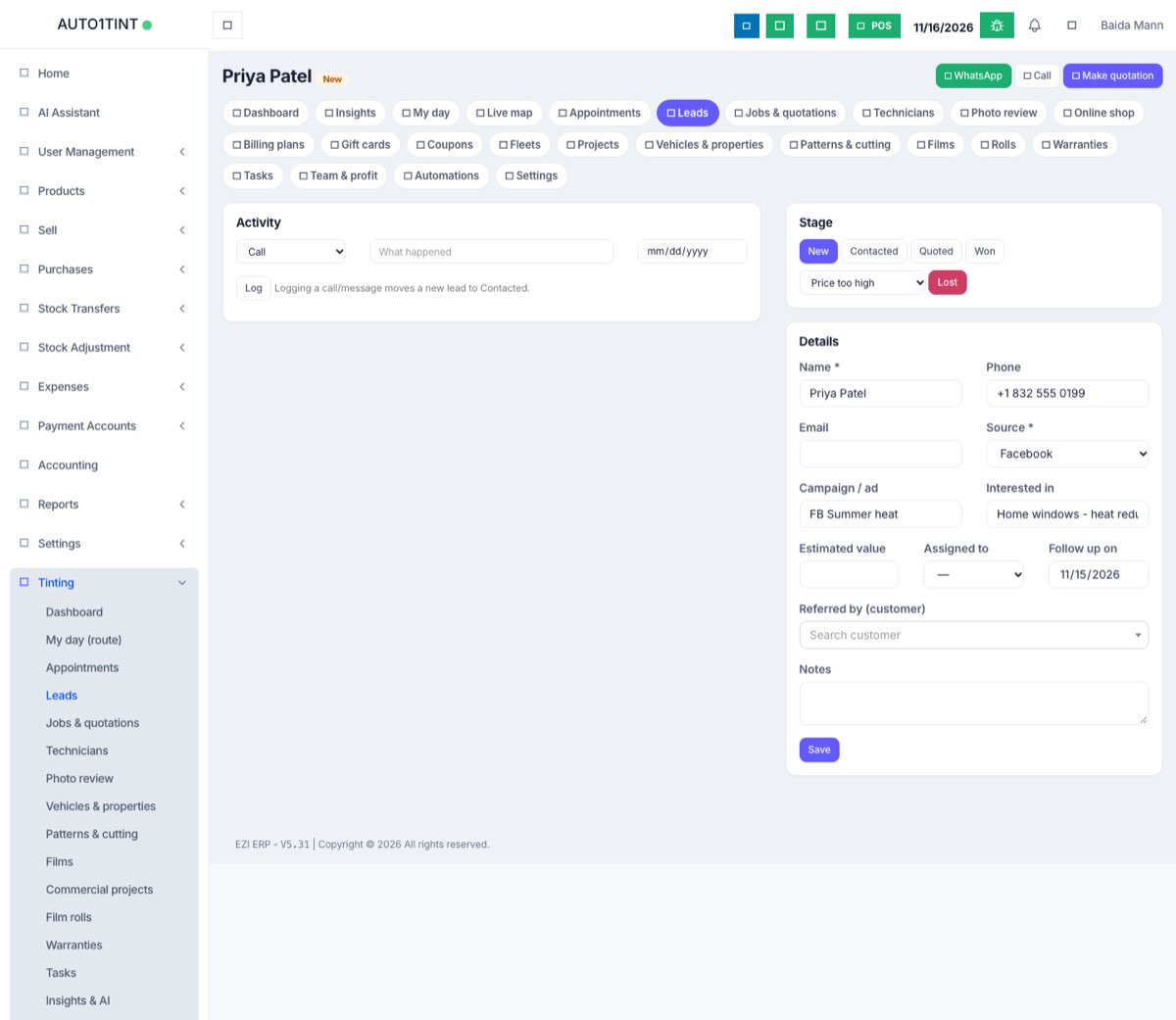
Use WhatsApp or Call at the top to contact the person.
-
Under Activity, pick Call, WhatsApp, Email or Note, type what happened, set the next follow-up date if needed and click Log. Logging a call or message on a New lead moves it to Contacted for you.
-
Change the stage with the Stage buttons, or drag the card to another column on the board.
-
To mark it Lost, choose a reason (Price too high, Went to a competitor, No response, Not ready yet, Legal tint limits, Out of service area, Other) and click Lost (or Mark lost when dragging).
-
Edit any detail under Details and click Save.
Turn a lead into a quotation
Managers see Make quotation on the lead's page. It creates the customer (if there is not one yet) and opens a new quotation already filled with that customer and linked to the lead. See Quotations and jobs.
Leads that arrive by themselves
- Every website or online-shop booking creates a New lead with source Website and a follow-up date of today. See Online booking.
- When the customer accepts the quotation (in the portal or by signing on a staff device) the linked lead becomes Won. If they decline it in the portal, the lead becomes Lost with their reason.
Leads from Facebook, Google Ads or Zapier
Your ads tools can send leads straight in. In Tinting → Settings copy the Lead endpoint address. The sending tool must POST JSON to it with the header X-Booking-Key (the website booking key from the same page) and these fields: name (required), mobile or email (one is required), source (one of website, facebook, instagram, google_ads, google_maps, referral, walk_in, phone, whatsapp, repeat, other; default other), campaign, interest, notes. See Settings.
Conversion report
Managers click Conversion report on the Leads page.
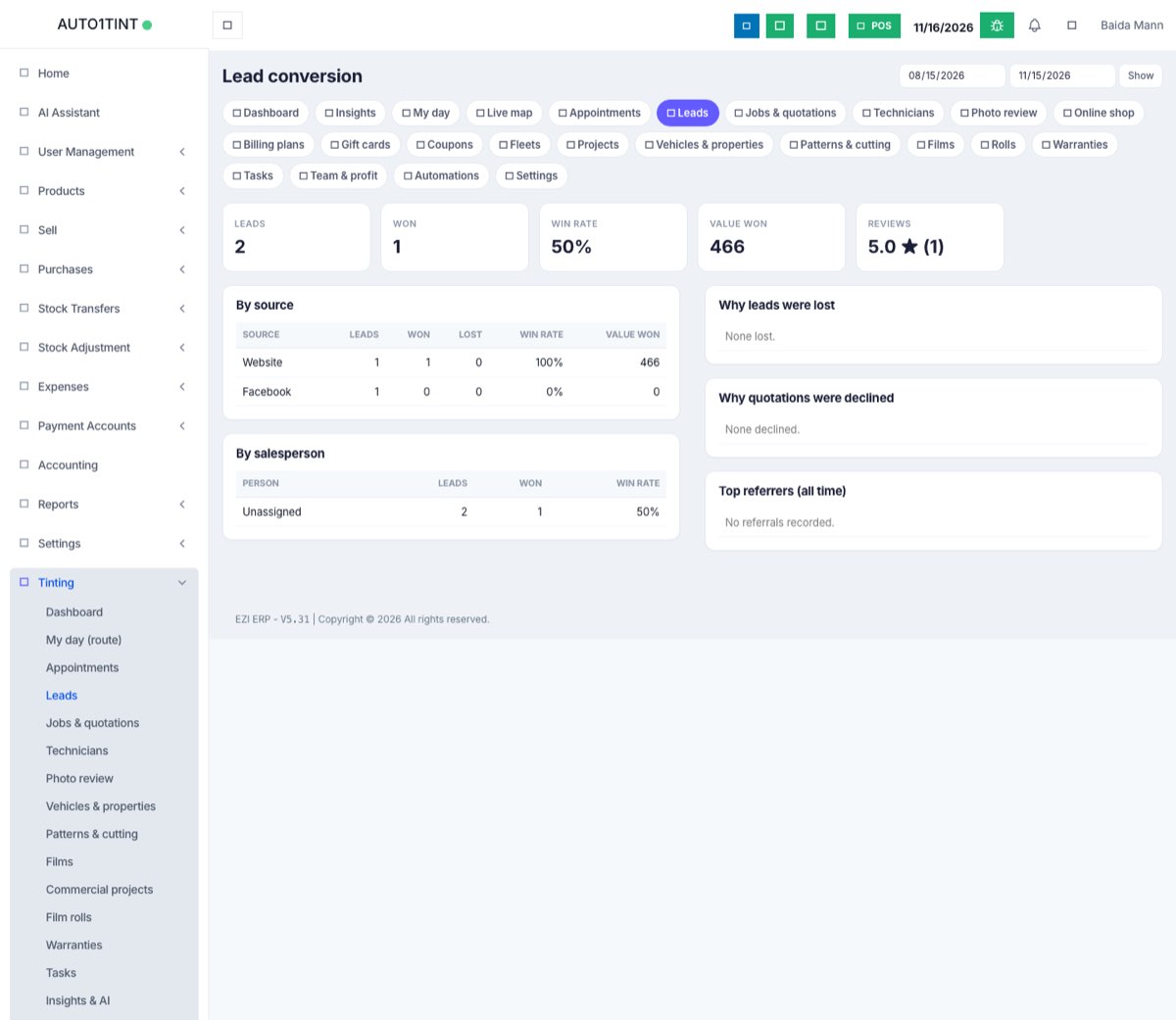
Pick a date range (default: the last three months) and click Show. You get:
- Totals: Leads, Won, Win rate, Value won and your average Reviews rating.
- By source and By salesperson tables.
- Why leads were lost and Why quotations were declined.
- Top referrers (all time).
Rules & limits
- Name and source are required; email must be a real email format.
- Lost always needs a reason; without one you see "Pick a reason for losing it."
- Won and lost leads drop off the board 60 days after their last change, but stay in the report.
- Make quotation and Conversion report need
tinting.manage. Staff with onlytinting.accesssee their own and unassigned leads. - A lead added by hand is assigned to whoever added it unless you choose someone else.
- The lead API returns "Invalid booking key." if the key is wrong or was regenerated.
Tips
- Set a follow-up date on every open lead. A yellow banner on the Leads page counts follow-ups due today or earlier, and the Dashboard shows them too.
- Fill in Campaign / ad so the report tells you which ad paid for itself.
- Use Referred by to credit customers who send friends; this drives referral rewards.
- Want automatic texts when a lead arrives? Set up an automation on the "lead created" trigger.